
Markups
Configure your agency's markup rules
Markups let you apply a commercial markup on top of suppliers' net prices. You can create global rules that apply to all of the agency's connections, or connection-specific rules, configuring the margin type, amount range, validity period, and application priority.
The resulting markup is reflected in each booking's price breakdown (the Markup line in the summary) and determines the final price shown to the client.
Accessing Margins
- Log in to the Bundleport platform.
- In the left-hand side menu, select Agency Panel.
- Under Settings in the side menu, select Margins.
Rules list
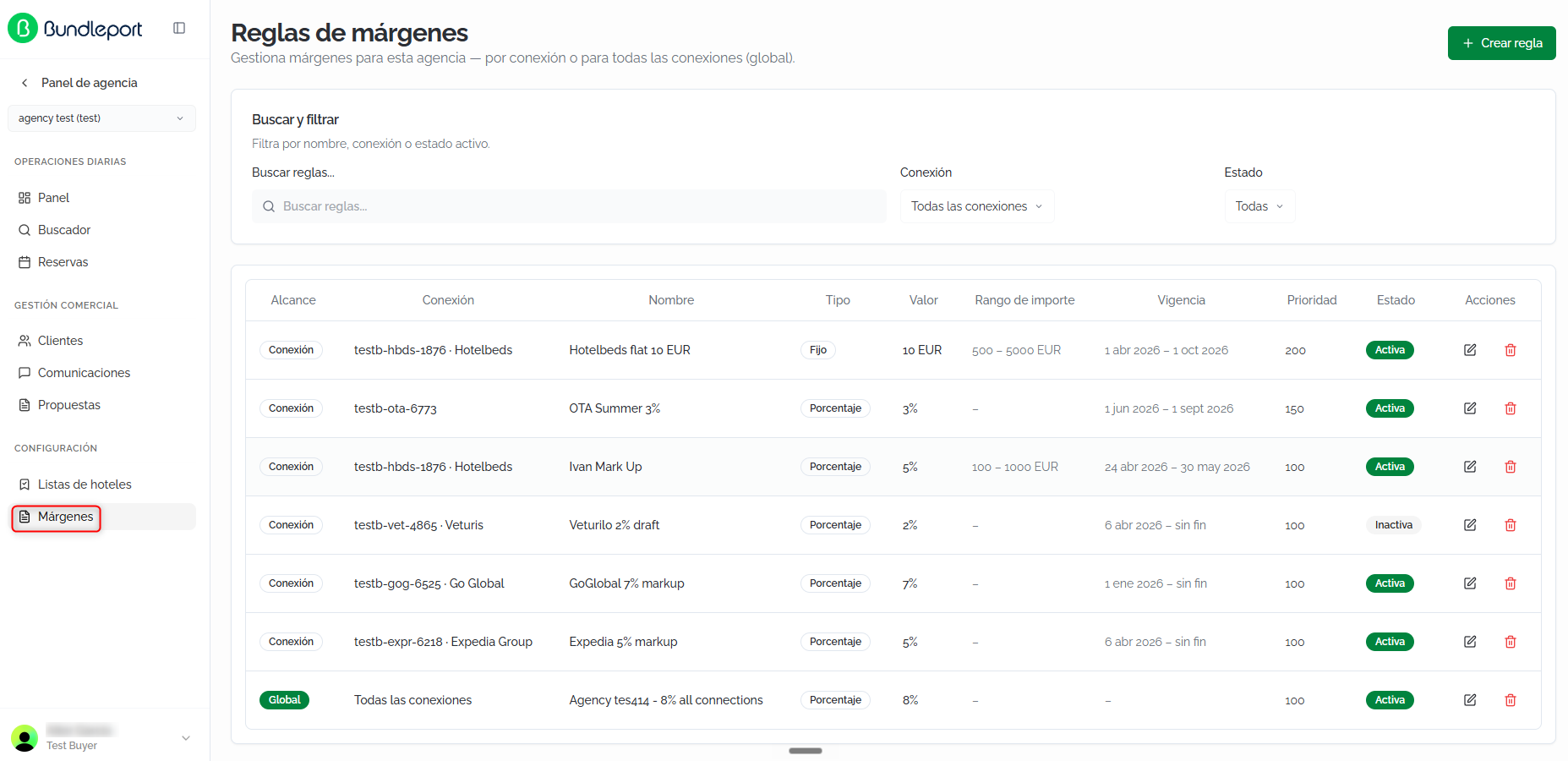
The main screen shows all the margin rules configured for your agency.
Search and filters
At the top, you can filter the rules using the following controls:
- Search rules: free-text search (name, connection, or status).
- Connection: filter by a specific connection or show all.
- Status: filter by All, Active only, or Inactive only.

Rules table
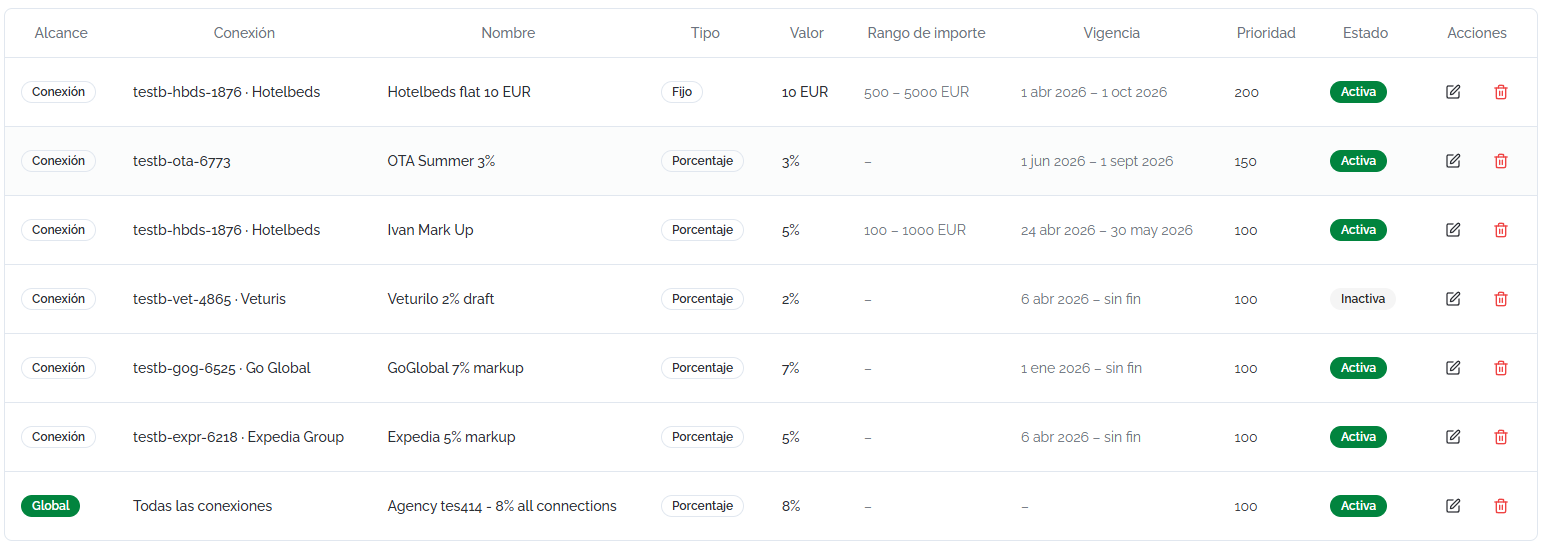
Each rule is shown as a row with the following columns:
- Scope: indicates whether the rule applies to a specific connection or globally.
- Connection: the connection the rule applies to (if scoped by connection).
- Name: identifying name of the rule.
- Type: Percentage or Fixed.
- Value: the margin value applied (percentage or fixed amount).
- Amount range: the booking price range the rule applies to. If not defined, "–" is shown.
- Validity: the validity period (start date – end date, or no end date if it doesn't expire).
- Priority: a numeric value that determines which rule takes precedence when several apply. The higher the number, the higher the priority.
- Status: Active or Inactive.
- Actions: edit or delete the rule.
Creating a margin rule
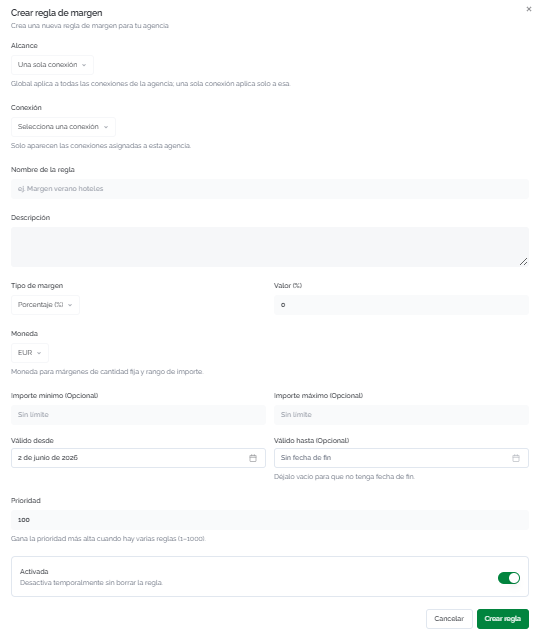
Click + Create rule in the top right corner. The form will open with the following fields:
- Scope: select whether the rule applies to A single connection or Globally (all of the agency's connections).
- Connection: if the scope is by connection, select the connection. Only connections assigned to your agency are shown.
- Rule name: identifying name (for example, Summer hotel margin).
- Description: optional free text to describe the rule's purpose.
- Margin type: Percentage (%) or Fixed amount.
- Value: the numeric margin value to apply.
- Currency: the reference currency (relevant for fixed-amount margins and for the amount range).
- Minimum amount (optional): the minimum booking amount above which the rule applies. If left blank, there's no lower limit.
- Maximum amount (optional): the maximum booking amount up to which the rule applies. If left blank, there's no upper limit.
- Valid from: the start date of the rule's validity.
- Valid until (optional): the end date. Leave blank for the rule to have no expiration date.
- Priority: a value between 1 and 1000. When several rules apply to the same booking, the one with the highest priority wins.
- Enabled: a toggle to temporarily activate or deactivate the rule without deleting it.
Click Create rule to save, or Cancel to discard.
⚠️ Important
When several rules apply to the same booking (by scope, amount range, and validity), only the rule with the highest priority is applied. Make sure priorities reflect the hierarchy you need: for example, a rule specific to a premium connection should have a higher priority than the default global rule.
💡 Tip
Use the amount range to create tiered rules. For example, a 5% markup for bookings of €0–500, 3% for bookings of €500–2000, and 2% for bookings over €2000. Assign the same priority to all three rules since the ranges don't overlap.
Editing and deleting rules
Editing: Click the edit icon (pencil) in the Actions column for the rule you want to modify. The same creation form will open, pre-filled with the current values. Make the necessary changes and save.
💡 Tip
If you need to temporarily deactivate a rule, use the Enabled toggle instead of deleting it. This way you can reactivate it in the future without having to recreate it.

Deleting: Click the trash icon in the Actions column. This action permanently deletes the rule and cannot be undone. Bookings already made with this rule's markup are not affected.

FAQs
What happens if there's no active margin rule?
Bookings will be processed at the supplier's price, with no additional markup. The Markup field in the price breakdown will show 0.
What's the difference between a global rule and a connection-specific rule?
A global rule applies to all of the agency's connections. A connection-specific rule applies only to the selected connection. If both apply, the one with the higher priority prevails.
Can I have percentage and fixed-amount rules active at the same time?
Yes, you can create rules of both types. If several rules apply to the same booking, only the one with the highest priority will be applied, regardless of whether it's percentage or fixed amount.
Is the margin applied on top of the supplier's price?
Yes. The markup is calculated on the supplier's base price. The result is shown as the Markup line in the booking's price breakdown.
Can I limit a rule to a price range?
Yes. Use the Minimum amount and Maximum amount fields to define the booking price range the rule applies to. If you leave both blank, the rule applies to any amount.
Can I deactivate a rule without deleting it?
Yes. Edit the rule and turn off the Enabled toggle. The rule will stop applying but will remain in the list with Inactive status so you can reactivate it in the future.
What does priority mean and what values can I use?
Priority is a value between 1 and 1000 that determines which rule takes precedence when several apply. The higher the number, the higher the priority. If two rules match in scope, range, and validity, only the one with the highest priority is applied.
Where can I see the markup applied to a booking?
In the Booking summary (side panel during checkout or on the confirmation page) and in the price breakdown on the results page, the Markup line shows the percentage and amount of the margin applied on top of the net price.
Do changes to margin rules affect bookings already made?
No. Margin rules are applied at the time of search and booking. Later changes (editing, deactivating, or deleting rules) do not modify the markup of bookings that have already been confirmed.
No comments to display
No comments to display