
Clients
Centralize your client information
Clients is the contact management tool built into the Agency Panel. It lets you centralize client and traveler information, view each client's history of proposals and bookings, and speed up the booking process by pre-filling traveler data at checkout.
Instead of entering passenger details for every quote or booking, agents build a reusable database that grows with each interaction, reducing manual work and minimizing errors.
Accessing Clients
- Log in to the Bundleport platform.
- In the left-hand side menu, select Agency Panel.
- Select Clients.
Clients list
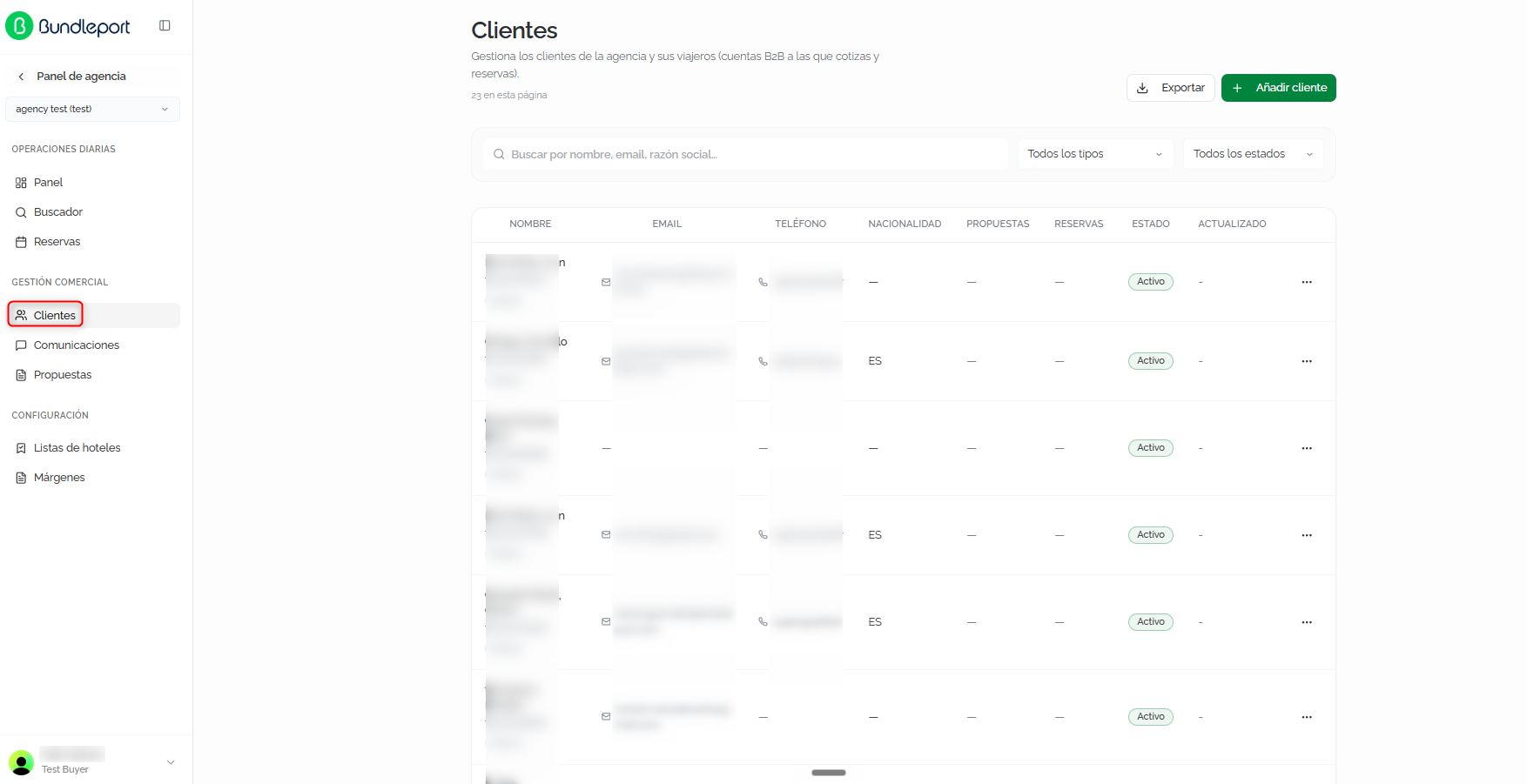
The page shows the agency's full list of clients, with the total number of records at the top.
Search and filters
- Search: free-text field to locate clients by name, email, or company name.
- All types: filter by client type (Individual or Company).
- All statuses: filter by status (Active or Inactive).

Clients table
Each client is shown as a row with the following columns:
- Name: client name, identifying code, and type.
- Email: contact email address.
- Phone: phone number.
- Nationality: client's country.
- Proposals: number of associated proposals.
- Bookings: number of associated bookings.
- Status: Active or Inactive.
- Updated: date of the last update.
Export
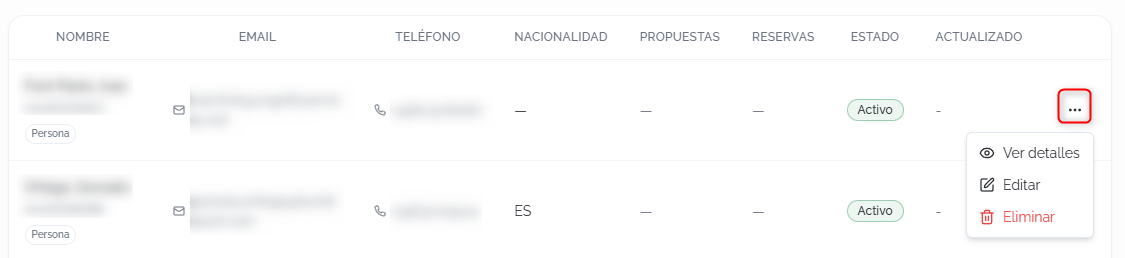
Click Export to download the client list as a CSV file.
Adding a client
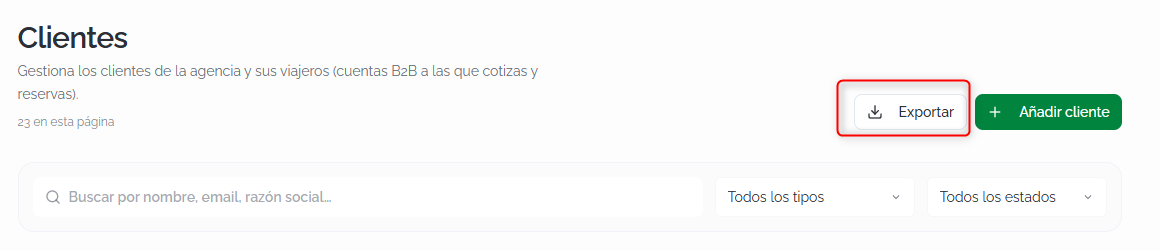
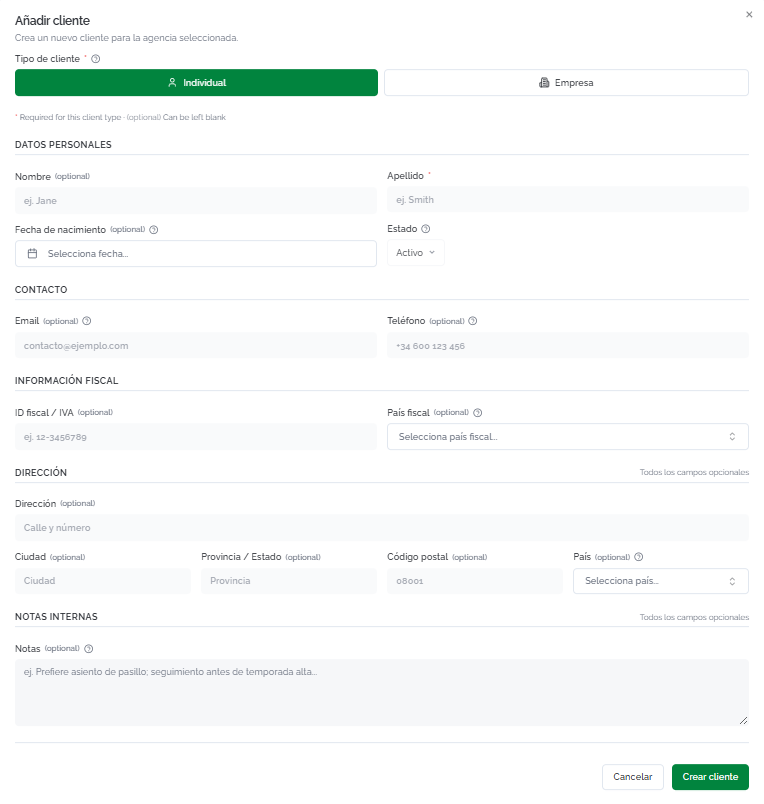
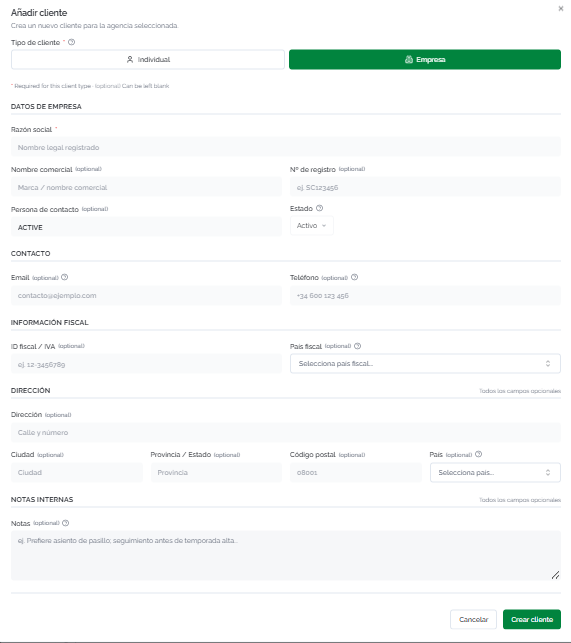
Click Add client to open the creation form. Select the client type: Individual or Company. The fields vary depending on the selected type.
Individual client
- Personal details: first name (optional), last name (required), date of birth (optional), and status (Active by default).
- Contact: email and phone (both optional).
- Tax information: tax ID / VAT and tax country (both optional).
- Address: address, city, state/province, postal code, and country (all optional).
- Internal notes: free-text field for notes about the client (for example, seating preferences, sales follow-up).
ℹ️ Information
The only required field to create an individual client is the Last name. The rest of the fields can be filled in later as information is gathered. This makes it possible to create clients quickly during a call or inquiry and enrich their profile afterward.
Company client
- Company details: legal name (required), trade name (optional), registration number (optional), contact person (optional), and status (Active by default).
- Contact: email and phone (both optional).
- Tax information: tax ID / VAT and tax country (both optional).
- Address: address, city, state/province, postal code, and country (all optional).
- Internal notes: free-text field for notes.
Click Create client to save the record, or Cancel to discard it.
Client details
Clicking View details or a client's name opens their full profile. The header shows the name, status, type, identifying code, email, and phone.
From the header, you can:
- New proposal: creates a proposal linked to this client. A dialog opens where you enter the title and confirm the client.
- Edit: opens the edit form with the same fields as in creation.
- Delete: removes the client from the agency.
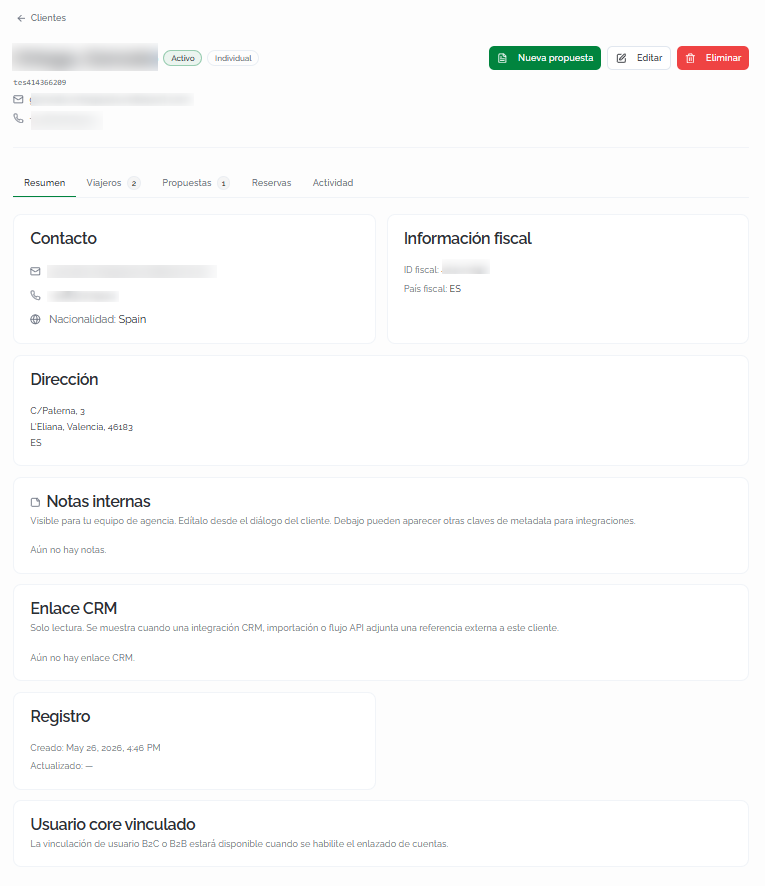
The profile is organized into five tabs:
Overview
General view with all the client's information:
- Contact: email, phone, and nationality.
- Tax information: tax ID / VAT and tax country.
- Address: full address.
- Internal notes: notes visible to the agency team, editable from the edit form.
- CRM link: read-only external reference. Shown when a CRM integration, import, or API flow attaches a reference to this client.
- Record: creation date and last update.
- Linked core user: information about linking to B2C or B2B accounts (available when account linking is enabled).
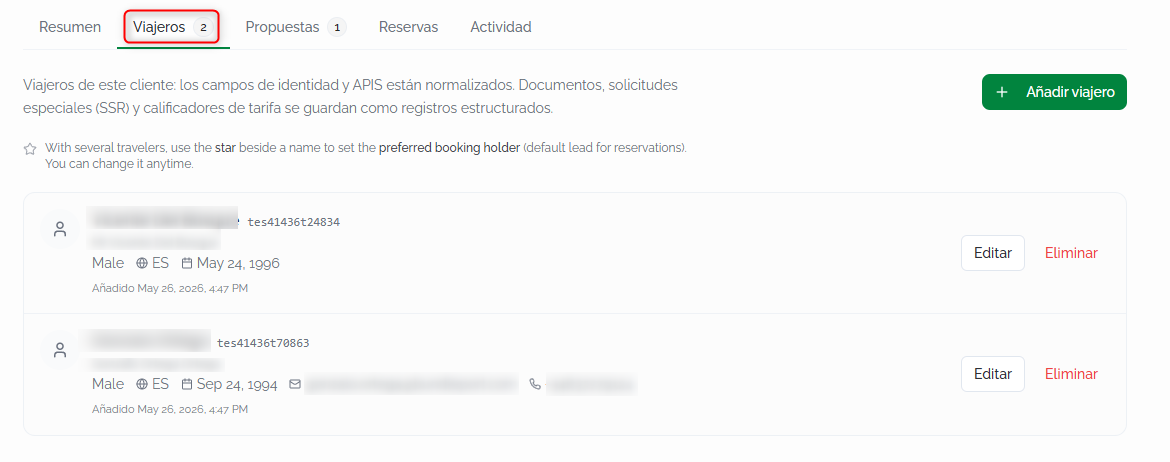
Travelers
List of travelers associated with the client. Each traveler shows full name, title, gender, nationality, date of birth, contact details (if available), and creation date. Each record includes Edit and Delete buttons.
Click Add traveler to create a new traveler associated with this client.
💡 Tip
Travelers you register here will be available to auto-fill data at checkout for any booking linked to this client. Instead of typing in passenger details every time, select the corresponding traveler and the fields are filled in automatically. This is especially useful for flight bookings, where travel document details are required.
Proposals
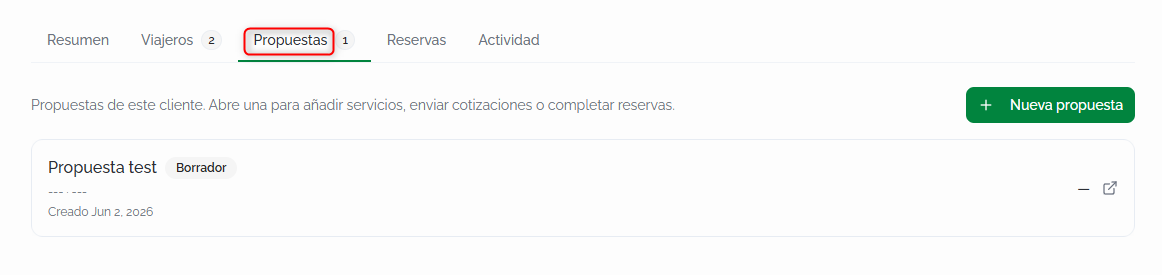
List of proposals associated with the client. Each proposal shows its title, status (for example, Draft), and creation date. Click a proposal to open it and add services, send quotes, or complete bookings.
Click New proposal to create a proposal directly linked to this client.
Bookings
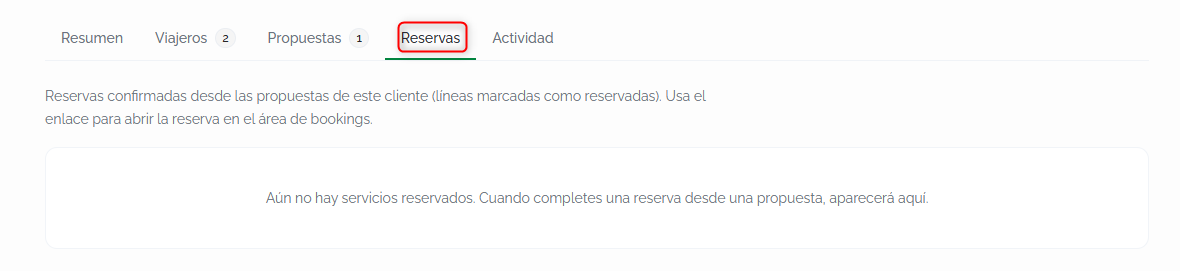
List of bookings confirmed from this client's proposals. Each entry links directly to the booking in the Bookings module.
ℹ️ Information
Bookings appear here as they're completed from the client's proposals. If a booking was made without linking a client at checkout, it won't appear on this tab.
Activity
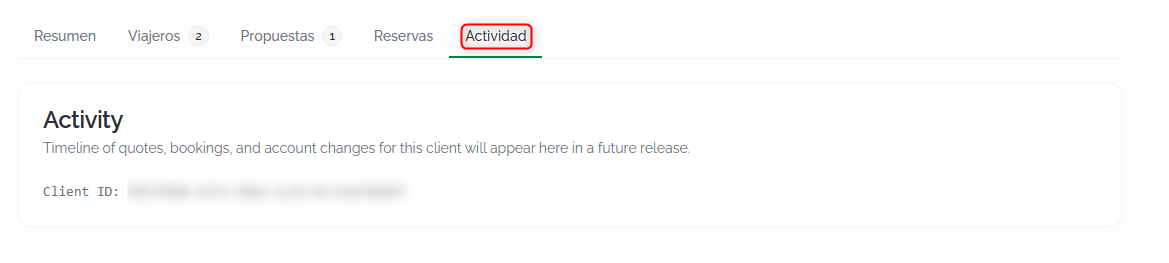
Chronological log of actions performed on the client's profile: creation, edits, travelers added, and other changes.
FAQs
What's the difference between a client and a traveler?
The client is the person or company contracting the service (the holder of the business relationship). Travelers are the people who actually travel. A client can have multiple travelers associated with them (for example, a family or a corporate group).
What information is required to create a client?
For an individual client, only the Last name is required. For a company client, only the Legal name is required. The rest of the fields can be filled in later.
How does traveler auto-fill work at checkout?
When you link a client to a booking during checkout, the travelers registered on their profile appear as options to auto-fill the passenger details. Select the corresponding traveler and the fields (first name, last name, date of birth, nationality, and, if registered, travel document details) are filled in automatically.
>Can I create a client directly from a booking's checkout?
Yes. In the Associated client field at checkout, click New client to create a client without leaving the booking process.
What happens if I make a booking without linking a client?
The booking is completed normally, but it won't be linked to any client in the Clients module. It won't appear on the Bookings tab of any client's profile.
Can I export the client list?
Yes. Click Export to download the list as a CSV file.
What is the "CRM link" field?
It's a read-only external reference that appears when a CRM integration, an import, or an API flow attaches a reference to this client. It cannot be edited manually.
Can I deactivate a client without deleting them?
Yes. Edit the client and change their status from Active to Inactive. The client will stop appearing in the default filters, but their data and history are preserved.
No comments to display
No comments to display