
Communications
Configure and view your agency's notifications
Communications is the Agency Panel module that manages all the automatic notifications Bundleport sends related to your agency's activity: booking confirmations, cancellations, and proposal sends. From here, you can view the history of sent notifications, customize the email branding, and configure which events trigger notifications, through which channels, and to whom they're sent.
The module is organized into three tabs: Notifications (send history), Sender (brand identity), and Settings (events and recipients).
Accessing Communications
- Log in to the Bundleport platform.
- In the left-hand side menu, select Agency Panel.
- Select Communications.
Notifications
The Notifications tab shows the history of all notifications sent by the platform, both by email and in-app.
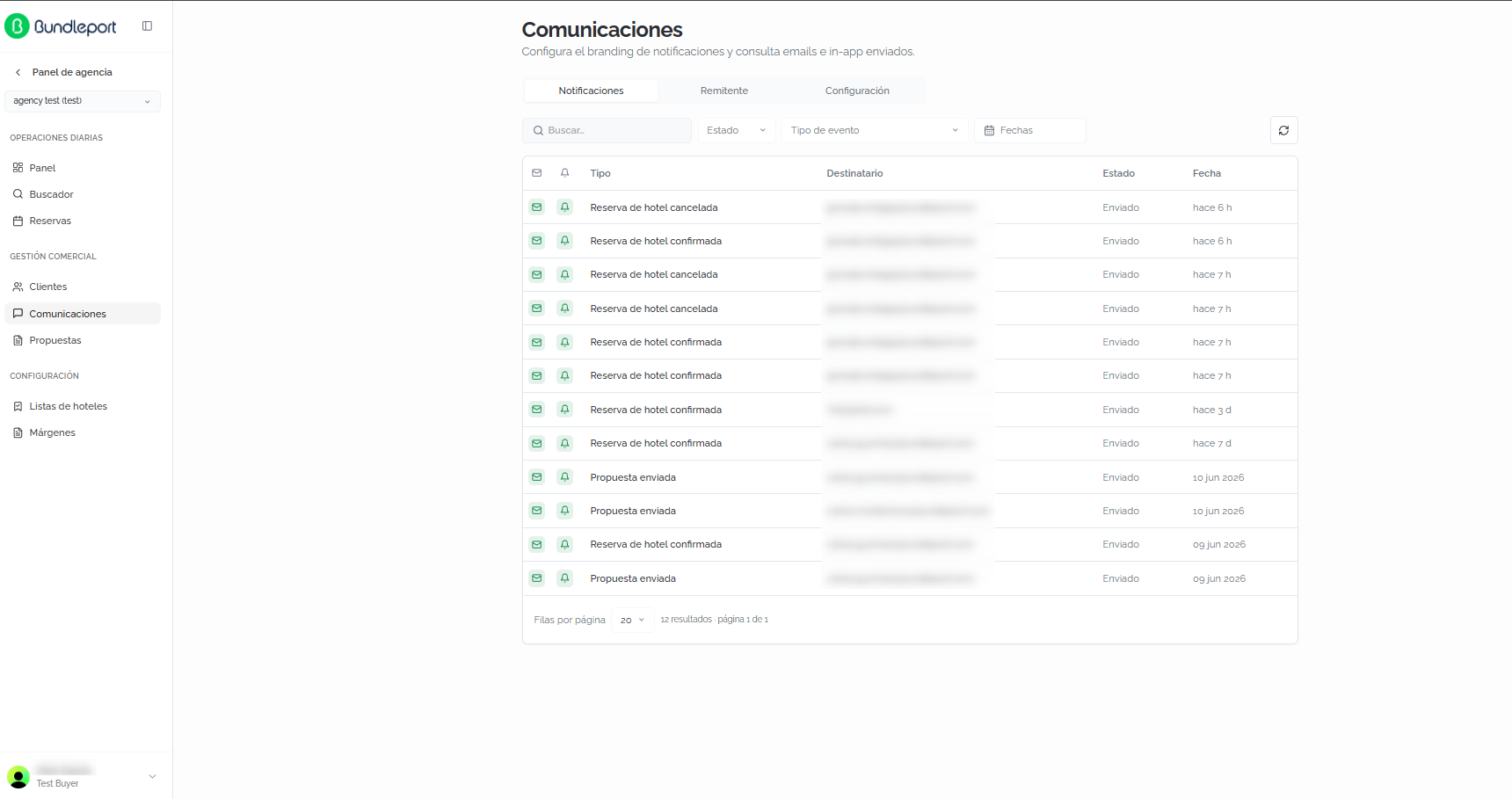
Filters
You can filter the list using the following controls:
- Search: free-text field to locate notifications.
- Status: filter by notification status: Sent, Pending, or Failed.
- Event type: filter by notification type: Hotel booking cancelled, Hotel booking confirmed, or Proposal sent.
- Dates: filter by date range.
Click the refresh button in the right corner to reload the list.

Communications table
Each notification is shown as a row with the following columns:
- Channel icons: indicate which channels the notification was sent through. The envelope icon indicates Sent by email, and the bell icon indicates Sent in-app.
- Type: the event type that triggered the notification (for example, Hotel booking confirmed).
- Recipient: the recipient's email address.
- Status: the send status (Sent, Pending, or Failed).
- Date: the time it was sent (for example, 6 hours ago, Jun 10, 2026).
The pagination at the bottom lets you set the number of rows per page and navigate between pages.
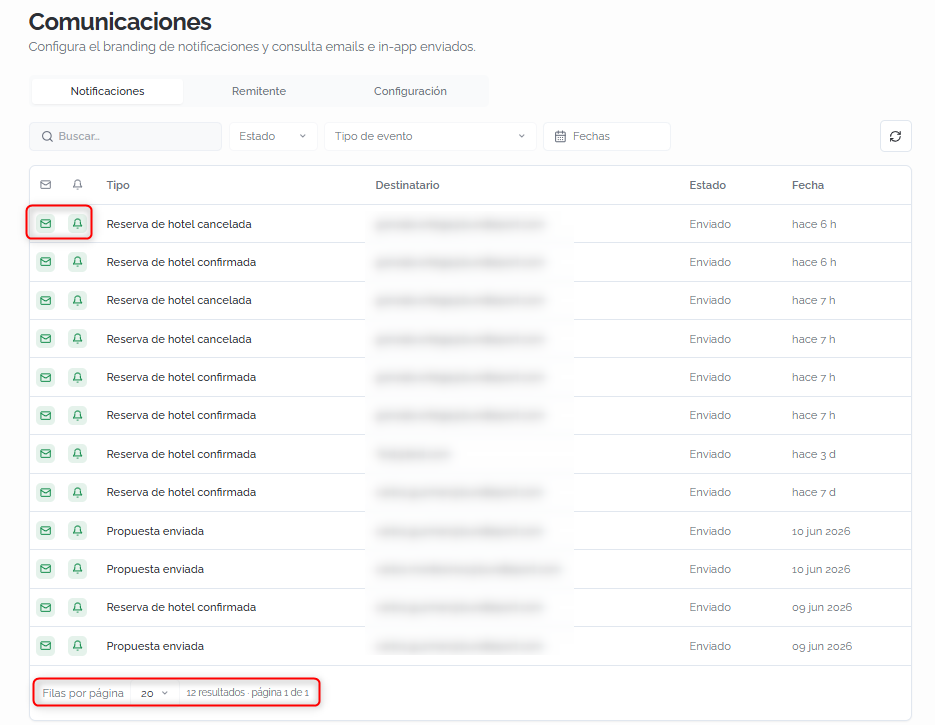
Communication details
Click any row to open the notification's details. The modal shows:
- Header: event name (for example, Hotel booking cancelled), event description, and technical event code (for example, BOOKING_HOTEL_CANCELLED).
- Send information: status, language, send date, and creation date.
- Channels: details for each channel the notification was sent through:
- In-app: send status, number of recipients, workflow used, and recipient agent.
- Email: send status, number of recipients, workflow used, and holder (name + email).
- Routing recipients: expandable section with recipient details.
- Technical details: expandable section with technical send information.
- Payload: expandable section with the data sent in the notification.
- Resend notification: creates a new send record with the same data as the original notification.
💡 Tip
Use Resend notification when a client hasn't received a confirmation or cancellation email. A new send is generated with the same data without affecting the original record.
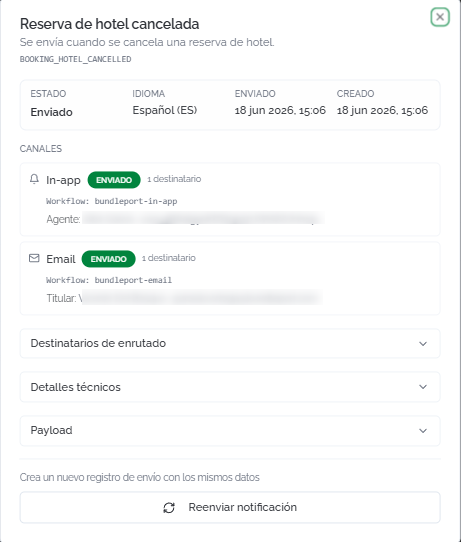
Sender
The Sender tab lets you configure how your agency appears in the notification emails that travelers and clients receive. The available fields are:
- Display name: the name that appears before the email address in the traveler's inbox (for example, your agency's name).
- Reply-to address: the email address used when the traveler clicks "Reply." This lets you receive replies in your own mailbox instead of the platform's technical sender address.
- Logo URL (HTTPS): the URL of the logo image shown at the top of each email. Recommendations: transparent PNG, maximum 200 px wide, under 50 KB for fast loading.
- Default language: the fallback language for email templates when the booking doesn't specify one.
- Advanced settings — sending domain: configuration for the custom domain used to send emails.
Click Save branding to apply the changes.
⚠️ Important
Set up the Display name and Reply-to address before you start operating. The confirmation and cancellation emails your clients receive will show this identity. If not configured, emails will arrive with the platform's default identity.
Settings
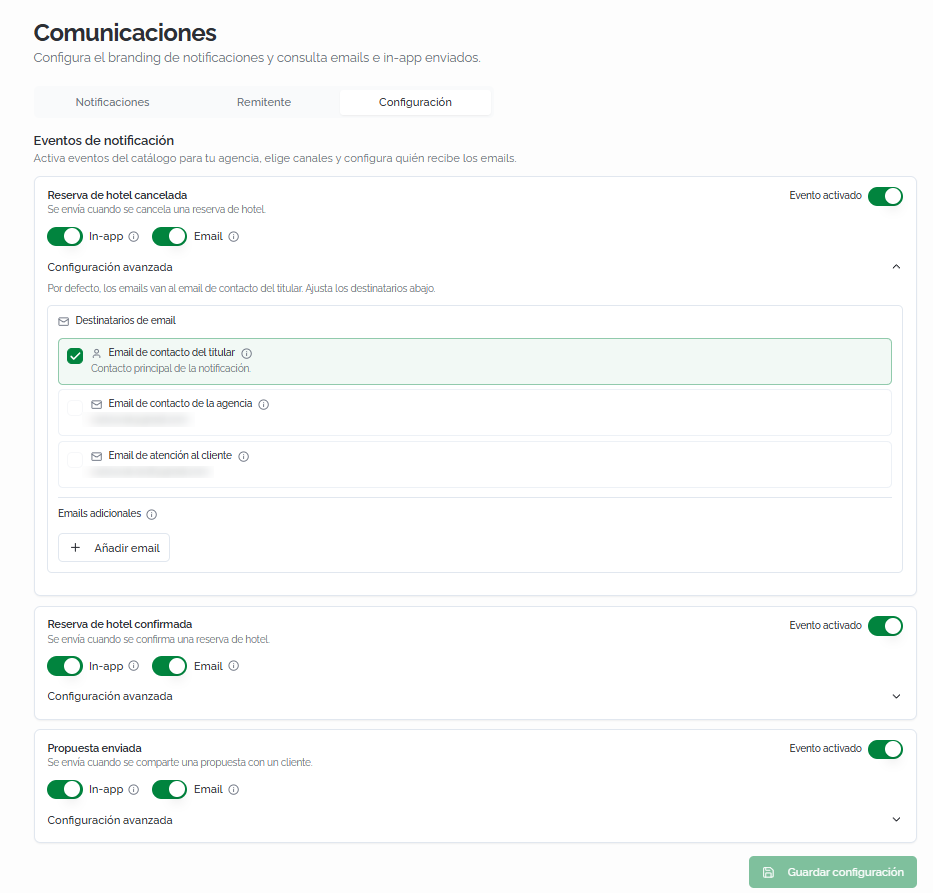
The Settings tab lets you enable or disable notification events, choose the send channels, and configure who receives the emails.
Notification events
Each event type is shown as a card with the following controls:
- Event enabled: a master toggle that enables or disables notifications for that event.
- In-app: a toggle that controls whether the event generates an in-platform notification.
- Email: a toggle that controls whether the event generates an email.
The available events are:
- Hotel booking cancelled: sent when a hotel booking is cancelled.
- Hotel booking confirmed: sent when a hotel booking is confirmed.
- Proposal sent: sent when a proposal is shared with a client.
Email recipients
Within the Advanced settings of each event, you can define who receives the emails. By default, emails are sent to the booking holder's contact email.
The configurable recipients are:
- Holder's contact email: the notification's main contact (the email associated with the booking or proposal).
- Agency contact email: the agency's general email address.
- Customer service email: the email address of the agency's support team.
- Additional emails: click + Add email to include additional email addresses as recipients.
Enable or disable each recipient according to each event's needs. For example, you can set cancellations to be sent to both the holder and the agency, while confirmations only reach the holder.
Click Save settings to apply the changes.
💡 Tip
Set the agency as an additional recipient for cancellation events (Hotel booking cancelled) so the team is always informed of cancellations without needing to check the platform.
FAQs
What notification channels are available?
Two channels: Email (sends an email to the recipient) and In-app (a notification within the Bundleport platform). You can enable or disable each channel independently per event.
Can I resend a notification that's already been sent?
Yes. Open the notification's details and click Resend notification. A new send record is created with the same data, without modifying the original record.
What happens if a notification has "Failed" status?
It means the send didn't complete successfully. Open the notification's details to check the affected channels and the technical error details. You can try resending it with the Resend notification button.
Who are notification emails sent to by default?
By default, to the contact email of the booking or proposal holder. You can add additional recipients (agency, customer service, custom emails) from the Settings tab, in each event's advanced settings.
How do I customize the appearance of the emails my clients receive?
From the Sender tab: configure your agency's name, the reply-to address, and the logo that will appear in the emails.
What format should the email logo be?
Transparent PNG, maximum 200 px wide, and under 50 KB for fast loading. The URL must use HTTPS.
Can I disable notifications for a specific event type?
Yes. In the Settings tab, turn off the Event enabled toggle on the corresponding card. You can also disable just one channel (for example, disabling email while keeping in-app).
Are flight and ground transportation notifications also configured here?
The visible events depend on the booking types your agency handles. As new event types are added to the catalog, they'll automatically appear in the Settings tab.
What is the "Reply-to address" in the Sender tab?
It's the email address the client will see when they click "Reply" from their inbox. Set it to your agency's address so client replies reach your own mailbox instead of the platform's technical sender.
No comments to display
No comments to display