
Hotel Lists
Control which hotels appear in your searches
Hotel lists let you control which hotels appear in your agency's search results for each destination. You can configure each destination in whitelist mode (only the hotels included in the list are shown) or blacklist mode (all hotels are shown except the excluded ones), and mark hotels as favorites to quickly identify them in the Search Engine.
This configuration directly affects the results of the Hotel Booking Tool: your agency's agents will only see the hotels allowed by the active strategy for each destination.
Accessing Hotel lists
- Log in to the Bundleport platform.
- In the left-hand side menu, select Agency Panel.
- Under Settings in the side menu, select Hotel lists.
Configured destinations
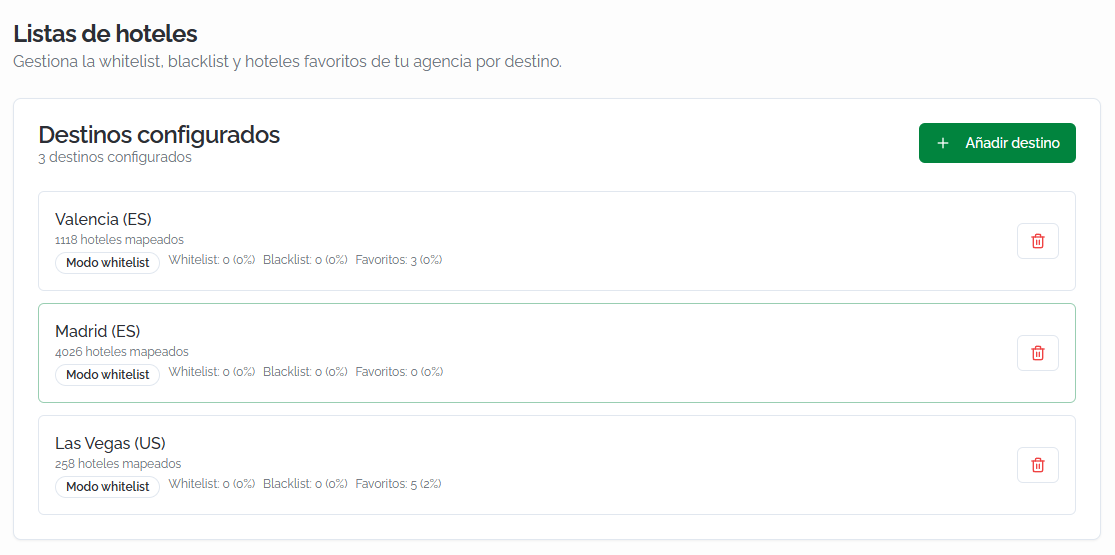
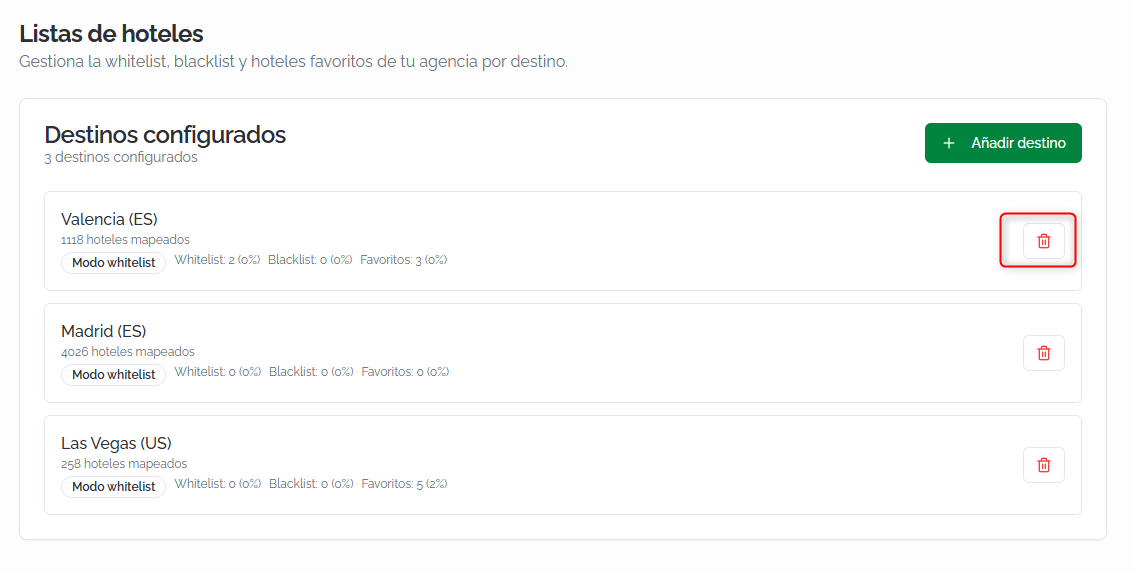
The main screen shows all the destinations for which you've configured hotel lists. Each destination shows:
- Destination name and country code (for example, Valencia (ES)).
- Number of hotels mapped for that destination.
- Active mode: Whitelist mode or Blacklist mode.
- Summary of hotels in each list: Whitelist, Blacklist, and Favorites (count and percentage of the total mapped hotels).
ℹ️ Information
"Mapped hotels" are all the hotels available for that destination through the suppliers connected to your agency. This is the pool that the whitelist and blacklist act upon.
Adding a destination
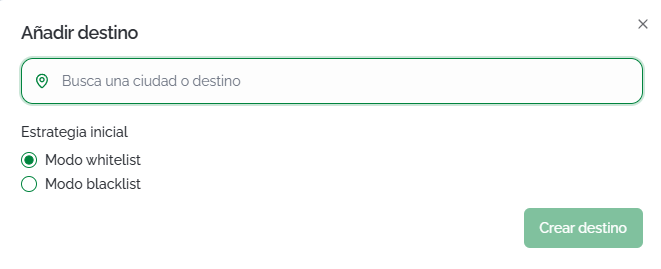
Click + Add destination in the top right corner. In the dialog that opens:
- Search for a city or destination: type the destination name to search for it.
- Initial strategy: select the mode the destination will start with: Whitelist mode or Blacklist mode.
Click Create destination to confirm.
💡 Tip
Choose Blacklist mode if you want to show most hotels and only exclude a few specific ones (for example, hotels with a poor past experience). Choose Whitelist mode if you want a curated catalog showing only the hotels you've expressly selected (for example, for luxury agencies working with a closed portfolio).
Destination details
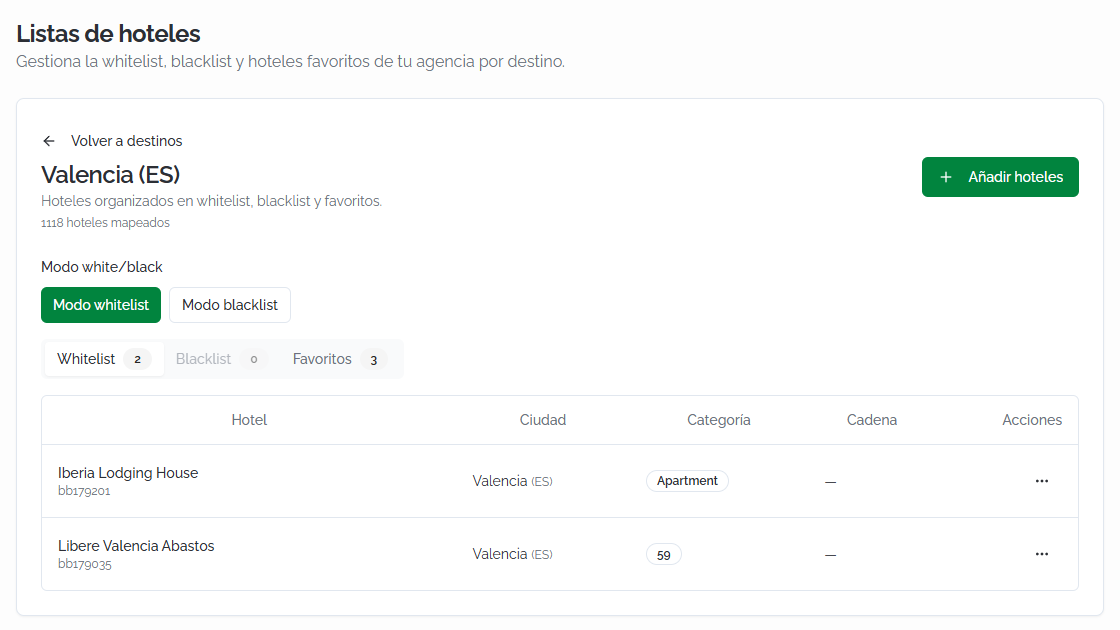
Click any destination in the list to access its detail view. From here you can:
- Switch the active mode between Whitelist mode and Blacklist mode at any time.
- Navigate between three tabs: Whitelist, Blacklist, and Favorites, each with a hotel counter.
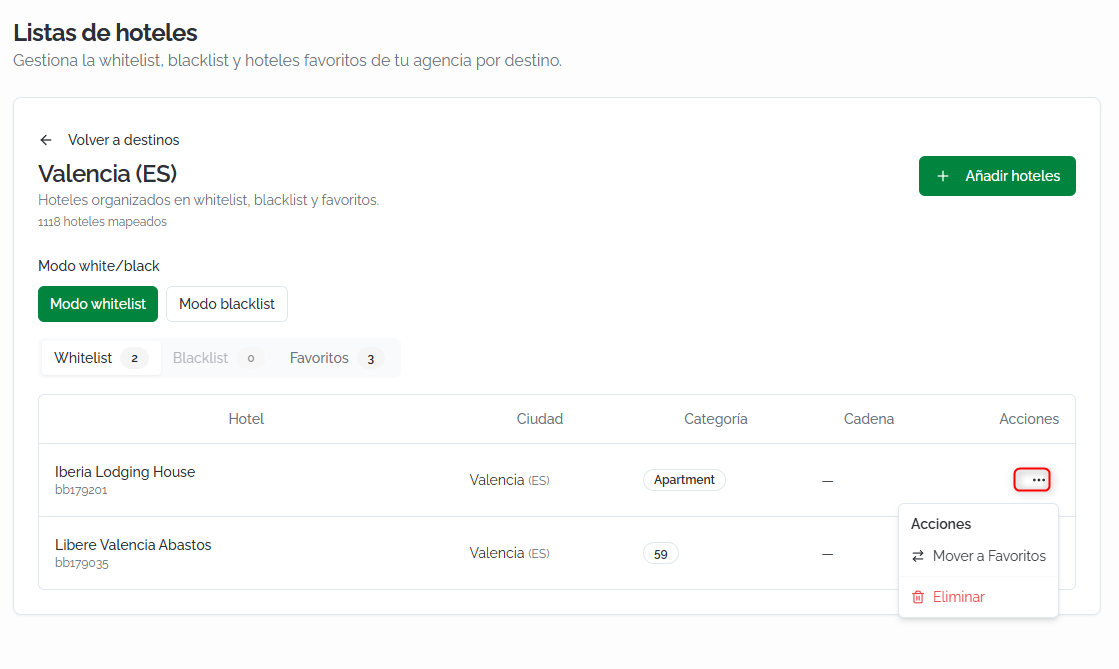
The hotel table within each tab shows the following columns:
- Hotel: hotel name and identifier code.
- City: the hotel's city.
- Category: accommodation type (Hotel, Apartment, Bed & breakfast, etc.).
- Chain: hotel chain, if applicable.
- Actions: menu with the option to remove the hotel from the list.
⚠️ Important
Changing a destination's mode from whitelist to blacklist (or vice versa) takes immediate effect on the search results for all of your agency's agents. In whitelist mode, they'll only see the hotels on the whitelist; in blacklist mode, they'll see all hotels except those on the blacklist.
Adding hotels to a list
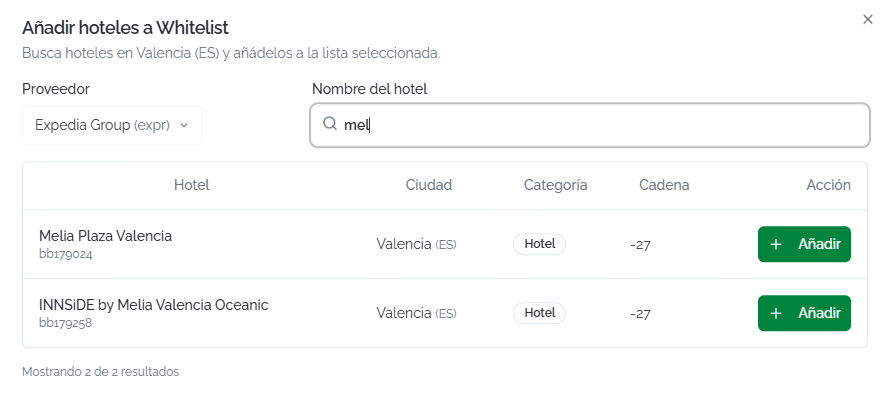
From the destination's detail view, click + Add hotels. A search dialog will open with the following fields:
- Supplier: select the supplier to search hotels from.
- Hotel name: free-text search field.
Results are shown in a table with the columns Hotel, City, Category, and Chain. Click + Add next to each hotel you want to include in the active list (whitelist, blacklist, or favorites, depending on the tab selected when you clicked + Add hotels).
Removing hotels and destinations
Removing a hotel from a list: In the hotel table, click the ··· actions menu for the hotel and select Remove. The hotel is removed from that list but remains available to add again
Removing a destination: On the main screen of configured destinations, click the trash icon next to the destination. This action deletes the destination and all its associated lists (whitelist, blacklist, and favorites). Hotels will go back to being shown according to the Search Engine's default rules.
FAQs
What's the difference between whitelist and blacklist?
In whitelist mode, only the hotels added to the whitelist appear in search results. All others are excluded. In blacklist mode, all hotels appear except those on the blacklist. Choose whitelist for a closed catalog, and blacklist for one-off exclusions.
What happens if I don't configure any list for a destination?
If a destination has no lists configured, the Search Engine shows all hotels available through your suppliers with no restrictions.
What is the Favorites list for?
Hotels marked as favorites can be quickly identified in the Booking Tool using the Favorite hotels filter and the heart icon. Favorites also factor into the Recommended sorting criteria, which weighs this among other factors.
Can I have hotels in both whitelist and blacklist at the same time for the same destination?
Yes, you can keep hotels on both lists, but only the active mode has an effect. If the active mode is whitelist, the blacklist is ignored (and vice versa). This lets you prepare both lists and switch between strategies without losing your configuration.
What does "mapped hotels" mean?
These are all the hotels available for that destination through the suppliers connected to your agency. It's the full pool of hotels that the lists act upon.
Is the mode change (whitelist ↔ blacklist) immediate?
Yes. The change immediately affects the search results for all of your agency's agents.
Can I add hotels from different suppliers to the same list?
Yes. When you click + Add hotels, you can select the supplier and search for hotels. Repeat the process with different suppliers to complete the list.
What happens if I delete a destination?
All associated lists (whitelist, blacklist, and favorites) are deleted, and the Search Engine goes back to showing all hotels for that destination with no restrictions.
No comments to display
No comments to display