
Booking Tool: Ground
Search and book trains and buses
The Search Engine is the search and booking engine built into the Agency Panel. From the Ground tab, you can search train and bus journeys across multiple operators, compare schedules, fares, and prices, and complete bookings directly from the platform.
This article covers the full flow for ground transportation: from search to booking confirmation. Unlike the Dynamic Package, the Ground search engine is focused exclusively on transportation, with no hotel component. It supports round-trip or one-way searches.
Accessing the Search Engine
- Log in to the Bundleport platform.
- In the left-hand side menu, select Agency Panel.
- Select Search.
- Select the Ground tab.
Searching for transportation
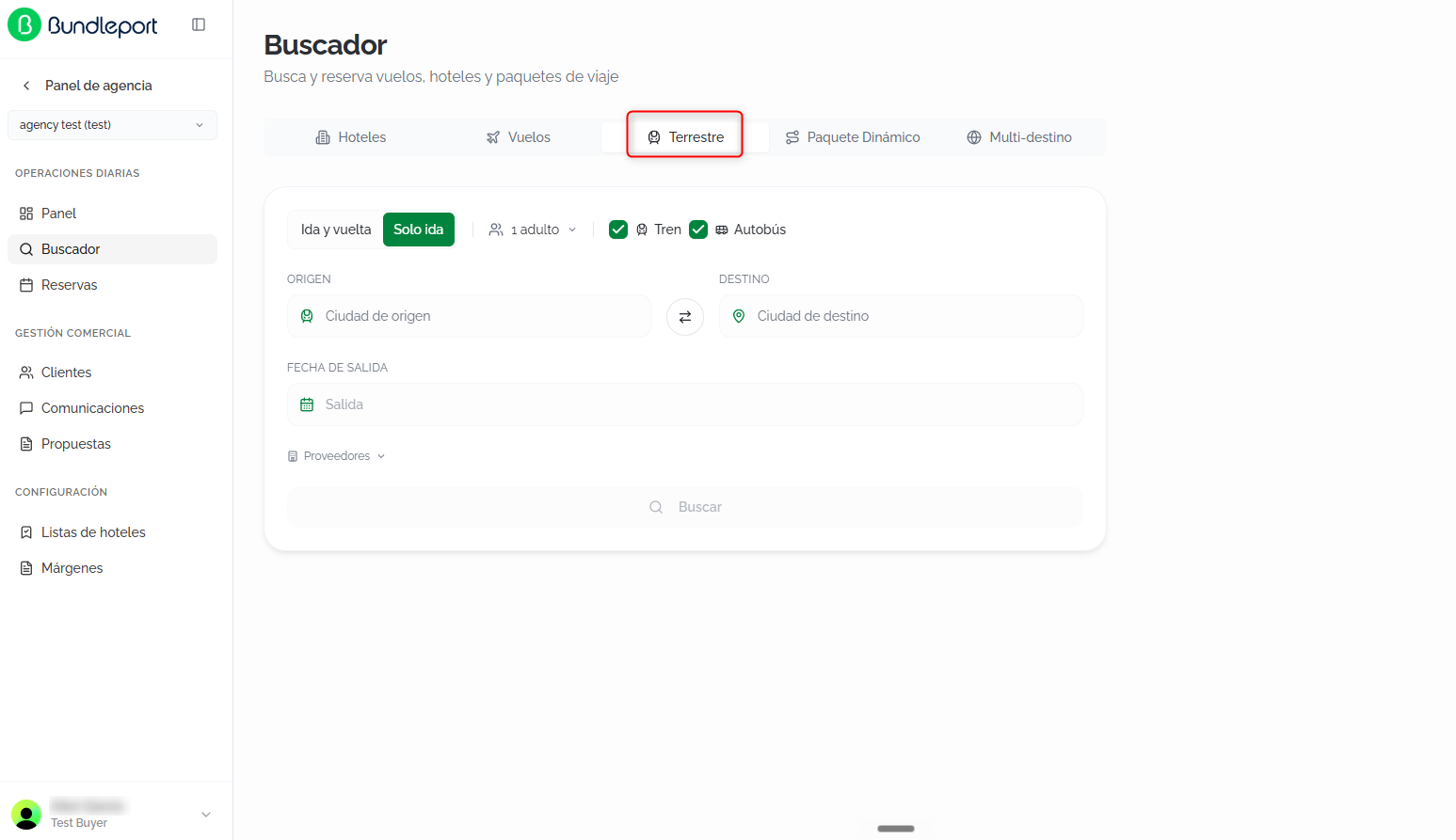
Fill in the following fields:
- Trip mode: select the trip type:
- Round trip: searches for an outbound and a return journey.
- One way: searches only for the outbound journey.
- Passengers: configure the number of passengers by type: adults, children, and infants (under 2 years old).
- Transport type: two independent checkboxes to include or exclude results:
- Train (enabled by default).
- Bus (enabled by default).
- Origin: type the city name and select an option from the autocomplete suggestions.
- Destination: type the destination and select from the autocomplete suggestions. Click the swap icon ⇄ to reverse the route.
- Dates:
- In One way mode: a departure date selector.
- In Round trip mode: a two-month calendar to select the departure and return dates.
- Suppliers: click Suppliers to select which ground transportation suppliers to include in the search.
Click Search to start the search.
Search results
The platform queries availability across all selected suppliers and displays results progressively as each supplier responds.
At the top, a summary of the active search is shown: route, date, and number of passengers. Click Edit search to modify the criteria without losing context, or New search to return to the initial form.
Result cards
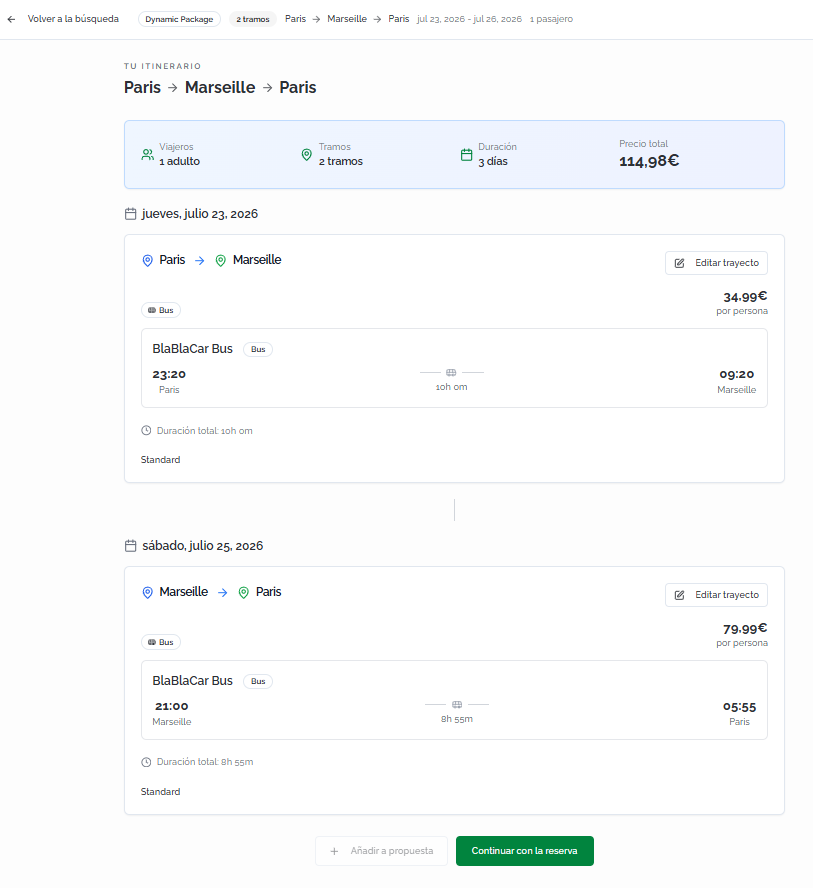
Each option is shown as a card with the following information:
- Operator name (for example, BlaBlaCar Bus) and transport type (for example, Bus).
- Departure time and station or origin point.
- Total journey duration and type (direct or with stops).
- Arrival time and station or destination point.
- Price per person.
- View fares button to check the available fares for that option.
ℹ️ Information
If the arrival time is after midnight, this is indicated with a +1 label next to the time, showing that arrival takes place the following day.

Fare details
Clicking View fares expands the available fare options for that combination. Each fare includes:
- Fare name and price (for example, Standard — €19.99).
- Features included in the fare.
- Confirm selection button to choose that fare and proceed.
Sorting results
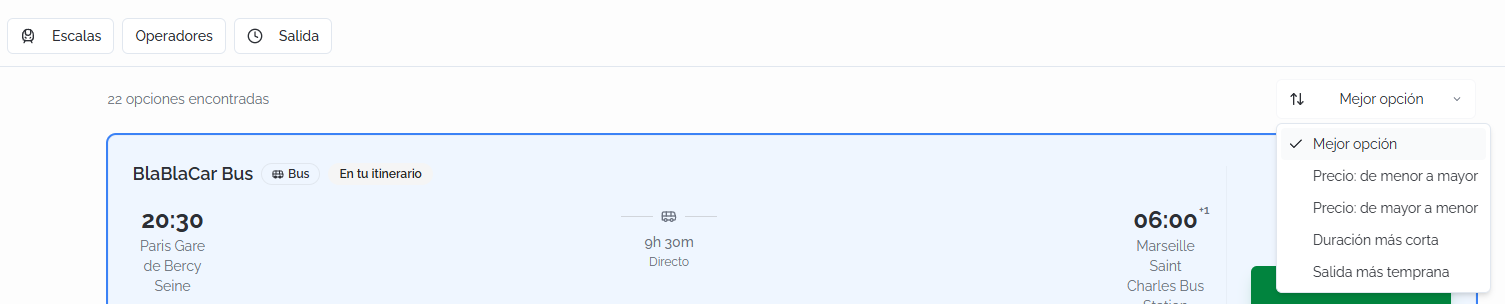
The total number of options found is shown (for example, 22 options found). The available sorting criteria are:
- Best option (default).
- Price: low to high.
- Price: high to low.
- Shortest duration.
- Earliest departure.
Filters
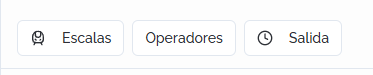
You can filter the results using the following options:
- Stops: filter by number of stops.
- Operators: select one or more transport operators.
- Departure: filter by departure time range.
ℹ️ Information
When filters are active, the Clear all link is shown along with the number of filters applied.
Round-trip searches
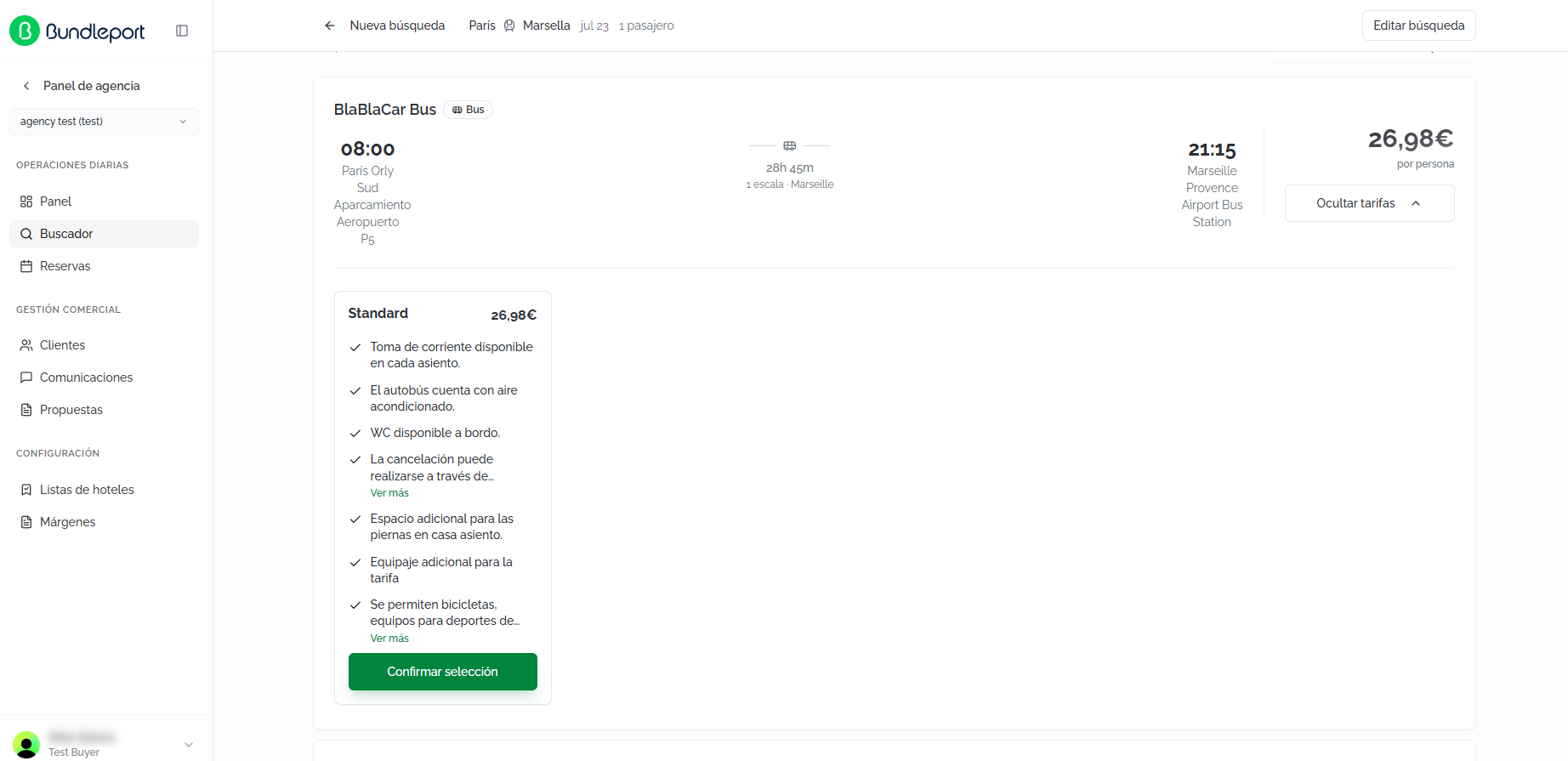
In round-trip mode, selection is organized into two steps: first you choose the outbound journey, then the return journey. At the top, the current step is shown (for example, Step 1 of 2) along with the journey description (for example, From Paris to Marseille).
Once the outbound journey is selected, the search engine automatically advances to step 2 to select the return journey. The option chosen at each step is visually highlighted with the In your itinerary label and the Selected mark.
💡 Tip
Click Back to itinerary to access the overview of the full trip. From this view, you can review both journeys, change your selection with the Edit journey button on each leg, click Add to proposal to save the itinerary without booking, or click Continue with booking to proceed to checkout.

Completing the booking
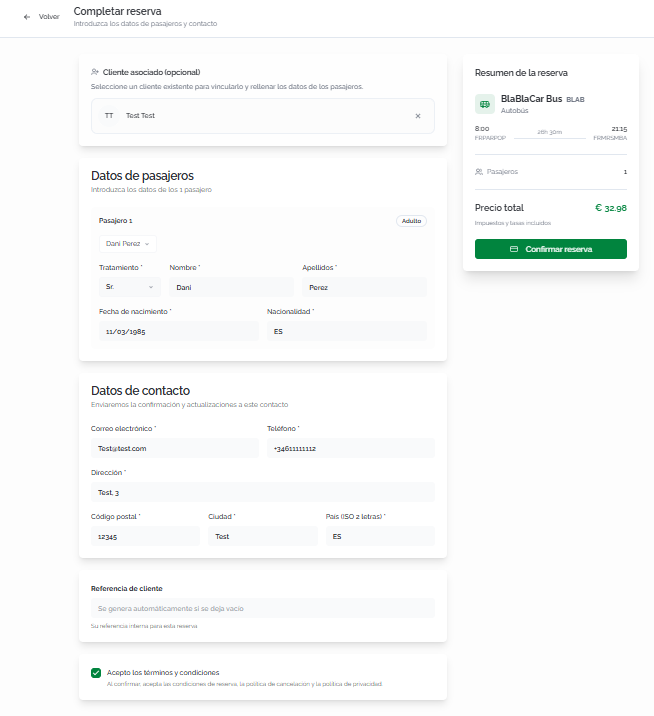
Click Confirm selection (one way) or Continue with booking (round trip) to access the checkout page.
Fill in the following information:
- Associated client (optional): link the booking to an existing client so it's recorded in their history. Click Search client... to search by name or email. If the client doesn't exist, click New client to create one directly.
- Passenger details: enter each passenger's information:
- Title: select the title (Mr., Mrs., etc.).
- First name and Last name of the passenger.
- Date of birth.
- Nationality.
- Contact details: used to send booking confirmations and updates:
- Email and Phone.
- Address, Postal code, City, and Country (2-letter ISO code).
- Client reference (optional): field to enter your own internal reference for this booking. If left blank, one is generated automatically.
- Acceptance of terms: check the box accepting the booking conditions, the cancellation policy, and the privacy policy.
ℹ️ Information
The right side panel shows the Booking summary with the operator, transport type, schedules, origin and destination stations, number of passengers, and total price (taxes and fees included). Verify that the information is correct before confirming.
Click Confirm booking to complete the booking.
Booking confirmation
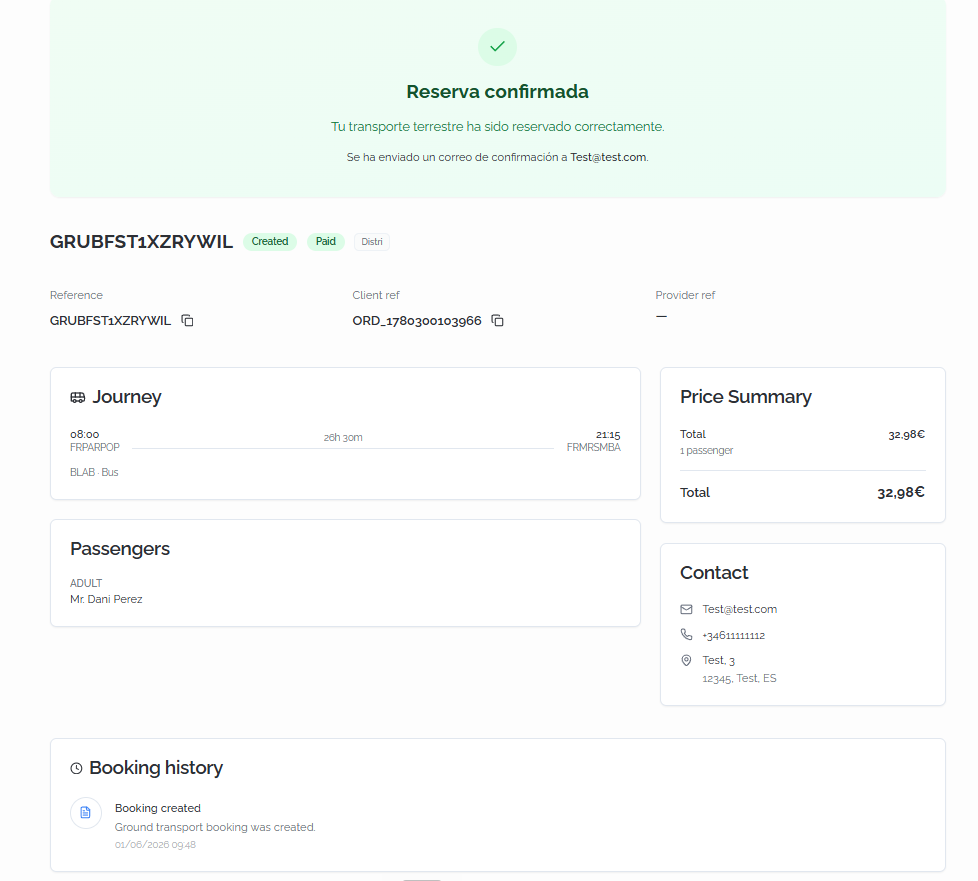
Once confirmed, a page is shown with the full details of the booking:
- Header: a confirmation banner indicating the ground transportation has been successfully booked and that a confirmation email has been sent. Below it, the Bundleport reference, status (for example, Created, Paid), supplier, client reference, and supplier reference are shown.
- Journey: details of the booked journey: departure time and origin station, total duration, arrival time and destination station, operator, and transport type.
- Price Summary: financial breakdown with the price per passenger and the booking's total price.
- Passengers: list of passengers with type (adult, child), title, first name, and last name.
- Contact: contact details associated with the booking: email, phone, and full address.
- Booking history: chronological log of the events associated with the booking, indicating the action taken, a description, and the date.
FAQs
What types of transport can I search for?
The Ground search engine lets you search train and bus journeys. You can enable or disable each transport type in the search form to include or exclude results.
How does selection work in round-trip searches?
Selection is organized into two steps: first you choose the outbound journey, then the return journey. The search engine automatically advances to the second step once the outbound journey is selected. You can review the full itinerary by clicking Back to itinerary.
What does the "+1" label next to the arrival time mean?
It indicates that arrival takes place the day after departure. This usually happens on overnight or long-distance journeys.
Can I see the available fares before selecting a journey?
Yes. Click View fares on any result card to check the available fare options, along with their prices and included features.
What criteria does "Best option" use for sorting?
This is the Ground search engine's default criteria. It combines factors such as price, duration, and journey type (direct vs. with stops) to show the most balanced options first.
Can I book without linking a client?
Yes. Linking a client is optional, but recommended to keep an organized booking history.
What is the "Client reference" at checkout?
It's an optional field that lets you associate your own internal reference with the booking (for example, a case number). If left blank, the platform generates a reference automatically.
Can I save a round-trip itinerary without booking?
Yes. From the full itinerary view, you can click Add to proposal to save the journeys in a proposal.
Do ground transportation bookings require a travel document?
No. Unlike flight bookings, ground transportation checkout only requires each passenger's first name, last name, date of birth, and nationality.
No comments to display
No comments to display