
Booking Tool: Dynamic Package
Combine transportation and accommodation in a single package
The Search Engine is the search and booking engine built into the Agency Panel. The Dynamic Package mode lets you create travel packages that combine transportation (flight, train, or bus) with a hotel stay in a single search.
This article covers the full Dynamic Package flow: from configuring the search to managing the confirmed booking. It's designed for round-trip itineraries with accommodation included at the destination.
Accessing the Search Engine
- Log in to the Bundleport platform.
- In the left-hand side menu, select Agency Panel.
- Select Search.
- Select the Dynamic Package tab.
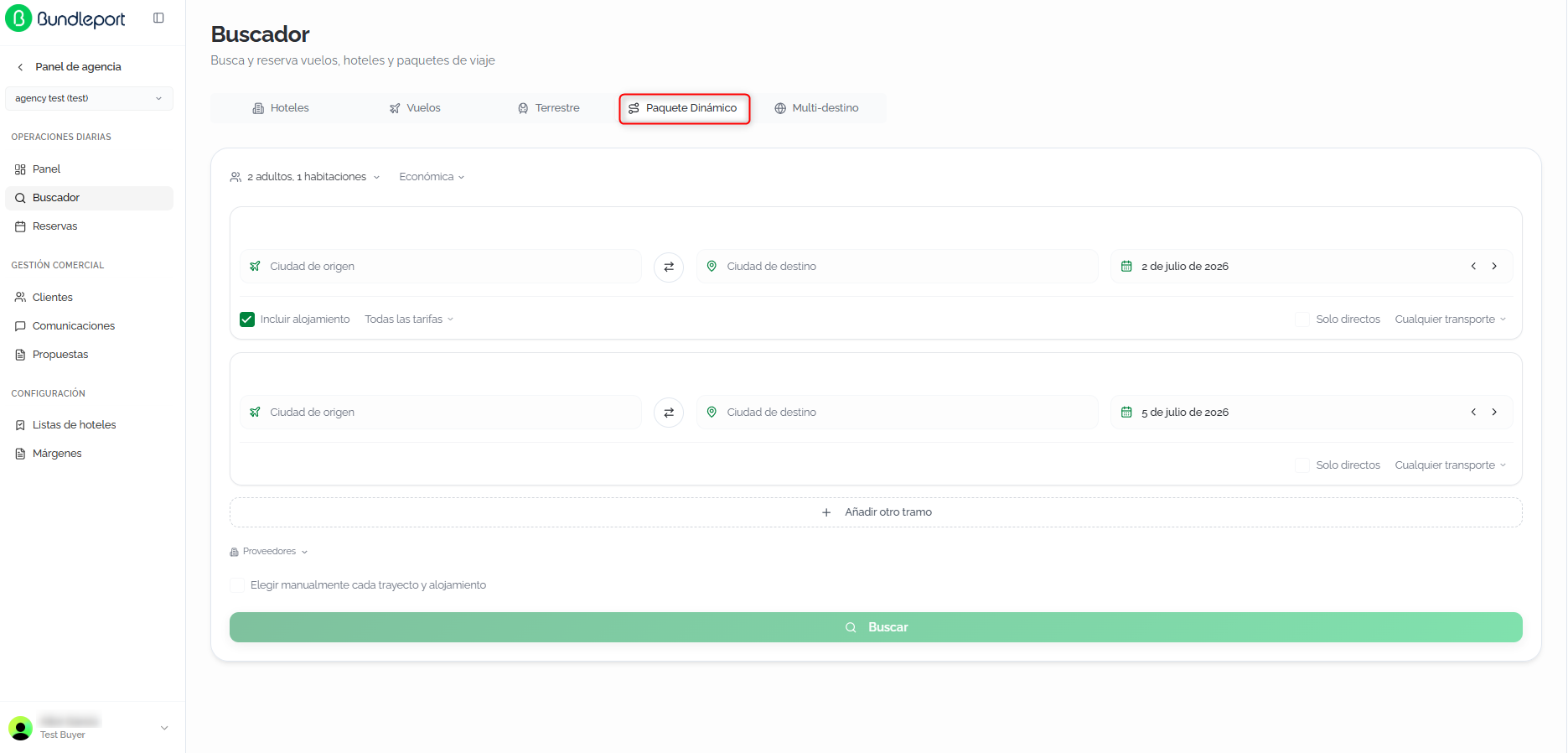
The search form will display with two predefined legs (outbound and return) and the global configuration options.
Configuring the search
The Dynamic Package form lets you define a round trip with accommodation. Fill in the following fields:
- Service class: select the transportation class that will apply to all legs:
- Economy (default)
- Premium economy
- Business
- First
- Outbound leg:
- Origin city: origin city (autocomplete field).
- Destination city: destination city (autocomplete field).
- Swap button ⇄: reverses origin and destination.
- Date: departure date. Clicking it opens a two-month calendar that lets you select both the outbound and return dates. The ‹ and › arrows next to the date let you move a day forward or backward.
- Include accommodation: enabled by default, this checkbox includes a hotel search in the destination city for the stay.
- Direct only: checkbox to limit results to direct connections, with no stops or transfers.
- Any transport: multi-select control with the available transport types: Flight, Train, and Bus. All three are selected by default.
- Return leg: contains the same fields as the outbound leg (origin city, destination city, date, direct only, Any transport), except Include accommodation, since accommodation is associated with the outbound leg.
- Add additional legs: click Add another leg to add intermediate legs to the package, turning the search into a multi-leg itinerary.
- Suppliers: the Suppliers selector at the bottom lets you choose which suppliers to include. Suppliers are grouped by product type: Flights, Ground, and Hotels. Each group includes a One option to deselect all suppliers in that category, and Deselect all at the top deselects everything at once.
💡 Tip
The Manually choose each leg and accommodation option, shown below the suppliers selector, lets you select each component of the trip independently instead of receiving a combined package. This is useful when you need more control over the transport and hotel options.
Click Search to run the search.
Search results
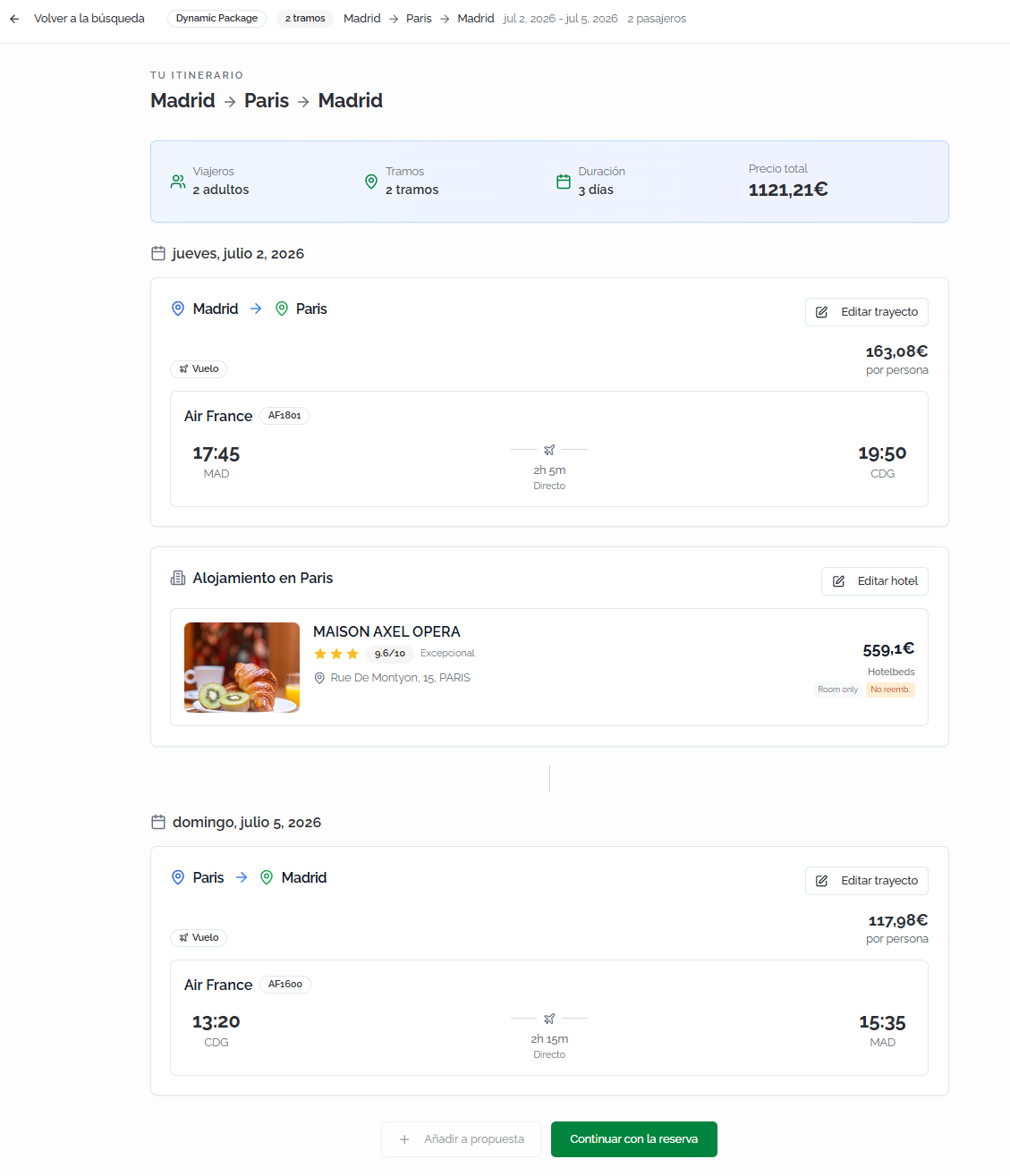
The Your itinerary results page shows the complete package in chronological format, letting you review transportation, accommodation, and the total price before continuing with the booking.
Itinerary summary
At the top, a quick summary of the trip is shown: full route (for example, Barcelona → London → Barcelona), number of travelers, number of legs, total duration, and the package's total price. Click Back to search to return to the form and modify the destination, dates, passengers, or general configuration.
Transportation and accommodation cards
Results are organized chronologically, alternating transportation and accommodation cards:
- Outbound flight card: Shows the operating airline, flight number, departure and arrival times, airports, stops, total duration, and price per person.
- Accommodation card: Shows the hotel name, rating and category, address, contracted meal plan, cancellation policy, supplier, and price of the stay.
- Return flight card: Same information as the outbound flight, for the return leg.
Each transportation card includes an Edit leg button to modify the selected flight without losing the associated hotel. The accommodation card includes an Edit hotel button to replace the accommodation while keeping the selected flights.
💡 Tip
Use the Edit leg and Edit hotel buttons to adjust individual package components without repeating the full search. This lets you compare transport or accommodation options while keeping the rest of the itinerary intact.
Available actions
At the bottom of the results screen:
- Continue with booking: proceeds to checkout to confirm the package.
- Add to proposal: saves the itinerary in a proposal to share with the client without booking.
Completing the booking
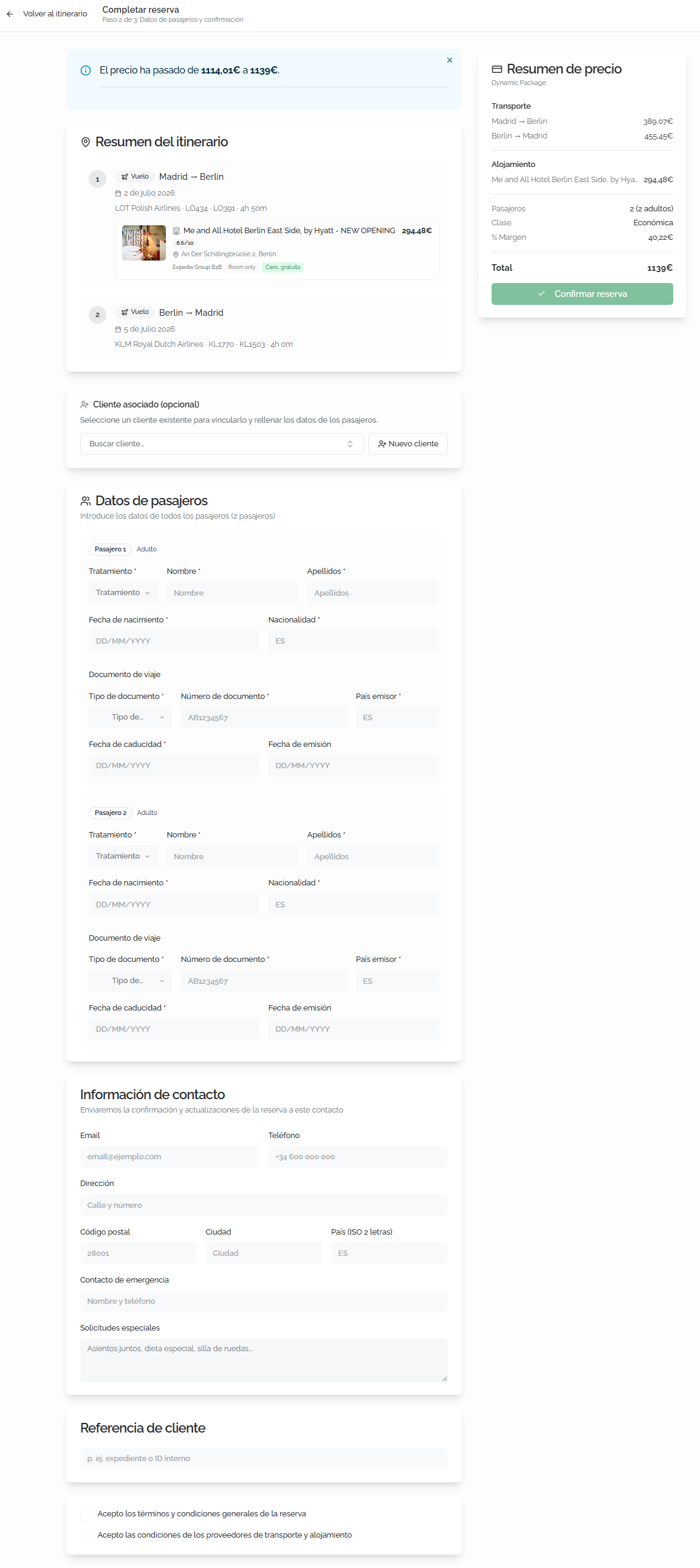
Clicking Continue with booking opens the checkout page with a summary of the itinerary and price.
Fill in the following information:
- Associated client (optional): link the booking to an existing client so it's recorded in their history. Click Search client... to search by name or email. If the client doesn't exist, click New client to create one directly.
- Passenger details: enter each passenger's information:
- Title: select the title (Mr., Mrs., etc.).
- First name and Last name of the passenger.
- Date of birth.
- Nationality.
- Travel document: document type, number, issuing country, issue date, and expiration date.
- Contact information: used to send booking confirmations and updates:
- Email.
- Phone.
- Address.
- Acceptance of terms: before confirming, check the box accepting the terms and conditions, the cancellation policy, and the accommodation and transport suppliers' conditions.
ℹ️ Information
If the selected client has travelers set up, you can auto-fill the passenger details by selecting the corresponding traveler.
⚠️ Important
Dynamic packages include legs that require travel document details for each passenger. Make sure the documents are valid throughout the travel dates and that the names match the official documentation exactly.
Check the Price summary side panel to make sure the itinerary and financial breakdown are correct. Click Confirm booking to complete the booking.
Booking confirmation
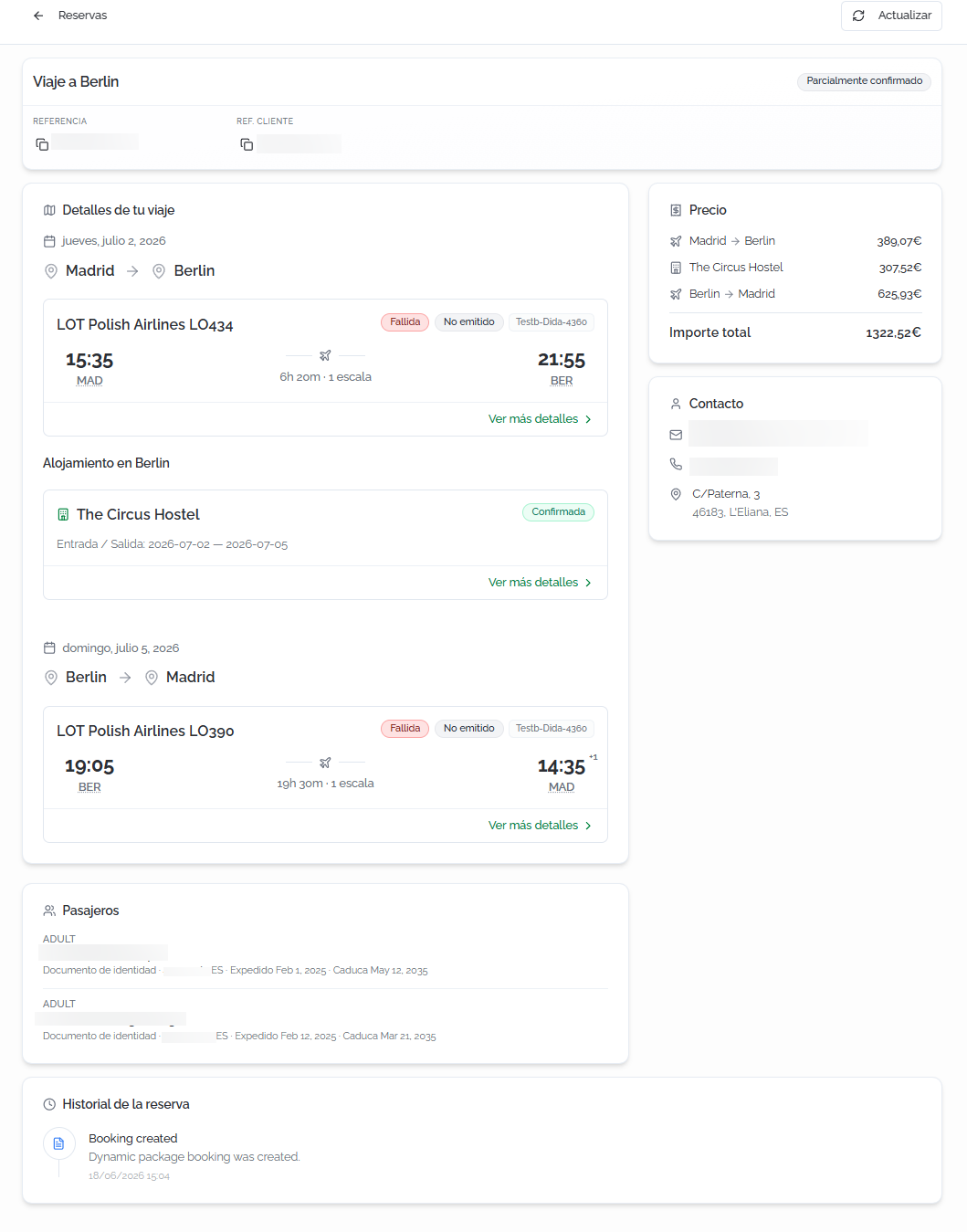
Once confirmed, a page is shown with the final status of the booked dynamic package:
- Header: confirmation banner, Bundleport reference, client reference, booking status, product type, payment status, and issuance status.
- Trip details: full itinerary organized chronologically, alternating transportation and accommodation cards. For each leg, the following is shown: operating airline, flight number, departure and arrival airports, schedules, stops, total duration, leg status, and supplier reference. For each accommodation: hotel name, check-in and check-out dates, and booking status. Click View more details to see the expanded information for each component.
- Price (side panel): breakdown by leg and by service type (transport + hotel) with the package's total amount.
- Contact: contact details associated with the booking.
- Passengers: list of passengers with title, first name, last name, document type, number, issuing country, issue date, and expiration date.
- Booking history: chronological log of events (creation, status changes, updates), indicating the action and the date.
ℹ️ Information
As with Multi-destination, each package component (flight, hotel) has its own confirmation status. The overall status reflects the combined situation. Click Refresh in the top right corner to update the status of all components.
FAQs
Can I add intermediate legs to a Dynamic Package?
Click Add another leg to add intermediate legs, turning the search into a multi-leg itinerary within the same package.
Can I modify the flight or hotel without repeating the whole search?
Yes. From the results screen, each component has an Edit leg or Edit hotel button that lets you replace that component while keeping the rest of the itinerary.
What are "Charges at the property"?
These are fees or charges (such as the tourist tax) that the guest pays directly at the hotel. They're not included in the amount charged online.
Can I search for cheaper hotel alternatives after booking?
Yes. From the full hotel booking view, the platform lets you search for cheaper alternative options, filtering by scope (same hotel or destination), meal plan, and cancellation conditions.
Can I save the package without booking?
Yes. From the results screen, click Add to proposal to save the full itinerary in a proposal and share it with the client.
What vouchers can I generate?
You can generate two types: the agency voucher (internal PDF with full operational data) and the end client voucher (PDF for the passenger with the information needed for the trip, customizable with a message for the client).
What does the "Partially confirmed" status mean?
In a dynamic package, each component (flight, hotel) is confirmed independently. If any component is pending or has failed while others are confirmed, the overall booking is shown as Partially confirmed. Click Refresh to update the status.
No comments to display
No comments to display