
Bookings
Manage all of your agency's bookings
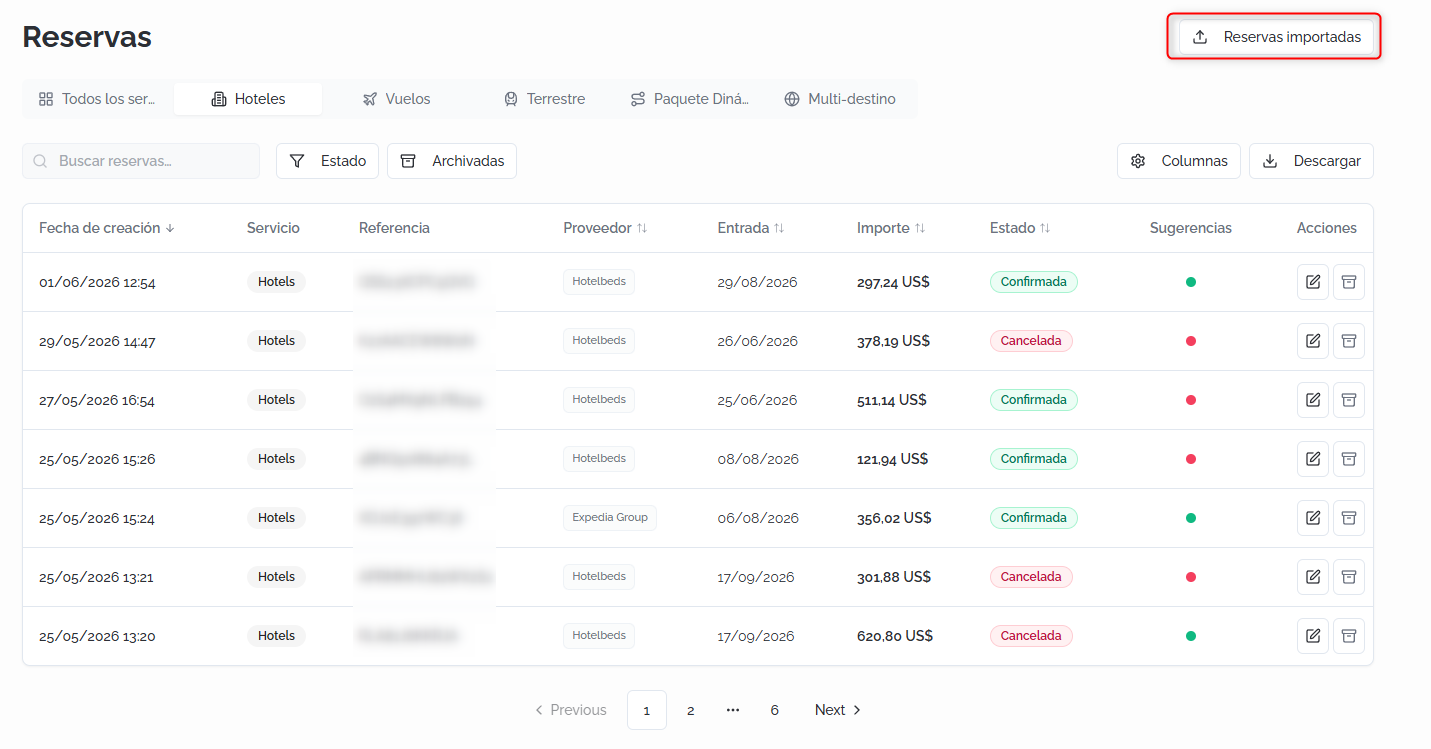
Bookings is the Agency Panel module that centralizes all of your agency's bookings, both those generated from the platform and those imported from external suppliers. From this section, you can check the status of each booking, access its full details, manage cancellations, search for cheaper alternatives, and generate vouchers.
Accessing Bookings
- Log in to the Bundleport platform.
- In the left-hand side menu, select Agency Panel.
- Select Bookings.
Bookings list
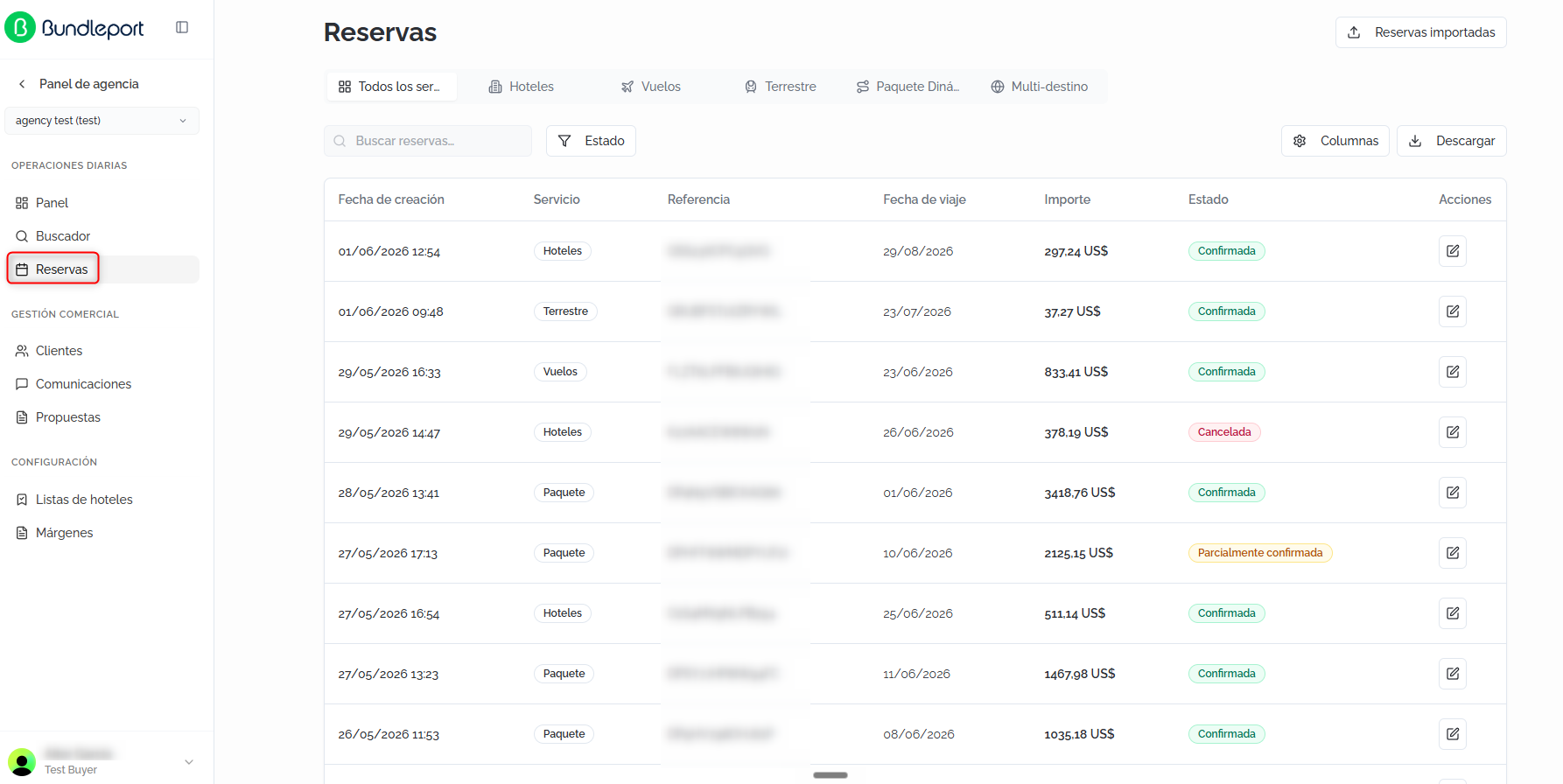
The page shows a centralized list of all the agency's bookings, regardless of service type.
Filters by service type
At the top, a tab bar lets you filter bookings by type:
- All services (default).
- Hotels.
- Flights.
- Ground.
- Dynamic Package.
- Multi-destination.

Search and filters
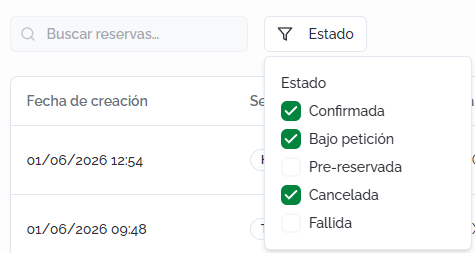
- Search bookings: free-text field to locate bookings by reference, name, or other criteria.
- Status: filter by one or more statuses: Confirmed, Cancelled, On request, Pre-booked, or Failed.
Bookings table
By default, the table shows the following columns:
- Creation date: date and time the booking was made.
- Service: service type (Hotels, Flights, Ground, etc.).
- Reference: the booking's unique Bundleport reference code.
- Travel date: the trip's start date.
- Amount: the booking's total price.
- Status: current status, shown with a color label: Confirmed, Cancelled, Failed, or Pre-booked (pending confirmation in a proposal).
- Suggestions: a color indicator showing whether cheaper alternatives exist for that booking:
- Green: an option with the same features exists, and the current booking can be cancelled at no cost.
- Yellow: an option with the same features exists, but the current booking has cancellation fees.
- Red: no cheaper options are available.
- Actions: an edit icon to access the booking's details.
💡 Tip
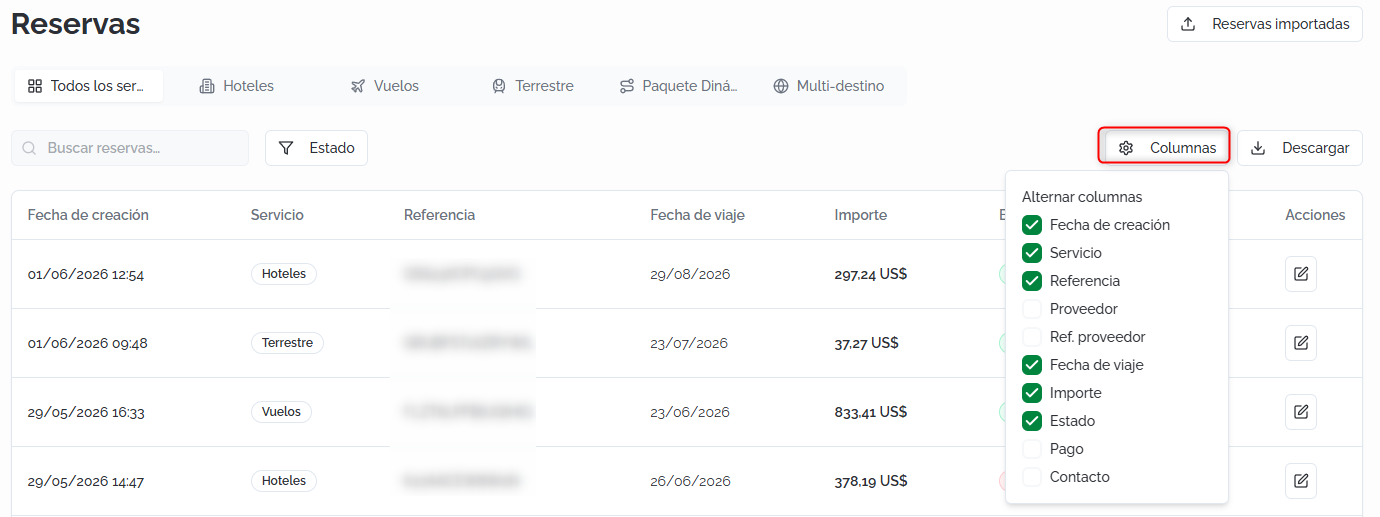
Click Columns to customize which columns are visible. The additional available columns are: Supplier, Supplier ref., Payment, and Contact.
Downloading the list
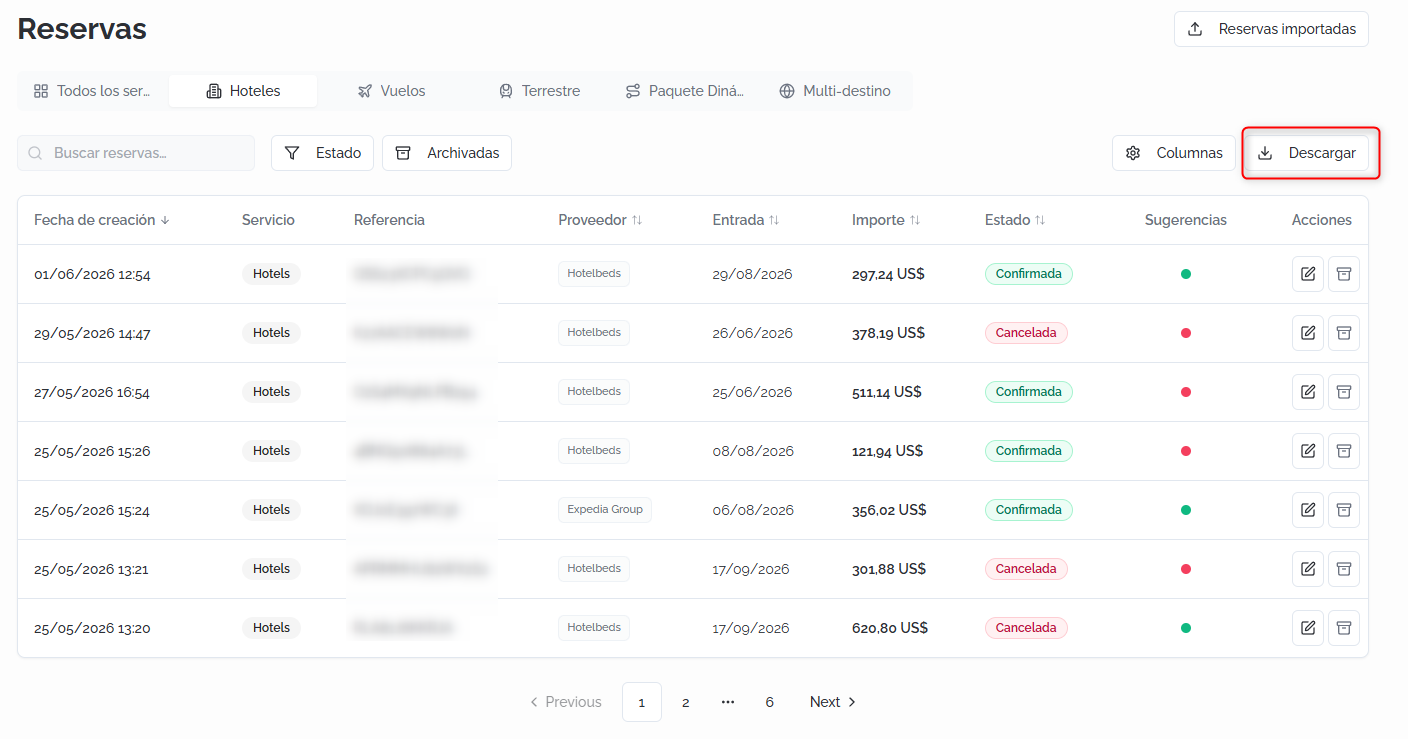
Click Download to export the bookings list as a CSV file.
Imported bookings
The Imported bookings section lets you bring bookings made outside Bundleport into the platform. You can access it from the corresponding tab within the Bookings section.
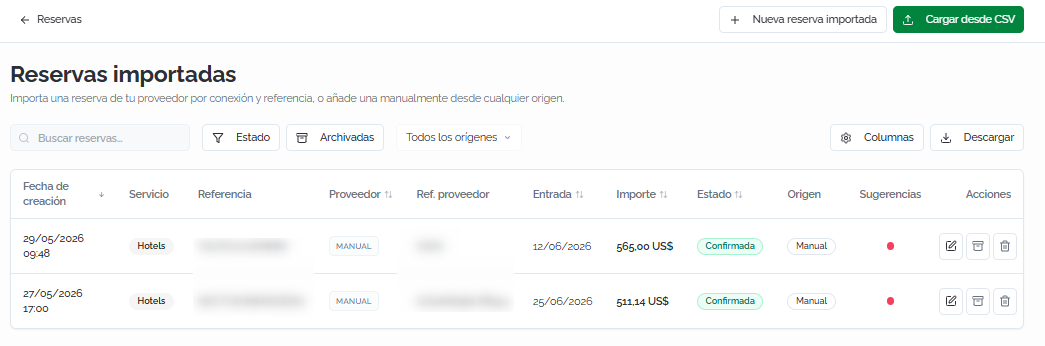
The imported bookings list shows the following columns:
- Creation date: date and time of the import.
- Service: product type (for example, Hotels).
- Reference: the Bundleport reference code.
- Supplier: the supplier source (for example, MANUAL).
- Supplier ref.: the booking reference in the supplier's system.
- Check-in: the trip's start date.
- Amount: the booking's total price.
- Status: current status (for example, Confirmed).
- Origin: how the booking was added (for example, Manual).
- Suggestions: the same color indicator system as in the main list (available only for bookings imported from a supplier).
- Actions: icons to edit, archive, or delete the booking.
The available filters are: text search, status, archived bookings, and import origin. You can also customize the visible columns and export the list.
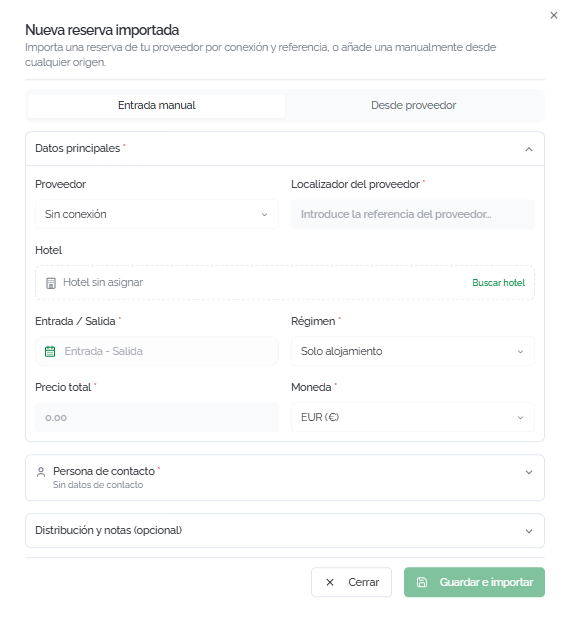
New imported booking
Clicking New imported booking opens a form with two entry modes:
- Manual entry: to add a booking from any source by entering the data manually.
- From supplier: to import an existing booking based on the connection and the supplier's reference.
The form includes:
- Main details: supplier, supplier locator, hotel, check-in and check-out dates, meal plan, total price, and currency.
- Contact person: option to link an existing client from the CRM to auto-fill the holder's details, or edit them manually.
- Room distribution and notes (optional): room details (name, adults, children, and each guest's information) and an additional notes field.
Click Save and import to add the booking.
Upload from CSV
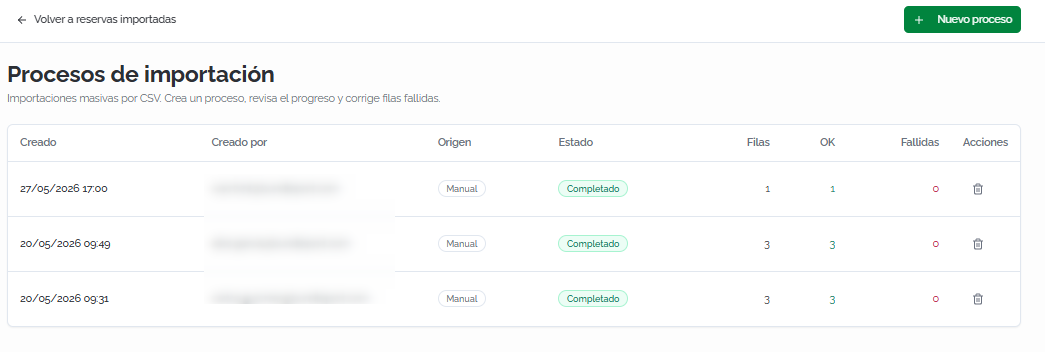
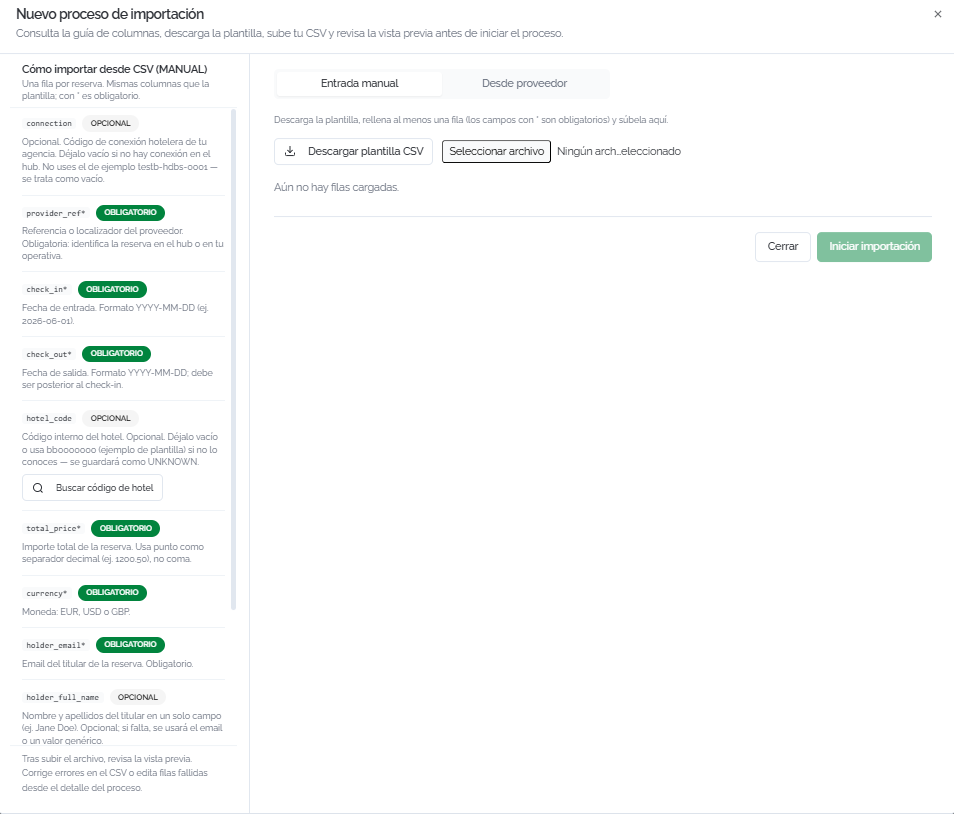
Click Upload from CSV to access the Import processes section, which lets you perform bulk imports using CSV files.
The section shows the import history with the creation date, user, source, status, total number of rows, successful rows, failed rows, and the available actions.
To create a new import process:
- Select the entry mode (Manual entry or From supplier).
- Check the guide in the left-hand panel describing each CSV field (required and optional).
- Download the CSV template from the right-hand panel.
- Fill in the template and upload it.
- Review the preview and click Start import.
ℹ️ Information
After the import, you can fix errors in the failed rows from the process's details. You don't need to re-upload the entire file.
Booking details
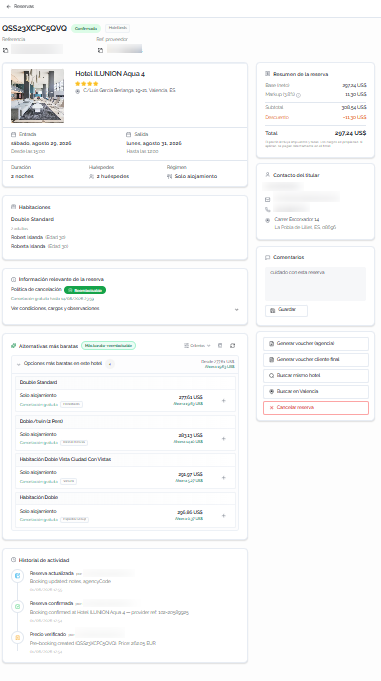
Click the edit icon on any booking to access its details page, which shows all the associated information and the available actions.
The page includes:
- Header: the booking's Bundleport reference, status (for example, Confirmed), supplier, and supplier reference.
- Hotel details: photo, name, star category, address, check-in and check-out dates with check-in and check-out times, length of stay (nights), number of guests, and meal plan.
- Rooms: the type of room booked, with each guest's name and age.
- Booking summary (side panel): financial breakdown with markup (percentage and amount), subtotal, discount (if applicable), and total price.
- Holder contact details: name, email, phone, and full address.
- Comments: a text field to add or view internal comments about the booking. Click Save to record the comment.
- Relevant booking information: the applicable cancellation policy (refundable or non-refundable), with the free cancellation deadline if applicable. Expand View conditions, charges, and remarks to check penalties, additional charges, and supplier remarks.
- Activity history: a chronological log of all events associated with the booking (price verification, supplier confirmation, updates) with user, event description, and date.
ℹ️ Information
For imported bookings, in addition to the sections above, you can directly edit the hotel information, rooms, dates, contact details, and summary. A section with the import details (source, date, and method of entry) is also included.
Cheaper alternatives
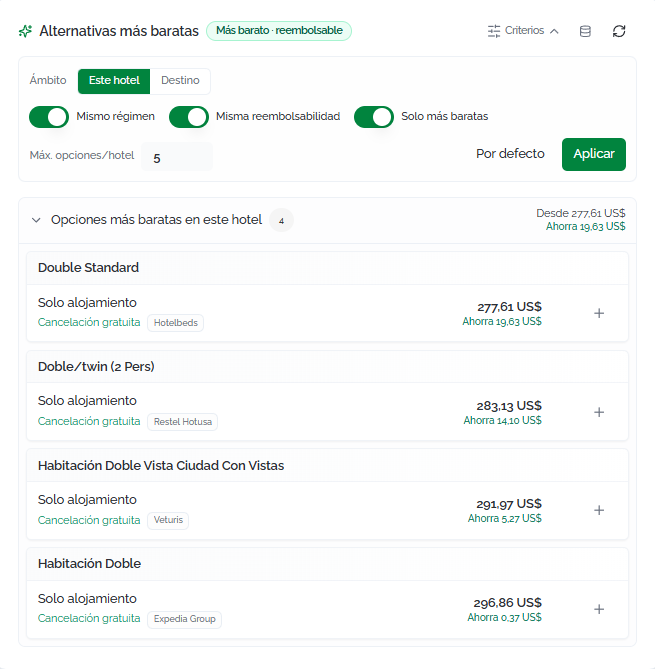
This section automatically searches for cheaper options than the current booking for the same hotel or destination. The configurable search criteria are:
- Scope: switch between This hotel (searches within the same hotel) and Destination (includes other hotels in the destination).
- Same meal plan: only options with the same meal plan.
- Same refundability: only options with the same cancellation policy.
- Cheaper only: only options with a lower price.
- Max options/hotel: the maximum number of alternatives per hotel. Click Default to restore the default value and Apply to update the results.
Each alternative shows the room type, meal plan, cancellation policy, supplier, price, and estimated savings. Click + to start the change process.
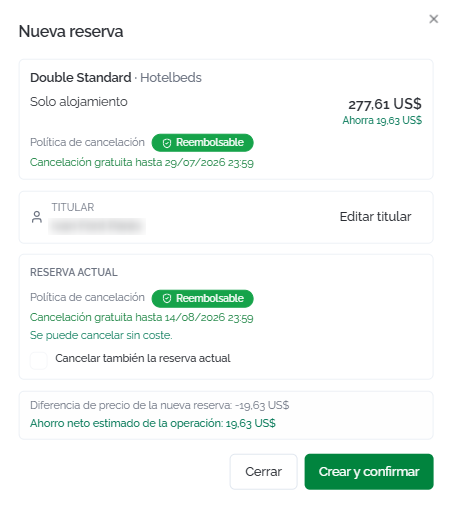
Selecting an alternative opens a dialog with the details of the new option, the holder (editable), the current booking's cancellation policy (with the option to cancel it as part of the operation), and a summary with the price difference and the estimated net savings. Click Create and confirm to complete the change.
💡 Tip
Check the Suggestions column in the bookings list to quickly identify which bookings have cheaper alternatives before opening their details. The green indicator points to the opportunities with the highest potential savings (free cancellation + alternative available).
Available actions
From the right-hand side panel of the details page:
- Generate agency voucher: generates an internal PDF document with the booking's operational data.
- Generate end client voucher: generates a PDF document to give to the client. Before downloading, you can validate the agency's details and include a personalized message.
- Search same hotel: runs a new availability search for the same hotel.
- Search in [destination]: runs a new search in the booking's destination.
- Cancel booking: starts the booking's cancellation process.
⚠️ Important
Before cancelling, check the cancellation policy in the Relevant booking information section to see any possible penalties. The free cancellation deadline, if any, is shown in that section.
FAQs
What do the color indicators in the "Suggestions" column mean?
They indicate whether cheaper alternatives exist for that booking. Green means there's a cheaper option and the current booking can be cancelled at no cost. Yellow means there's an alternative but cancellation has fees. Red means no cheaper options are available.
Can I import bookings made outside Bundleport?
Yes. The Imported bookings section lets you add bookings in two ways: manually (filling in the data) or from a connected supplier (entering the connection and reference). You can also perform bulk imports using a CSV file.
What statuses can a booking have?
The possible statuses are: Confirmed (active booking), Cancelled, On request (pending availability), Pre-booked (pending confirmation in a proposal), and Failed (the booking could not be completed).
Can I customize the columns in the bookings list?
Yes. Click Columns to add or remove columns. The additional columns are: Supplier, Supplier ref., Payment, and Contact.
Can I export the bookings list?
Yes. Click Download to export the list as a CSV file with the active filters applied.
How does switching to a cheaper alternative work?
From the booking's details, the Cheaper alternatives section shows options with a lower price. Selecting one opens a dialog where you can review the new option, cancel the current booking as part of the operation, and confirm the change. The system calculates the estimated net savings.
What's the difference between the agency voucher and the end client voucher?
The agency voucher is an internal PDF document with all the operational data (supplier, references, conditions). The end client voucher is aimed at the traveler with the information needed for the trip, and lets you customize the agency details and include a message.
Can I fix errors in a CSV import without re-uploading the entire file?
Yes. After the import, you can access the process's details and individually fix the rows that failed.
Do imported bookings also show cheaper alternatives?
Only bookings imported from a connected supplier show the suggestions indicator.
No comments to display
No comments to display