
Organization Settings
Manage your organization's profile, users, and agencies
The Organization Settings section lets you manage your organization's profile, users, agencies, service accounts, and audit log. It's Bundleport's central administration section, accessible to users with an organization role.
The module is organized into four sections: Organization Profile, Users, Agencies, and Service Accounts.
Accessing Organization Settings
- Log in to the Bundleport platform.
- At the bottom of the left-hand side menu, click your username.
- Select Organization Settings.
Organization Profile
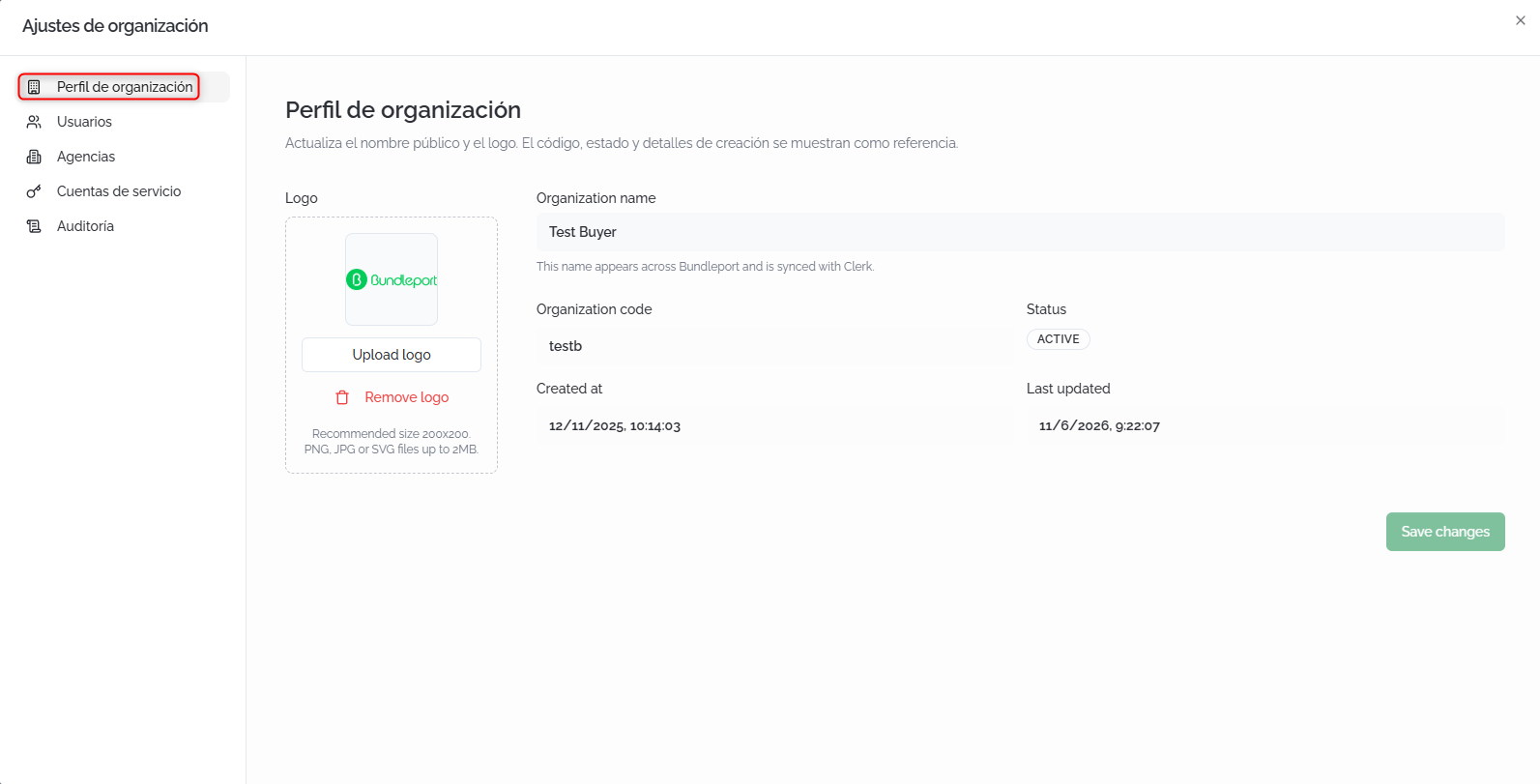
From Organization Profile, you can update your organization's public name and logo.
Editable fields:
- Logo: click Upload logo to upload your organization's image. Recommended size: 200×200 px. Supported formats: PNG, JPG, or SVG, up to 2 MB.
- Organization name: your organization's public name. It appears throughout the platform and is synced with the authentication system.
Reference fields (read-only):
- Organization code: the organization's identifying code.
- Status: current status (for example, Active).
- Created at: creation date and time.
- Last updated: date and time of the last change.
Click Save changes to save the changes.
Users
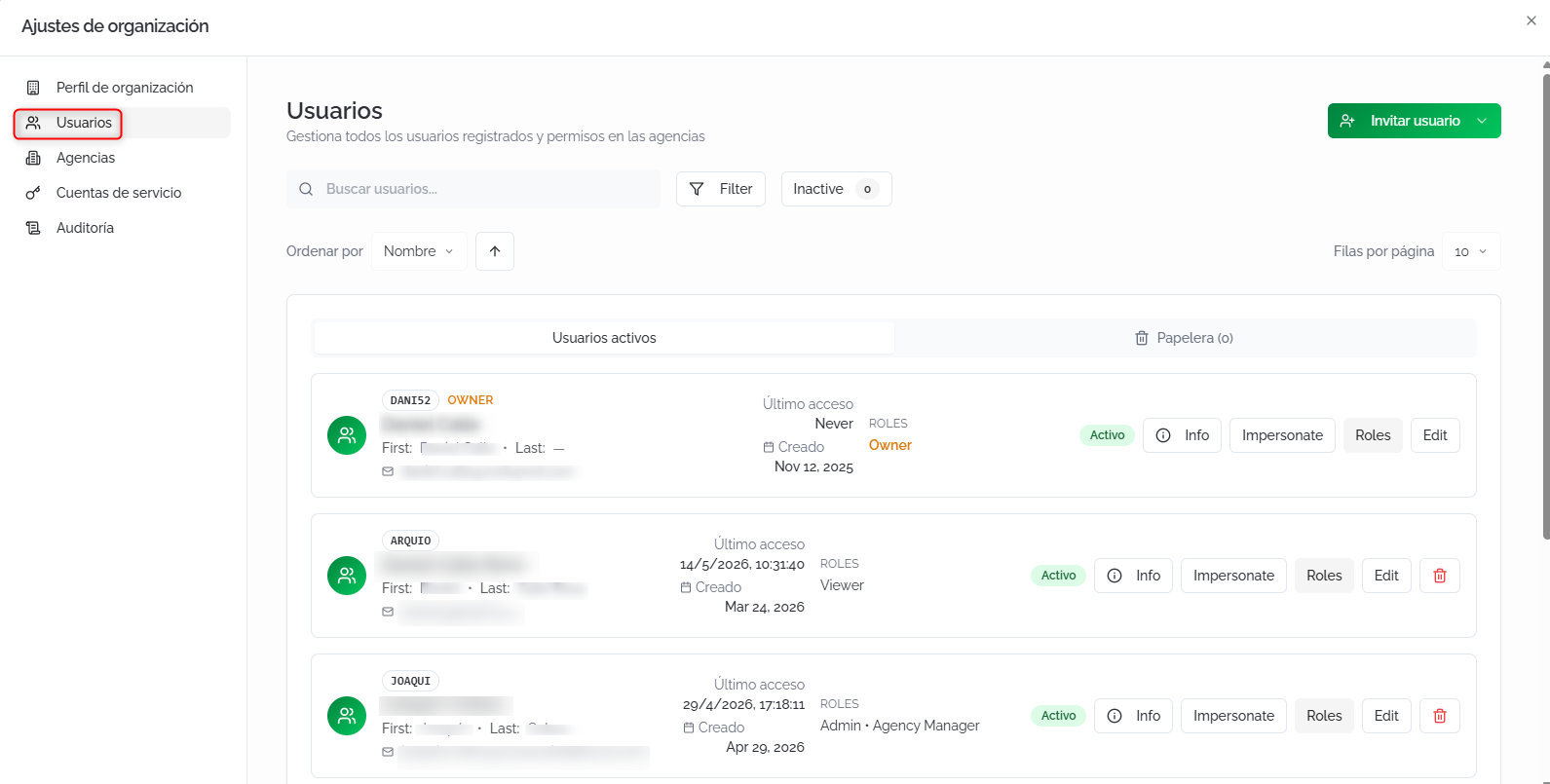
From Users, you can manage all the users registered in your organization: view their information, assign roles, invite new members, and change their access status.
Search and filter users
- Search users: free-text search.
- Filter: filter by status (Active, Inactive) and by role (Owner, Admin, Viewer, Agency Manager, Agency Agent).
- Inactive: quick access to inactive users, with a counter.
- Sort by: sorts the list by Name, Email, Created, or Status, in ascending or descending order.
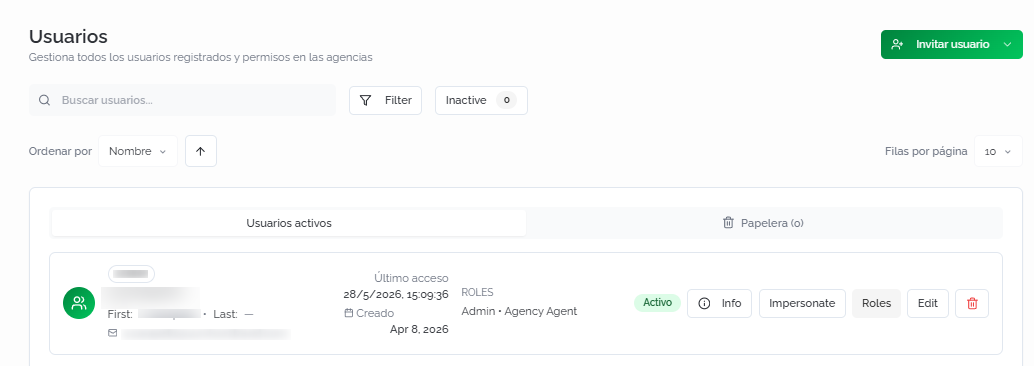
The list is split into two tabs: Active Users and Trash, each with a user counter.
Each row shows: identifying code, full name, email, last access, creation date, assigned roles, and status.
Per-user actions
- Info: opens the user's full details (first name, last name, email, type, roles, dates, and technical metadata).
- Impersonate: signs in as that user to view the platform from their perspective.
- Roles: opens the user's role management panel.
- Edit: switches the user's status between Active and Inactive.
- Delete (trash icon): available for all users except the Owner.
⚠️ Important
Marking a user as Inactive revokes their membership in the organization and blocks their access. They won't be able to log in until reactivated. Use this option instead of deleting if you want to keep the user's history.
Managing roles
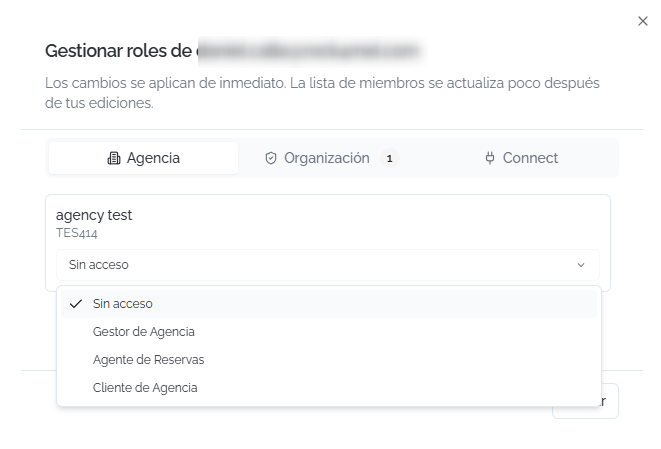
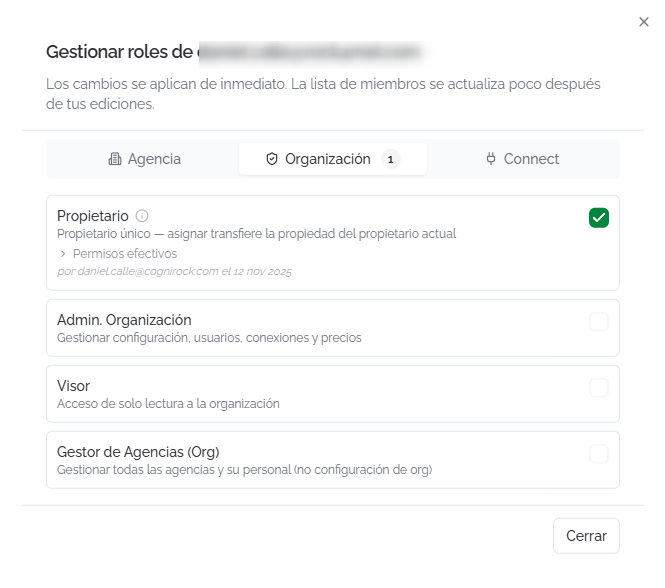
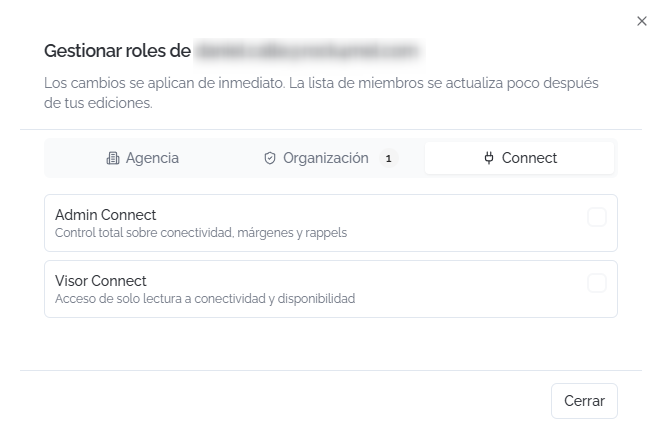
Clicking Roles opens a panel with three tabs covering the different permission levels. Changes take effect immediately.
Agency roles: a role is assigned for each agency in the organization:
- No access: the user has no access to that agency.
- Agency Manager: full management of the agency.
- Booking Agent: search and book services.
- Agency Client: limited access as a client.
Organization roles:
- Owner: the organization's sole owner.
- Org. Admin: manages settings, users, connections, and pricing.
- Viewer: read-only access to the organization.
- Agencies Manager (Org): manages all agencies and their staff, with no access to organization settings.
Connect roles:
- Connect Admin: full control over connectivity, margins, and rebates.
- Connect Viewer: read-only access to connectivity and availability.
⚠️ Important
Assigning the Owner role to another user automatically transfers ownership of the organization. This action cannot be undone from the interface. There should only be one owner at a time.
Inviting users
Click Invite User to expand the invitation options:
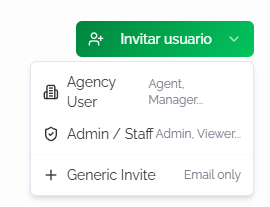
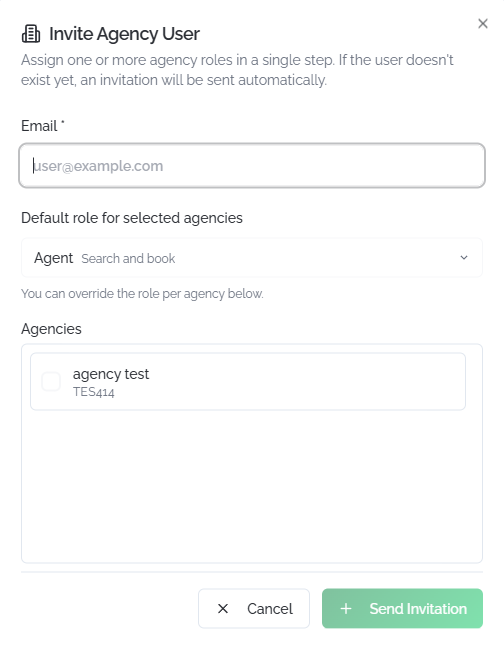
Agency User: invites a user and assigns them an agency role in a single step. If the user doesn't already exist on the platform, an invitation is sent automatically.
- Email: the user's email address.
- Default role for selected agencies: the default role for the selected agencies (for example, Agent — Search and book). You can customize the role per agency.
- Agencies: select the agencies they'll have access to.
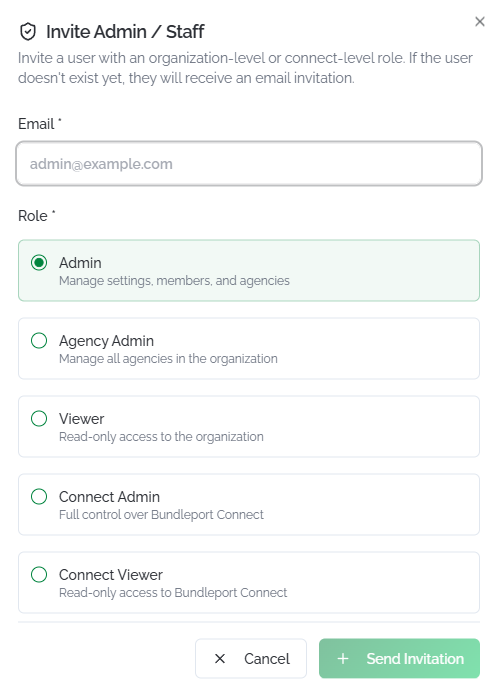
Admin / Staff: invites a user with an organization-level or Connect-level role.
- Email: the user's email address.
- Role: Admin, Agency Admin, Viewer, Connect Admin, or Connect Viewer.
Generic Invite: sends a basic invitation (email only). The user code is generated automatically. Roles are assigned afterward from the role management panel.
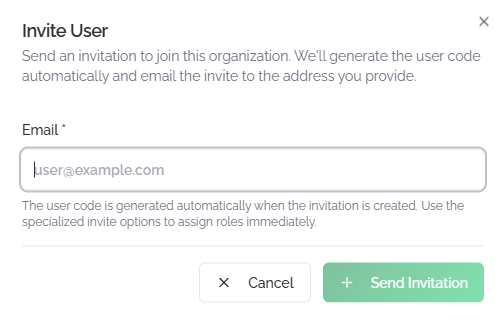
In all three cases, click + Send Invitation to send it, or Cancel to discard it.
💡 Tip
Use Agency User when you need to quickly give access to a booking agent: select the agencies, the role, and send. Use Generic Invite when you're not yet sure what permissions the user will need: give them access first, then adjust their roles later.
Agencies
From Agencies, you can manage your organization's agencies: create new ones, edit their configuration, assign connections, and delete them.
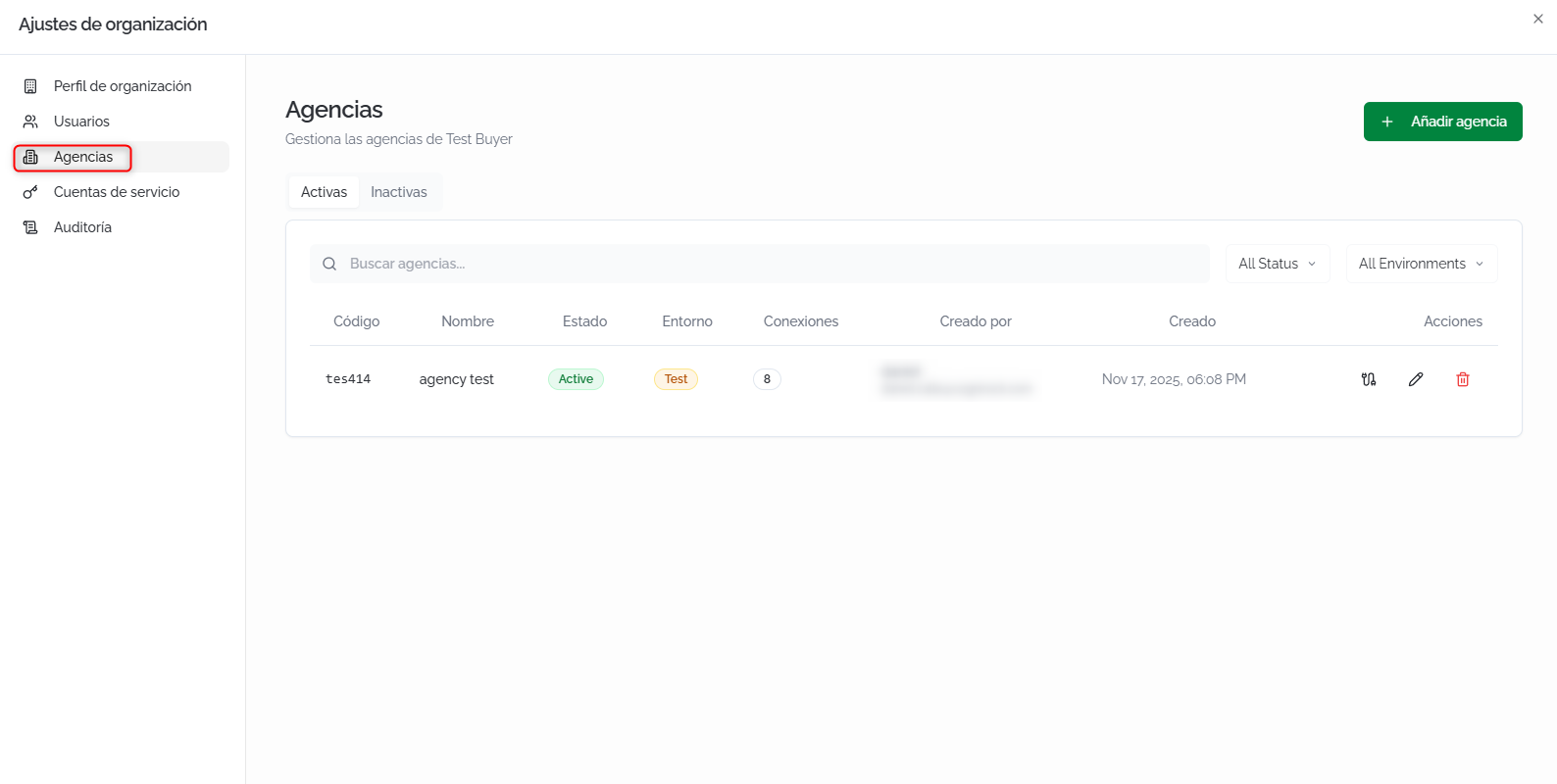
Agencies list
The screen is split into two tabs: Active and Inactive. You can filter by free text, status, and environment.
Each row shows:
- Code: identifying code (generated automatically).
- Name: the agency's name.
- Status: Active or Inactive.
- Environment: Test or Production.
- Connections: number of assigned connections.
- Created By: the user who created the agency.
- Created: creation date.
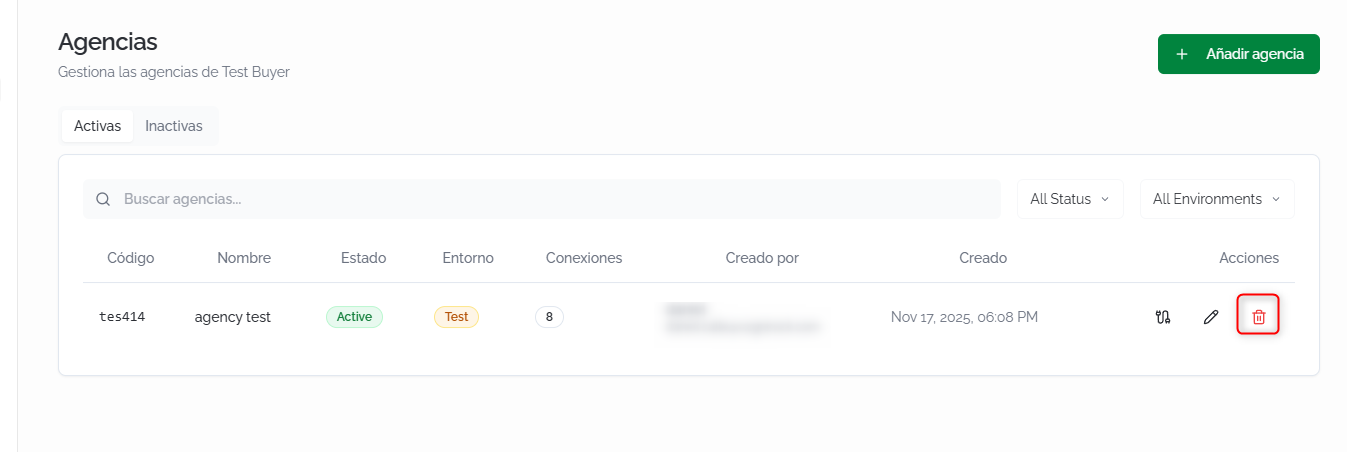
- Actions: assign connections, edit, or delete.
Creating an agency
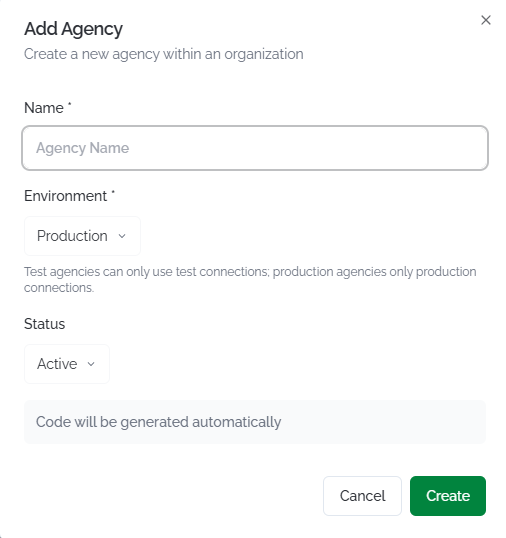
Click Add Agency. The form asks for:
- Name: the agency's name.
- Environment: Test or Production.
- Status: Active by default.
The code is generated automatically. Click Create to confirm.
⚠️ Important
The environment determines which connections the agency can use: Test agencies only support Test connections, and Production agencies only support Production connections. To change an existing agency's environment, it must have no connections assigned, or all of its connections must belong to the target environment.
Editing an agency
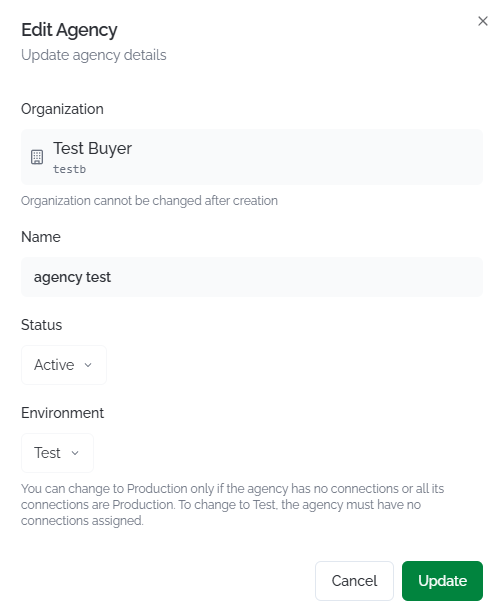
Click the edit icon in the Actions column. You can modify the name, status, and environment (subject to the restrictions above). The organization the agency belongs to cannot be changed once created.
Assigning connections
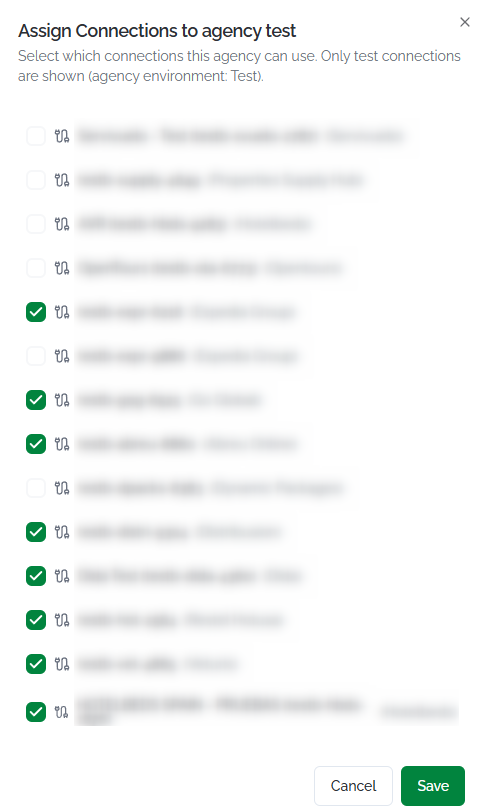
Click the connections icon in the Actions column. A panel will open with all available connections in the same environment as the agency. Check the connections you want to assign and click Save.
Deleting an agency
Click the trash icon in the Actions column. This action permanently deletes the agency.
Service Accounts
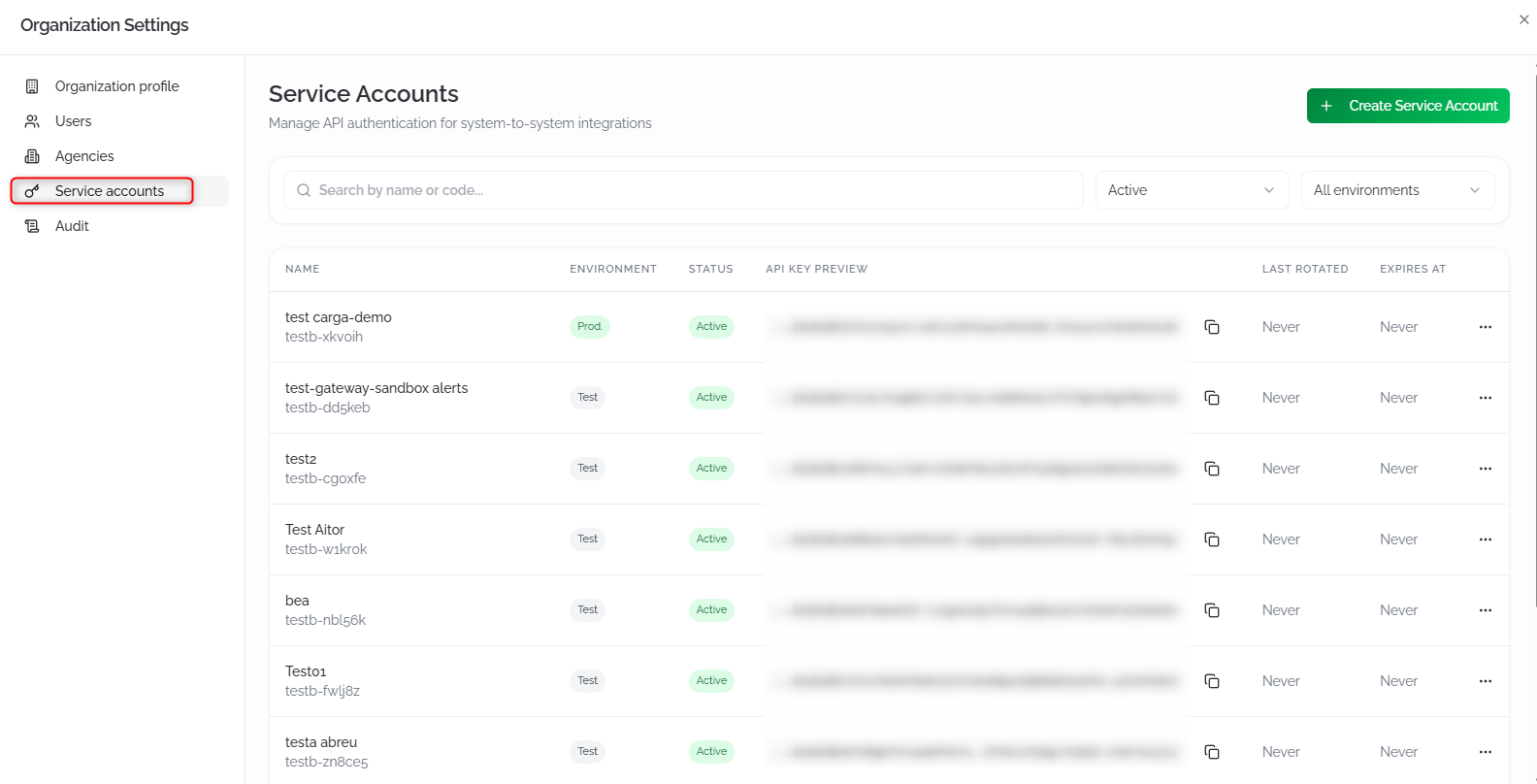
From Service Accounts, you can manage the service accounts used for system-to-system (API) authentication. Each account generates an API Key tied to a specific environment.
Search and filter
- Search by name or code: free-text search.
- All Status: filter by Active, Inactive, or Expired.
- All Environments: filter by Prod or Test.
Accounts list
Each account shows:
- Code: identifying code (format
org.code-XXXXXX). - Name: descriptive name of the account.
- Environment: Test or Prod.
- Status: Active, Inactive, or Expired.
- API key preview: a partial view of the API Key, with the option to copy it to the clipboard.
- Last rotated: date of the last key rotation.
- Expires at: expiration date, or No expiration if it doesn't expire.
- Actions: rotate key, edit, or delete.
Creating a service account
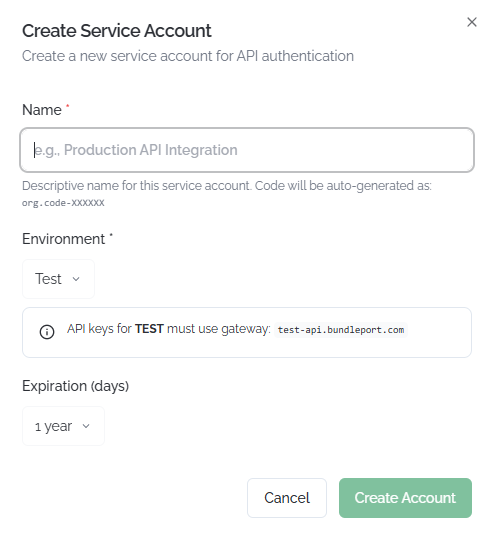
Click Create Service Account. The form asks for:
- Name: a descriptive name (for example, Production API Integration). The code is generated automatically.
- Environment: Test, Staging, or Production.
- Expiration (days): the validity period (for example, 1 year). Configure it according to your security policy.
Click Create Account to confirm.
ℹ️ Information
API Keys in the Test environment must use the test-api.bundleport.com gateway. Production keys use the main gateway.
Rotating, editing, and deleting accounts
Rotating a key: click Rotate in the Actions column to generate a new API Key. The previous key will stop working immediately.
⚠️ Important
Rotating an API Key invalidates the previous key instantly. All integrations using the previous key will stop working until they're updated with the new key. Coordinate the rotation with your technical team.

Editing: click Edit to modify the account's name, status, or expiration.

Deleting: click Delete to permanently delete the account. The associated API Key will stop working.

FAQs
What roles are available and what does each one allow?
There are three role levels: Agency (No access, Agency Manager, Booking Agent, Agency Client), Organization (Owner, Admin, Viewer, Agencies Manager), and Connect (Connect Admin, Connect Viewer). A user can hold roles at all three levels simultaneously.
Can I transfer ownership of the organization to another user?
Yes. Assign the Owner role to the new user from the roles panel. Ownership is transferred automatically, and your owner role is revoked.
What's the difference between deactivating and deleting a user?
Deactivating a user (Inactive) blocks their access but keeps their history and configuration. Deleting a user sends them to the Trash permanently. We recommend deactivating instead of deleting whenever possible.
What's the difference between a Test agency and a Production agency?
Test agencies can only use Test connections (a testing environment). Production agencies use real supplier connections. Use Test for testing and training, and Production for real operations.
Can I change an agency from Test to Production?
Yes, if the agency has no connections assigned, or if all of its connections belong to the target environment. First unlink the Test connections, then change the environment to Production.
What is "Impersonate" and when should I use it?
It lets you sign in as another user to view the platform from their perspective. It's useful for diagnosing permission issues or verifying that a user sees what they should see.
When should I rotate an API Key?
Rotate the key if you suspect it's been compromised, when a team member with access to the key leaves the organization, or as part of your periodic credential rotation policy.
What happens if an API Key expires?
The service account moves to Expired status and the key stops working. Create a new service account or edit the existing one's expiration to restore access.
Can I assign a user to multiple agencies with different roles?
Yes. From the roles panel, the Agency tab lets you assign a different role for each agency in the organization. A user can be a Manager in one agency and a Booking Agent in another.
No comments to display
No comments to display