
Agency Settings
Customize your agency's identity and search engine behavior
Agency Settings
Customize your agency's identity and search engine behavior
The Agency Settings section lets you customize each agency's identity, search engine behavior, and price display preferences. The configuration is split into two main blocks: Agency Profile (identity and contact details for vouchers and documents) and Booking Flow (how results are sorted, filtered, and displayed to agents).
Accessing Agency Settings
- Log in to the Bundleport platform.
- In the left-hand side menu, select Agency Panel.
- Click your username in the bottom left corner.
- Select Agency Settings.
Agency Profile
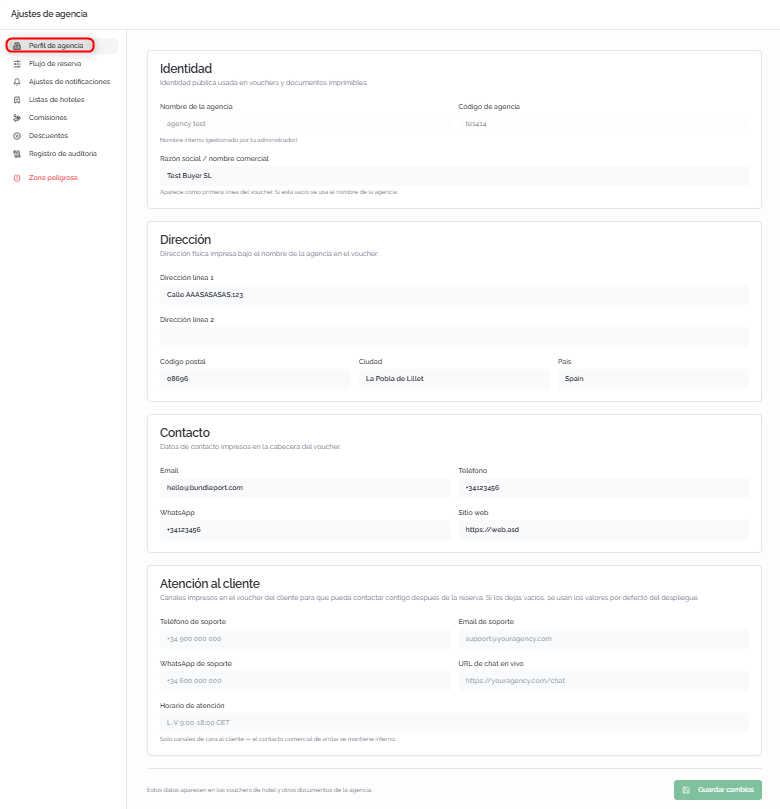
From Agency Profile, you can configure the information that appears on hotel vouchers and other agency documents. The page is split into four blocks:
Identity
Public identity used on vouchers and printable documents.
- Agency name: the agency's internal name (read-only, managed by the administrator from Organization Settings)
- Agency code: identifying code (read-only).
- Legal name / trade name: appears as the first line of the voucher. If left blank, the agency name is used.
Address
Physical address printed below the agency name on the voucher.
- Address line 1 and Address line 2: street and number, floor, office, etc.
- Postal code, City, and Country.
Contact
Contact details printed in the voucher's header.
- Email: the agency's email address.
- Phone: the main phone number.
- WhatsApp: WhatsApp number.
- Website: the agency's website URL.
Customer Service
Support channels printed on the voucher so the client can contact the agency after booking. If left blank, the organization's default values are used.
- Support phone.
- Support email.
- Support WhatsApp.
- Live chat URL.
- Service hours.
ℹ️ Information
The Customer Service fields are strictly traveler-facing (they appear on the voucher). The Contact block data remains as internal agency information.
💡 Tip
Set up these fields before generating your first voucher. Agency Profile data is printed on vouchers generated from the Bookings.
Click Save changes to apply the configuration.
Booking Flow
From Booking Flow, you can configure how search results are sorted and displayed to your agency's agents.
⚠️ Important
Currently, only the Hotels > Availability configuration is available. Settings for Flights and Ground, as well as the Booking and Quality stages, will be enabled progressively.
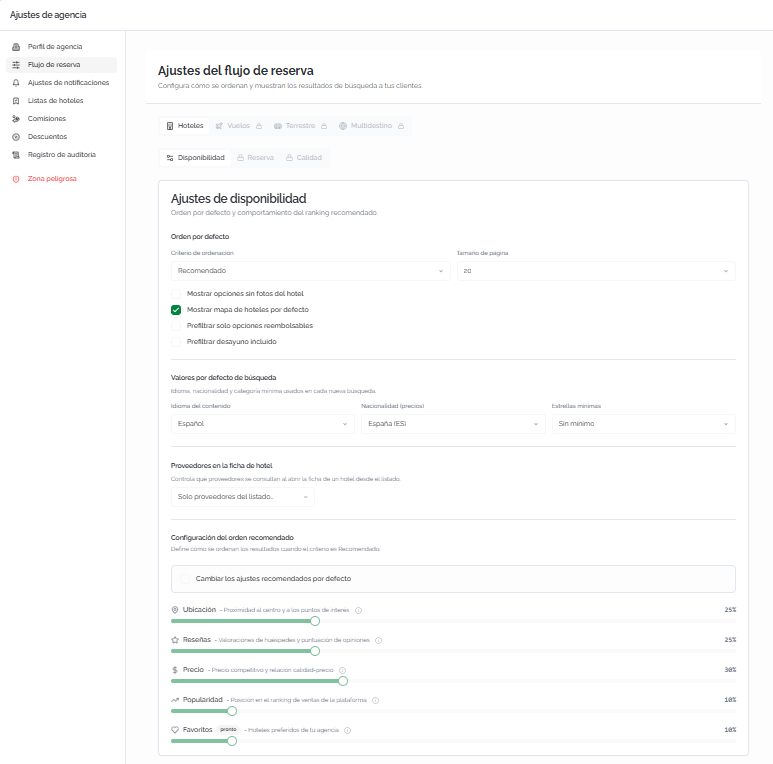
Availability settings
Control the default order of results and search behavior.
Default order:
- Sorting criteria: defines how search results are sorted by default. Options: Recommended, Price: low to high, Price: high to low, Top rated, or Distance to center.
- Page size: number of results per page.
- Show options without hotel photos: if disabled, hotels without photos are hidden from the results.
- Show hotel map by default: displays the map alongside the results when the page loads.
- Pre-filter refundable options only: enables the free cancellation filter by default on every search.
- Pre-filter breakfast included: enables the breakfast included filter by default.
Default search values:
- Content language: the language used to request hotel information from suppliers.
- Nationality (optional): the guest's nationality; may affect prices and availability depending on the supplier.
Suppliers on the hotel details page:
- Visible suppliers: defines how many suppliers or connections are shown by default on each hotel's details page.
Recommended order configuration
Defines the priority and weight of each criterion used in the Recommended order of the Booking tool. Each criterion has a slider (0–100%) and a toggle to enable or disable it:
- Location: proximity to the center and points of interest.
- Reviews: guest ratings and the property's score.
- Price: price competitiveness.
- Popularity: booking frequency among other platform users.
- Favorites: hotels marked as favorites in the agency's lists
💡 Tip
Adjust the weights according to your agency's business strategy. If you prioritize value for money, increase the weight of Reviews and Price. If you work with a curated catalog, increase the weight of Favorites so your preferred hotels appear first.
Price display
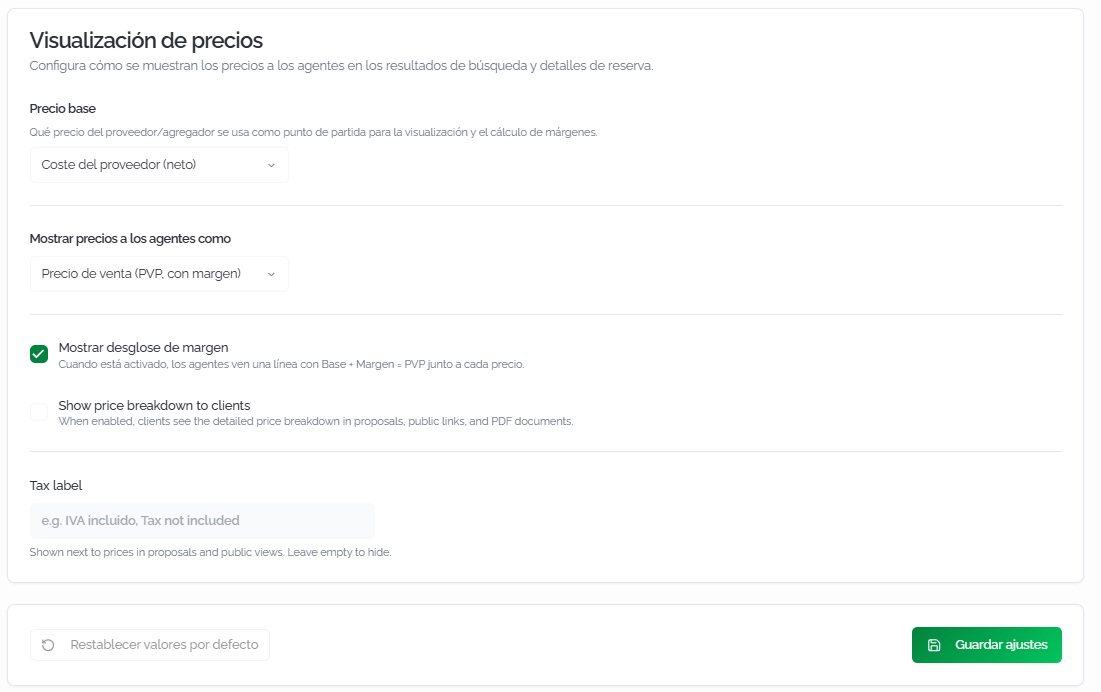
Configure how prices are shown to agents in search results and booking details.
- Base price: which supplier price is used as the starting point for display and margin calculation. Options: Supplier cost (net), Supplier retail price (gross/suggested), or Sale price (with aggregator margin).
- Show prices to agents as: Sale price (PVP, with margin) or Base price (without agency margin).
- Show margin breakdown: when enabled, agents see a line with Base + Margin = PVP next to each price.
- Show price breakdown to clients: shows the end traveler the tax breakdown on the voucher, email, and confirmation PDF.
- Tax label: text that appears next to prices on vouchers and quotes (for example, VAT included). Leave blank to not show it.
⚠️ Important
The Show margin breakdown option determines whether agents see the price composition (net + markup = PVP). If your agent team shouldn't know the agency's margin, disable this option.
Click Save settings to apply the configuration, or Reset to defaults to return to the initial configuration.
FAQs
Do agency settings affect all of my agency's agents?
Yes. The Booking Flow settings (default order, pre-set filters, price display) apply to all agents operating in that agency. Agents can manually change filters and sorting on each search, but the default values are restored on every new search.
Where is the Agency Profile data used?
It's printed on vouchers generated from the Bookings module (both the agency voucher and the end client voucher) and on other documents associated with the agency.
What effect does the "Recommended" order configuration have in the Search Engine?
It defines the weights for each criterion (location, reviews, price, popularity, favorites) that the Search Engine uses to sort results when the agent selects the Recommended order. Adjusting the weights lets you prioritize what matters most to the agency's business strategy.
Can I hide hotels without photos by default?
Yes. Disable the Show options without hotel photos option in the Availability settings. Agents can manually enable the With photos filter on each search if needed.
What is "Base price" in the price display settings?
It's the supplier price used as the starting point to calculate and display prices. It can be the net cost, the suggested (gross) price, or the price with the aggregator's margin. The choice affects how margins are displayed.
Can agents see the agency's margin?
Only if the Show margin breakdown option is enabled. If disabled, agents only see the final price (PVP) without knowing its composition.
Can I configure the search engine to show only free-cancellation options by default?
Yes. Enable the Pre-filter refundable options only option in the Availability settings. Agents will see only free-cancellation options by default, though they can manually disable the filter on each search.
Does the guest's nationality affect prices?
It can. Some suppliers offer differentiated prices based on the guest's nationality. If you typically work with travelers of a single nationality, set it as the default value to get the most relevant prices.
No comments to display
No comments to display