
Booking Tool: Flights
Search, compare, and book flights
The Search Engine is the search and booking engine built into the Agency Panel. From the Flights tab, you can search availability across multiple suppliers, compare flight combinations by price, duration, and stops, and complete bookings directly from the platform.
This article covers the full flow for flights: from search to booking confirmation. The flight search engine supports round-trip or one-way searches, with cabin class selection and passenger configuration. If you need to create multi-leg itineraries, see the Multi-destination article.
Accessing the Search Engine
- Log in to the Bundleport platform.
- In the left-hand side menu, select Agency Panel.
- Select Search.
The main screen shows tabs for each product type: Hotels, Flights, Ground, Dynamic Package, and Multi-destination.
Searching for flights
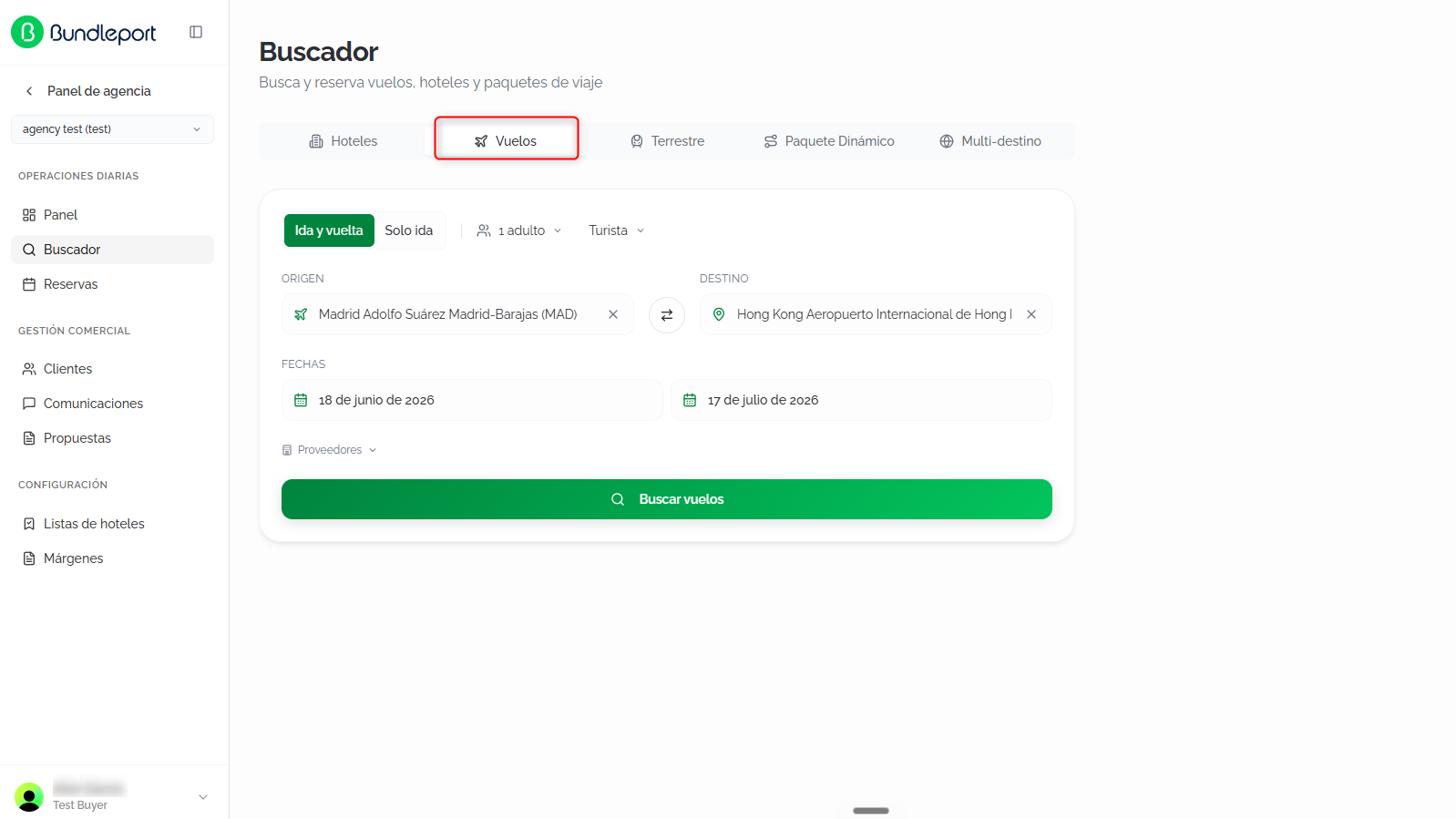
Select the Flights tab and fill in the following fields:
- Trip type: select the trip type at the top of the form:
- Round trip (default): search for round-trip flights.
- One way: search for one-way flights.
- Passengers: click the passenger selector to configure the number and type of passengers.
- Cabin class: select the desired cabin:
- Economy (default)
- Premium economy
- Business
- First class
- Origin: type the name of the city or airport and select an option from the autocomplete suggestions. The airport's IATA code is shown (for example, HAN).
- Destination: type the destination and select from the autocomplete suggestions. You can select all airports in a city (for example, Shanghai (All airports)). Click the swap icon ⇄ between the origin and destination fields to reverse the route.
- Departure date: select the outbound date.
- Return date (round-trip mode only): select the return date.
- Suppliers: click Suppliers to expand the list of available flight suppliers and select or deselect the ones you want. You can use Deselect all to clear the selection, or Only this one next to a supplier to search exclusively with them.
Click Search flights to start the search.
Search results
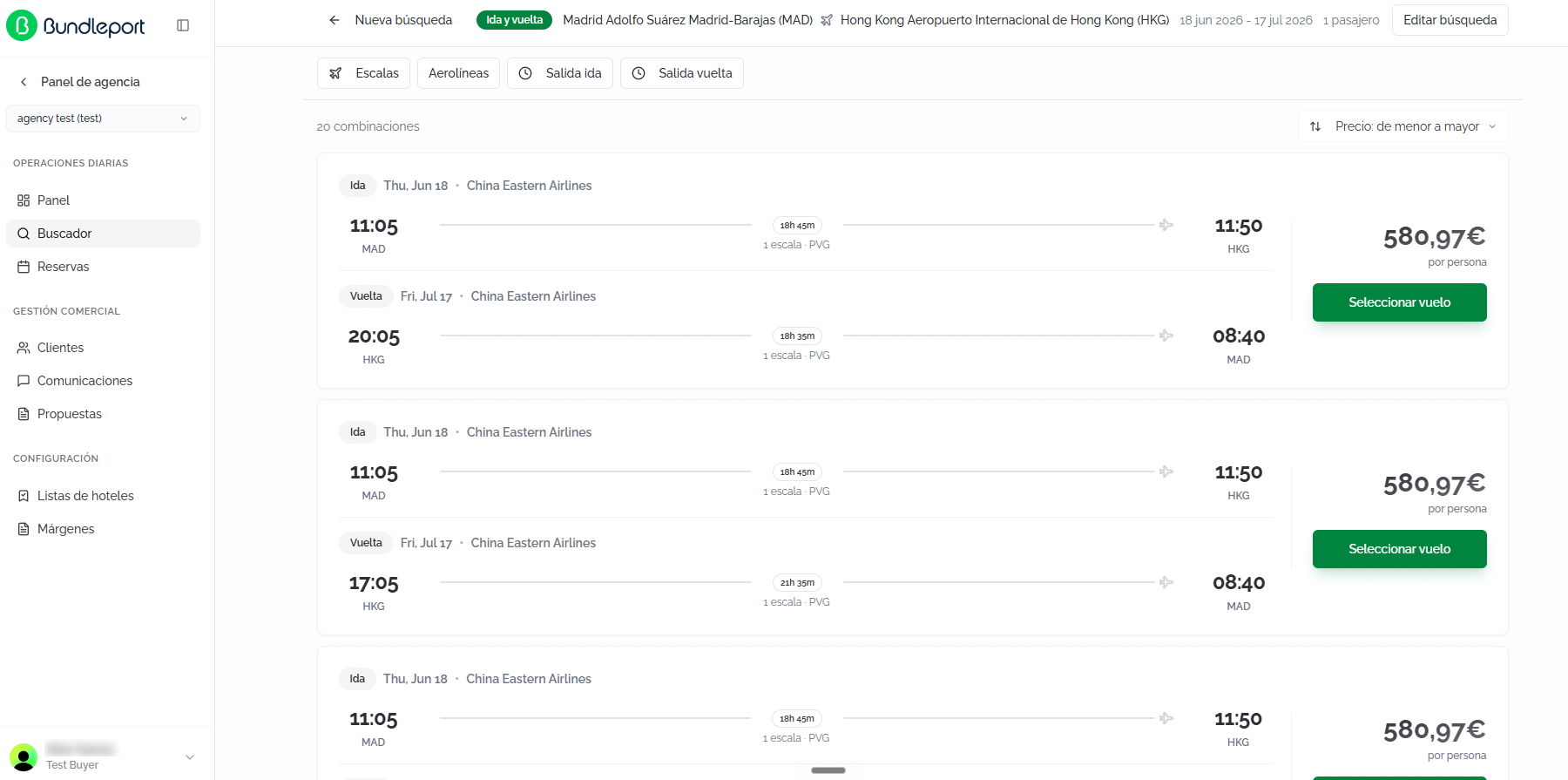
The platform queries availability across all selected suppliers and displays results progressively as each supplier responds.
A summary of the search remains visible at the top: trip type, route, dates, and number of passengers. Click Edit search to modify the criteria, or New search to return to the initial form.
Flight cards
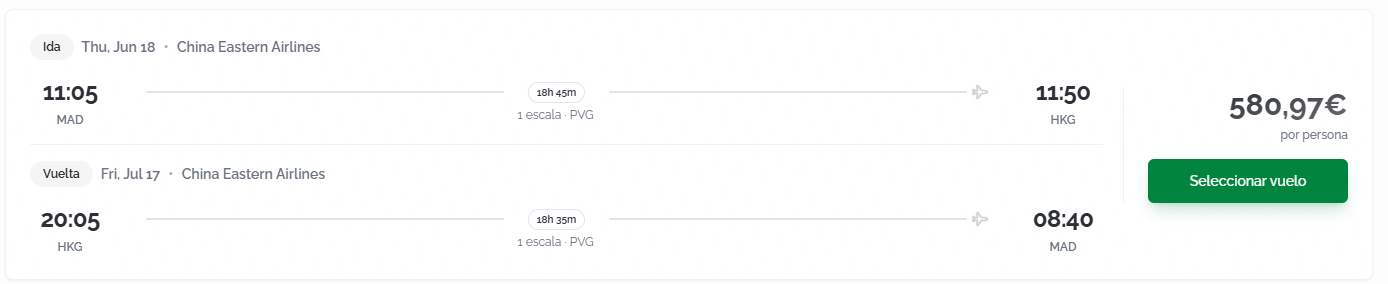
Each flight combination is shown as a card that includes the outbound and return legs (for round-trip searches). For each leg, the following is shown:
- Leg label (Outbound or Return).
- Flight date and operating airline.
- Departure time and origin airport (IATA code).
- Total leg duration.
- Number of stops and connecting airport (IATA code).
- Arrival time and destination airport (IATA code).
On the right side of the card, the price per person is shown along with the Select flight button to start the booking process.
Sorting results
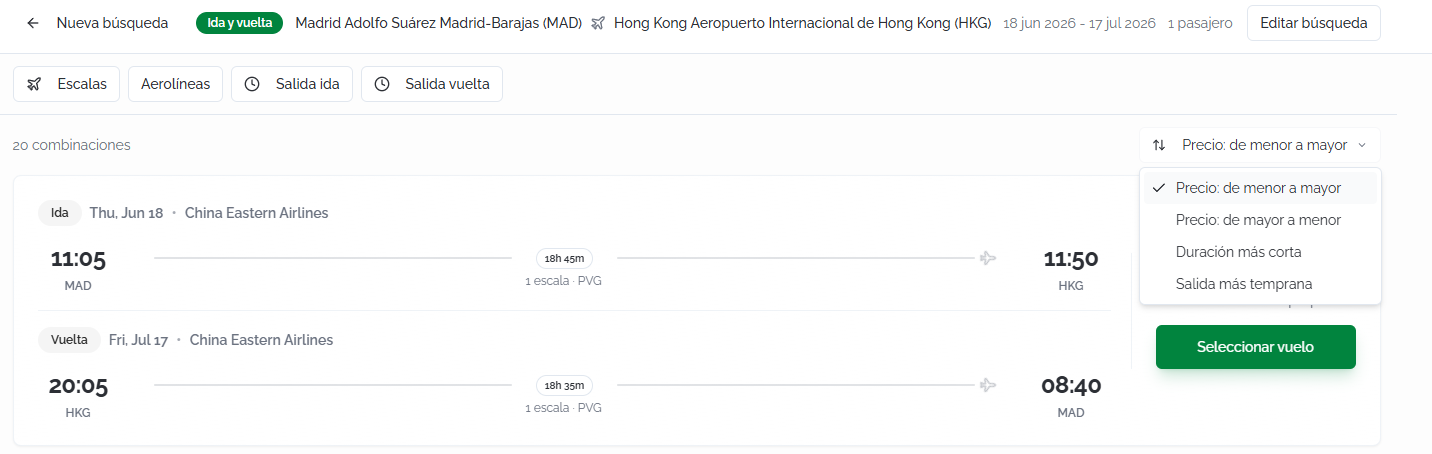
The total number of combinations found is shown (for example, 20 combinations). The available sorting criteria are:
- Price: low to high (default).
- Price: high to low.
- Shortest duration.
- Earliest departure.
Filters
You can filter the results using the following options:
- Stops: filter by number of stops (direct, 1 stop, 2+ stops).
- Airlines: select one or more specific airlines.
- Outbound departure: filter by the outbound flight's departure time range using a slider.
- Return departure: filter by the return flight's departure time range.

ℹ️ Information
When filters are active, the the Clear all button is shown along with the number of filters applied.
Configuring the flight
To proceed with the booking, click Select flight on the card for the combination you want.
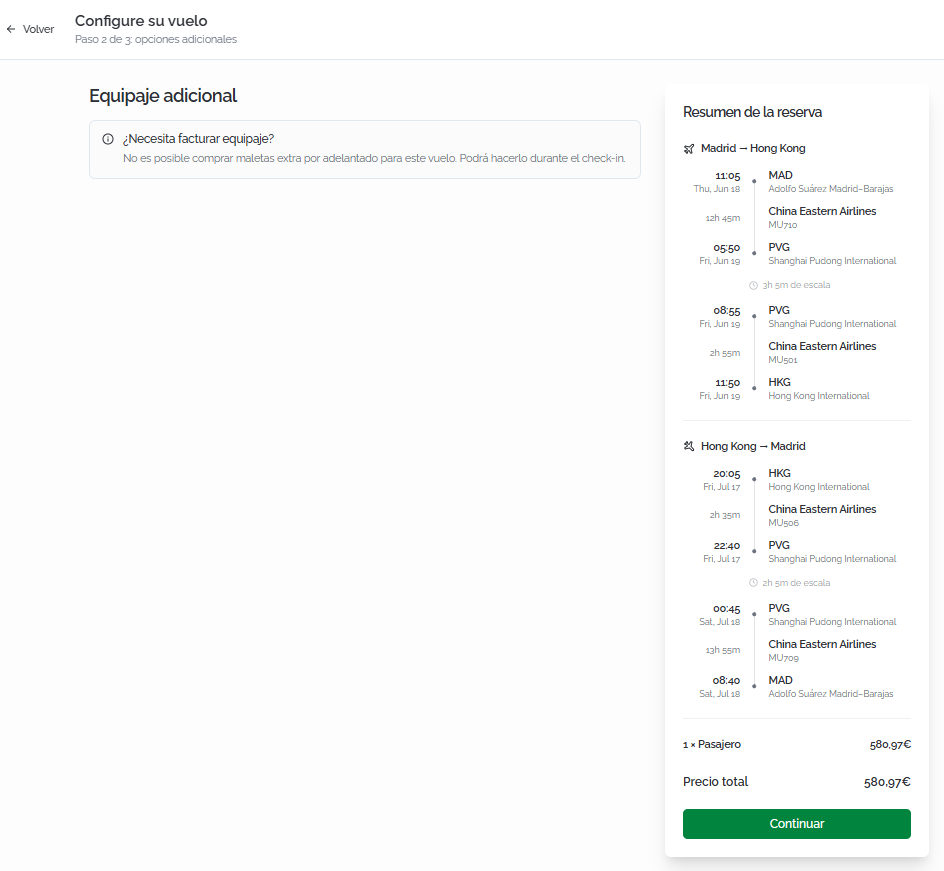
A page will open with the available configuration options, such as additional baggage, where you can customize the included services before continuing with the booking.
The same page shows the Booking summary panel with the full itinerary for each leg:
- Departure time, date, and origin airport (full name).
- Flight segment duration.
- Airline and flight number.
- Arrival time, date, and destination airport.
- Layover time (if applicable) and connecting segments with the same information.
At the bottom of the summary, the breakdown by passenger (number of passengers and price per person) and the booking's total price are shown.
💡 Tip
Review the itinerary summary before continuing: check that the layover times are sufficient and that the connecting airports are correct, especially in cities with multiple airports.
Click Continue to access the checkout page.
Completing the booking
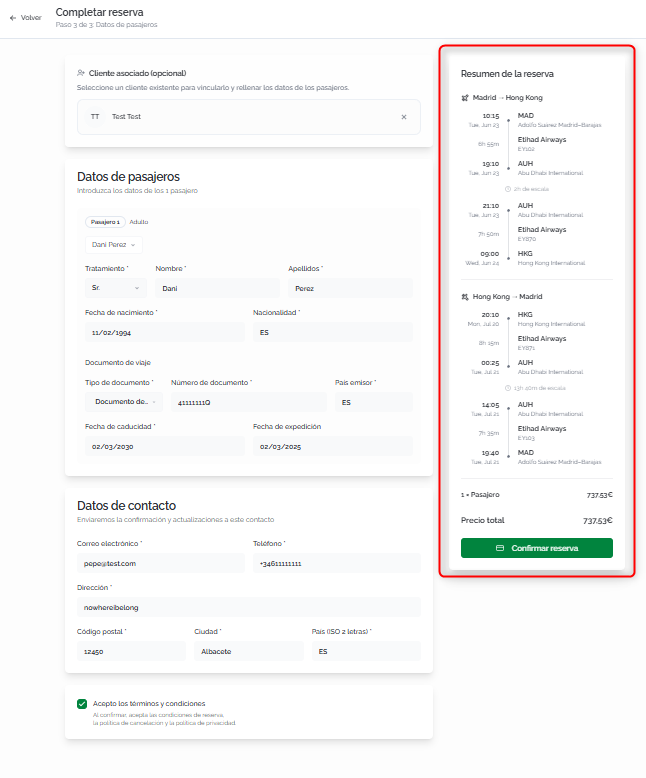
- Fill in the following information:
- Associated client (optional): link the booking to an existing client so it's recorded in their history. Click Search client... to search by name or email. If the client doesn't exist, click New client to create one directly.
- Passenger details: enter each passenger's information:
- Title: select the title (Mr., Mrs., etc.).
- First name and Last name of the passenger.
- Date of birth.
- Nationality.
- Travel document: document type, number, issuing country, issue date, and expiration date.
- Contact details: used to send booking confirmations and updates.
- Email.
- Phone.
- Address.
- Postal code.
- City.
- Country.
- Acceptance of terms: before confirming, check the box accepting the terms and conditions, the cancellation policy, and the payment conditions.
ℹ️ Información
If the selected client has travelers set up, you can auto-fill the passenger details by selecting the corresponding traveler.
⚠️ Important
Flight bookings require travel document details (passport, national ID, etc.) for each passenger. Make sure the documents are valid throughout the travel dates to avoid issues at boarding.
Before confirming, check the Booking summary side panel to make sure all the information is correct: legs, stops, airline, schedules, and price breakdown (net base, markup, subtotal, discount if applicable, and final amount).
Click Confirm booking to complete the booking.
Booking confirmation
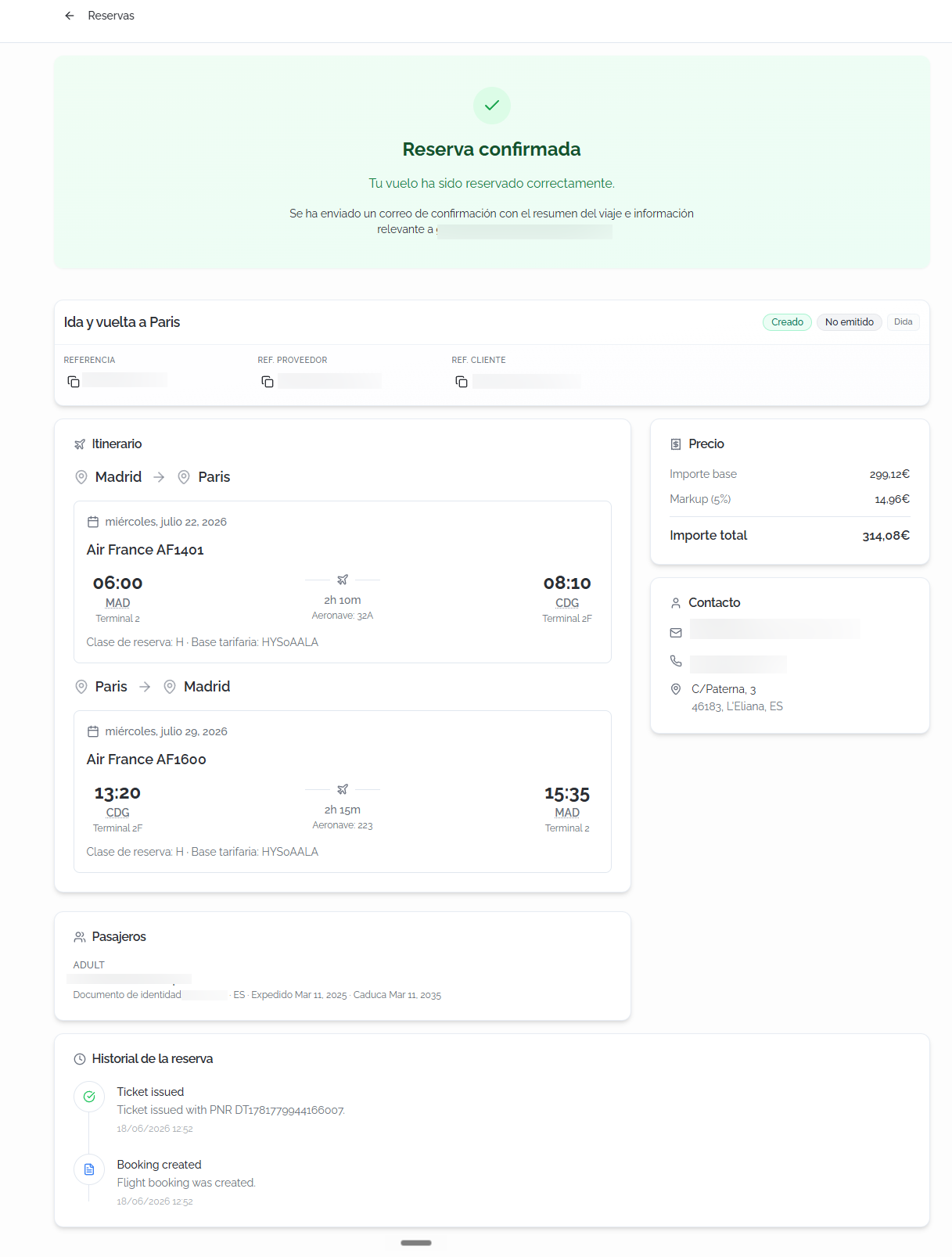
Once confirmed, a page is shown with the full details of the booked flight:
- Header: a confirmation banner indicating the flight has been successfully booked and that a confirmation email has been sent. Below it, the Bundleport reference, status, supplier, client reference, and supplier reference are shown.
- Itinerary: full details of each leg (outbound and return). For each flight segment, the following is shown:
- Flight date.
- Operating airline and flight number.
- Departure time, IATA code, and name of the origin airport.
- Segment duration.
- Arrival time, IATA code, and name of the destination airport.
- Cabin class and fare.
- Layover time between segments (if applicable).
- Total leg duration.
- Price Summary: financial breakdown of the booking: price per passenger, markup applied, and total price.
- Contact: contact details associated with the booking: email, phone, and address.
- Passengers: list of passengers with each one's title, first name, and last name.
- Booking history: a chronological log of the events associated with the booking, indicating the action taken and the date.
ℹ️ Information
The booking status may initially show as as Not ticketed. This means the booking has been created in the supplier's system, but the ticket has not yet been issued. The status will update automatically once the ticketing process is complete.
FAQs
What's the difference between "Economy" and "Premium economy"?
Economy is the standard economy class. Premium economy offers more spacious seats, greater recline, better onboard service, and generally a higher baggage allowance. Exact availability and features depend on each airline.
Why are travel document details requested when booking flights?
Airlines and distribution systems require each passenger's ID or passport details to issue the ticket. Make sure the documents are valid throughout the travel dates.
What does the "Not ticketed" status mean?
It means the booking has been successfully created but the ticket has not yet been issued by the supplier. The status updates automatically once the ticketing process is complete.
Can I search for flights with multiple destinations?
The flight search engine lets you search round-trip or one-way between two points. For multi-leg itineraries, use the Dynamic Package mode of the Search Engine.
Do the displayed prices include airport taxes?
Yes. The prices shown on the results cards include airport taxes. The full breakdown (base, taxes, and markup) can be viewed in the booking summary before confirming.
Can I book a flight without linking a client?
Yes. Linking a client is optional, but recommended to keep an organized booking history.
What happens if I select "All airports" for the destination?
The search will include flights to all airports in that city. This is useful in cities with multiple airports (such as London, Paris, or Shanghai) to compare all available options without having to run separate searches.