
Proposals
Create and send commercial quotes to your clients
Proposals is the Agency Panel module that lets you create commercial quotes for your clients, add services (hotels, flights, ground transportation, and others), send them by email, and track their status through to booking.
The typical flow is: create a proposal linked to a client, add services to the itinerary from the Search Engine or manually, send it to the client, and manage its status through to confirmation.
Accessing Proposals
- Log in to the Bundleport platform.
- In the left-hand side menu, select Agency Panel.
- Select Proposals.
Proposals list
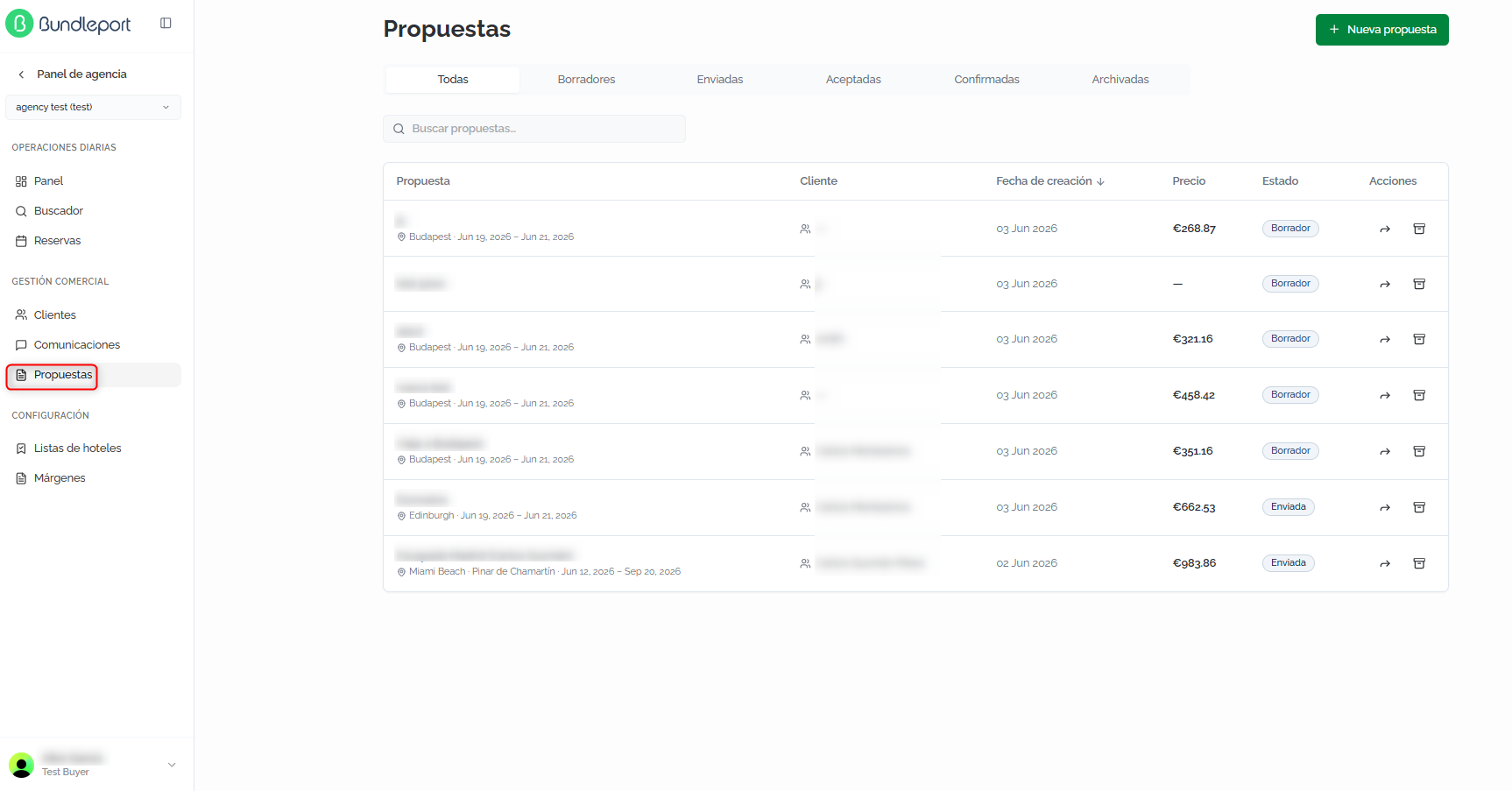
The main screen shows all of your agency's proposals.
Filters and search
You can filter by status using the tabs: All, Drafts, Sent, Accepted, Confirmed, and Archived. The Search proposals field lets you locate proposals by free text.

Proposals table
Each row in the list shows:
- Proposal: proposal name, destination, and travel dates (if defined).
- Client: client associated with the proposal.
- Creation date: date the proposal was created.
- Price: total quoted amount.
- Status: current status (Draft, Sent, Accepted, Rejected, Confirmed).
- Actions: share link and archive.
Creating a proposal
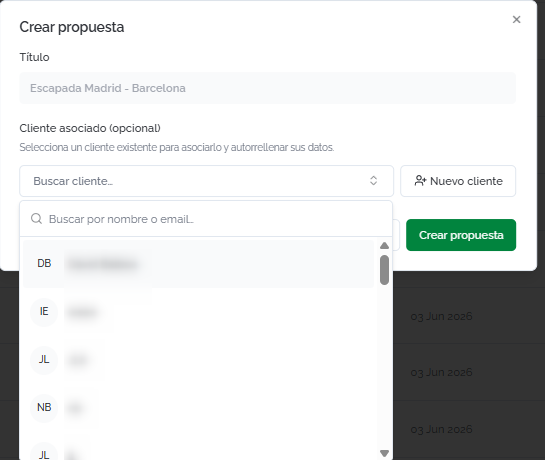
Click New proposal to open the creation form. Fill in the following fields:
- Title: descriptive name for the proposal (for example, Madrid – Barcelona getaway).
- Client: search for and select an existing client by name, code, or email. If the client doesn't exist, click Create new client to add them directly.
Click Create proposal to save it as a draft.
ℹ️ Information
You can also create proposals directly from a client's profile (New proposal button) or add options to a proposal from the Booking Tool (Add to proposal button when selecting a room or at checkout).
Proposal details
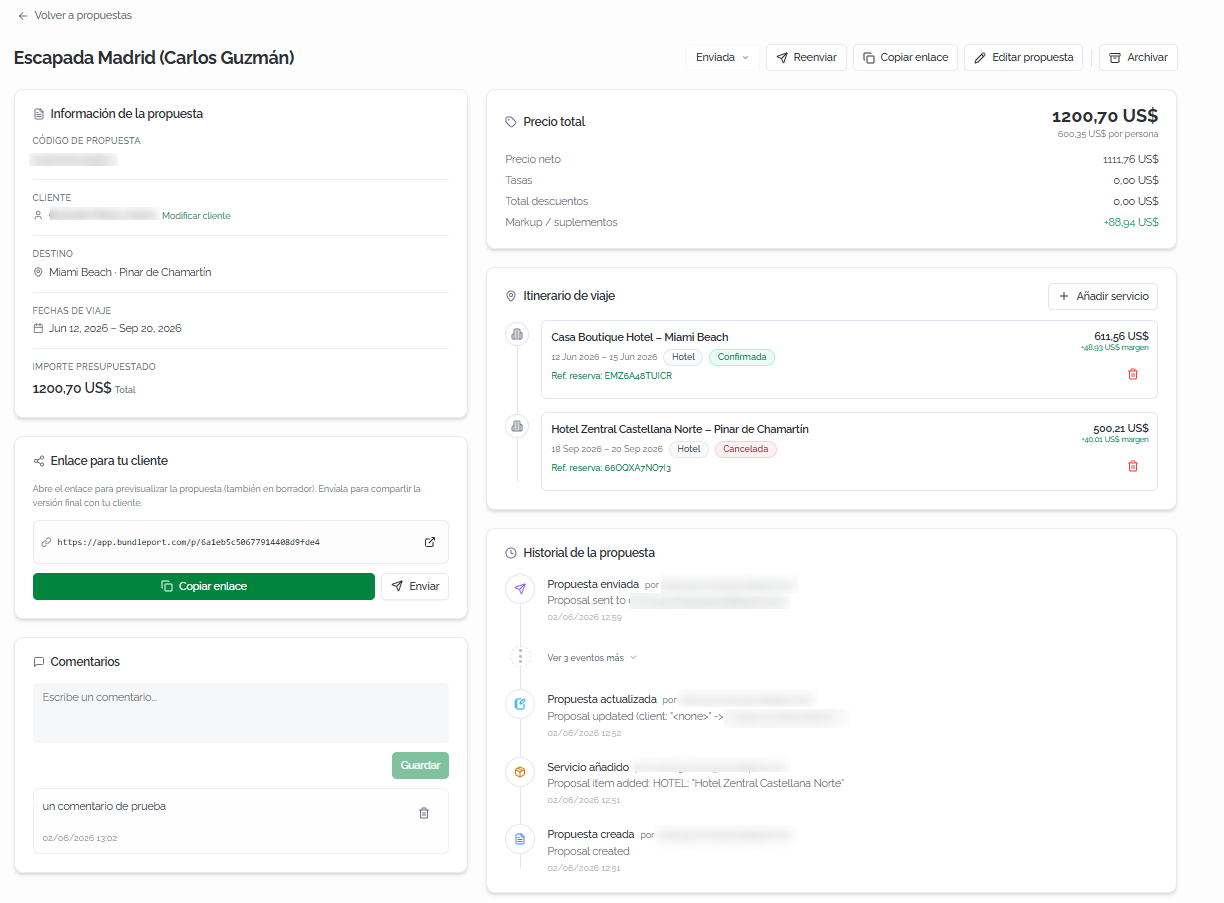
Opening a proposal displays its full profile organized into two columns:
Proposal information (left column):
- Proposal code: unique reference generated automatically.
- Client: associated client. Click Change client to update it.
- Destination: destinations included in the itinerary.
- Travel dates: date range for the trip.
- Quoted amount: total price of the proposal.
Link for your client — a unique URL to share the proposal with the client. It also works in draft status for previewing. Click Copy link to copy the URL, or Send to send it by email.
Comments — a space to add internal notes about the proposal. Type the comment and click Save.
Total price (right column):
- Financial breakdown: price per person, net price, taxes, total discounts, and markup/surcharges.
Travel itinerary (right column):
- A list of all services included in the proposal. Each service shows the name, dates, service type (Hotel, Flight, etc.), status (Confirmed, Cancelled, etc.), booking reference, price, and margin. Click the trash icon to remove a service from the itinerary.
Proposal history (right column):
- Chronological record of all events: creation, updates, services added, and sends, indicating the responsible user and the date.
Adding services to the itinerary
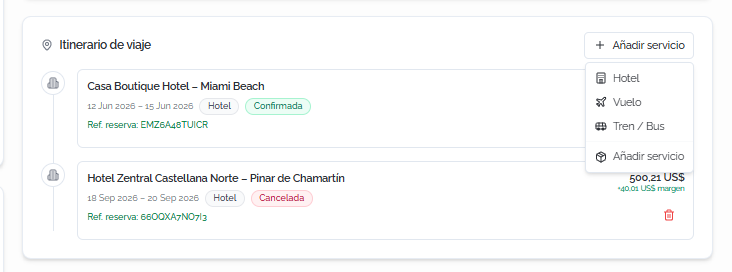
From the proposal details, click + Add service in the Travel itinerary section to expand the available options.
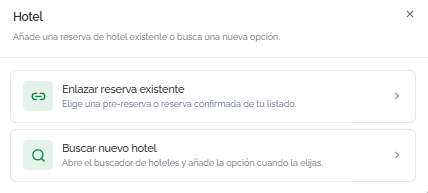
Hotel
Lets you link an existing hotel booking or search for a new hotel directly from the Search Engine:
- Link existing booking: select a pre-booking or confirmed booking from your list.
- Search for new hotel: opens the Hotel Search Engine and adds the option you choose
Flight
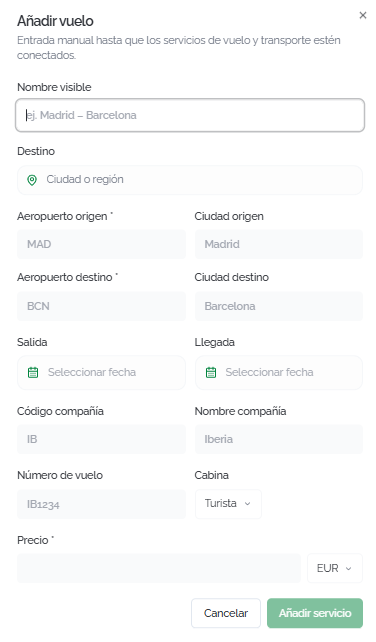
Manual entry of the flight details:
- Display name: descriptive name (for example, Madrid – Barcelona).
- Destination: city or region.
- Origin airport and Origin city.
- Destination airport and Destination city.
- Departure and Arrival: flight dates.
- Airline code, Airline name, and Flight number.
- Cabin: cabin class (Economy, Business, etc.).
- Price: cost of the service.
⚠️ Important
Flights are currently added manually to proposals. Integration with the Flight Search Engine to link bookings directly will be available soon.
Train / Bus
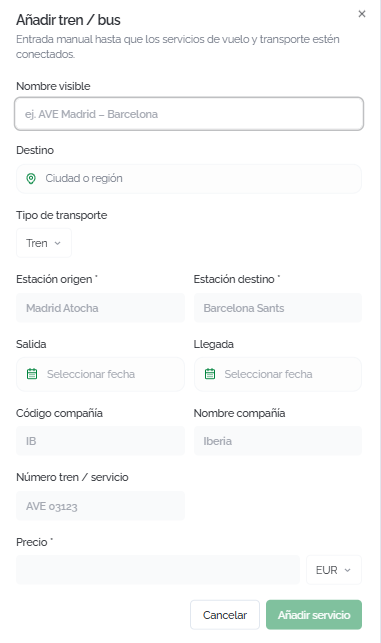
Manual entry of the ground transportation details:
- Display name: descriptive name (for example, AVE Madrid – Barcelona).
- Destination: city or region.
- Transport type: Train or Bus.
- Origin station and Destination station.
- Departure and Arrival: service dates.
- Company code, Company name, and Train / service number.
- Price: cost of the service.
⚠️ Important Ground transportation is added manually to proposals until transportation services are connected to the Booking Tool.
Add manual service
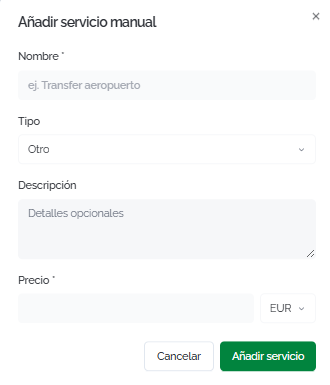
For any other type of service (transfers, excursions, insurance, etc.):
- Name: descriptive name (for example, Airport transfer).
- Type: service category (Insurance, Transfer, Tour/Activity, Other).
- Description: optional details.
- Price: cost of the service.
In all cases, click Add service to confirm.
💡 Tip
Use manual services to include any part of the trip that isn't available in the Search Engine: travel insurance, private transfers, show tickets, excursions, etc. This way the client receives a complete quote with all the trip's costs.
Managing the proposal's status
From the top bar of a proposal's details, you can perform the following actions:
Changing the status
Click the status dropdown to change it. The available statuses are:
- Draft: the proposal is being prepared.
- Sent: the proposal has been sent to the client.
- Accepted: the client has accepted the proposal.
- Rejected: the client has rejected the proposal.
- Confirmed: the services in the proposal have been booked.

Sending to the client
Click Send on the top bar. A dialog will open to enter or confirm the recipient's email. If the proposal has already been sent before, the button will show as Resend.
ℹ️ Information
When the proposal is sent, the client receives an email with a link to the quote. You can also share the URL manually from the the Link for your client field without sending an email.

Editing the proposal
Click Edit proposal to change the title, the associated client, or the proposal's cover image. Click Save changes to confirm.

Archiving a proposal
Click Archive to move the proposal to the Archived tab. Archived proposals remain in the system but stop appearing in the main tabs.

FAQs
How do I add a hotel to a proposal's itinerary from the Search Engine?
There are two ways: from the Search Engine, click Add to proposal when selecting a room or during checkout. Or, from the proposal's details, click + Add service > Hotel > Search for new hotel to open the Search Engine directly.
Can I send a proposal before completing the itinerary?
Yes. You can send a proposal in any status, even as a draft. The client link works in any status, letting you share a preview of the itinerary while you keep working on it.
What does the client see when they receive a proposal?
The client receives an email with a link to a page showing the itinerary, the included services, the price breakdown, and the trip information.
What's the difference between the "Accepted" and "Confirmed" statuses?
Accepted means the client has approved the proposal. Confirmed means the services included in the itinerary have actually been booked. The status change is manual and lets the agent reflect the proposal's real progress.
Why are flights and ground transportation added manually?
Currently, proposals only integrate with the Hotel Search Engine to link bookings directly. Flights and ground transportation are added as manual entries until integration with the corresponding search engines is complete.
Can I add services that aren't travel-related?
Yes. The Add manual service option lets you include any type of service: insurance, transfers, tours, tickets, or any other item that's part of the trip's budget.
Can I remove a service from the itinerary after adding it?
Yes. In the Travel itinerary section of the proposal's details, click the trash icon next to the service you want to remove.
What happens to an archived proposal?
It's moved to the Archived tab and stops appearing in the other tabs. The data remains in the system, and you can view it at any time.
Can I create a proposal directly from a client's profile?
Yes. On the client's profile, click New proposal to create a proposal already linked to that client.