
Commissions
Configure the commissions your agency earns per booking
Commissions represent the earnings the agency receives for each booking. They're calculated automatically based on the rules configured by the organization and can be a percentage of the base (net) price or the PVP, or a fixed amount per booking.
Commissions are configured at the organization level from Connect, so the view in the Agency Panel is read-only. If you need changes, contact your organization's administrator.
Accessing the Commissions section
- Log in to the Bundleport platform.
- In the left-hand menu, select Agency Dashboard.
- Click your username in the bottom-left corner of the Agency Dashboard.
- From the dropdown menu, select Agency Settings.
- In the left-hand panel of the dialog, select Commissions.
The Commission Management page will open, where you can view all the commission rules configured for agencies.
Creating a commission
Click + New Commission to open the creation form. The available fields are:
Identity:
- Code: Unique code used to identify the commission (for example, COM-HOTEL-01). It is recommended to use uppercase letters without spaces.
- Name: Descriptive name visible to the agency (for example, Hotel commission 10%).
- Description (optional): Free-text field used to describe the purpose of the commission (for example, 10% commission on all hotel bookings for this agency).
Who and where:
- Agency: Agency that will earn this commission on its bookings.
- Connection: Specific supplier connection or All connections (global) to apply it to all connections.
- Product category: Product type (Hotel, Flight, Ground) or All products to apply it to all products.
Calculation:
- Type: Commission type: Percentage (%) or Fixed amount.
- Rate: Numeric commission value (for example, 10 for 10%).
- Calculated on: Calculation base: Base Price (net) (supplier net price) or PVP (retail selling price).
- Priority: Numeric value between 1 and 1000. When multiple commissions match, the commission with the highest priority is applied.
Click Create Commission to save the commission, or Cancel to discard it.itViewing your commissions.
⚠️ Information
When multiple commissions match the same booking (by agency, connection, and product), only the commission with the highest priority is applied. Make sure priorities are assigned consistently. For example, a connection-specific commission should have a higher priority than a global commission.
⚠️ ImportantAt the top of the section, you'll see the notice: Read-only view — Commissions are configured by your organization's administrator. Contact them if you need changes. Users with an agency role cannot create, edit, or delete commissions from this view.
Viewing your commissions
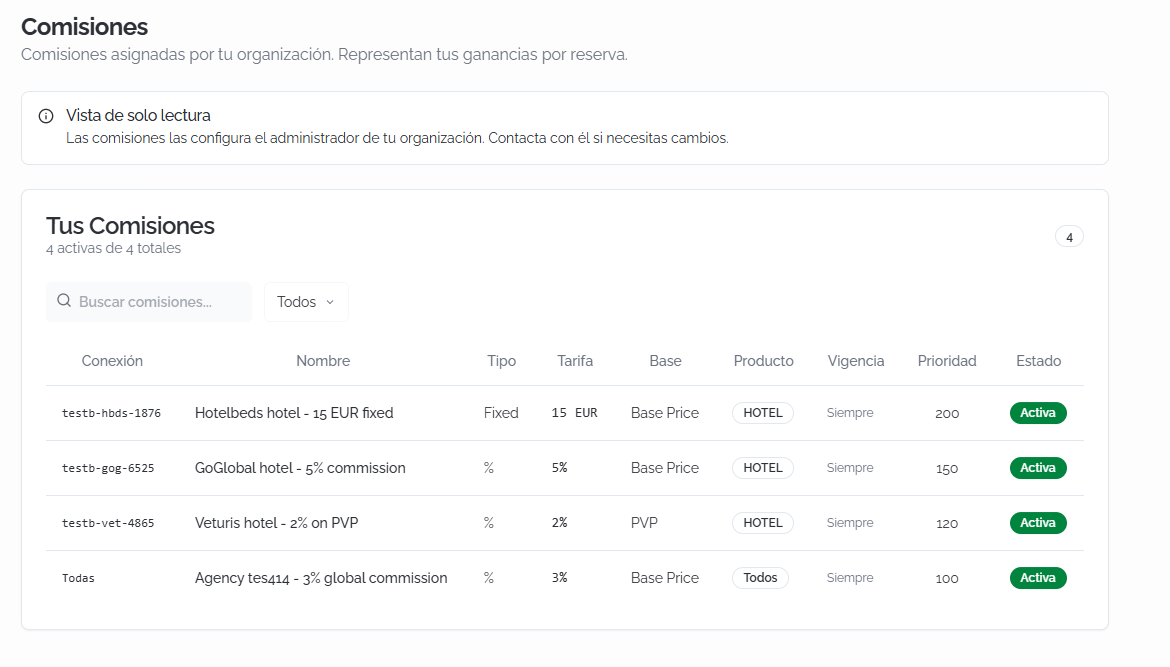
The Your Commissions section shows a summary with the number of active commissions out of the total (for example, 4 active out of 4 total).
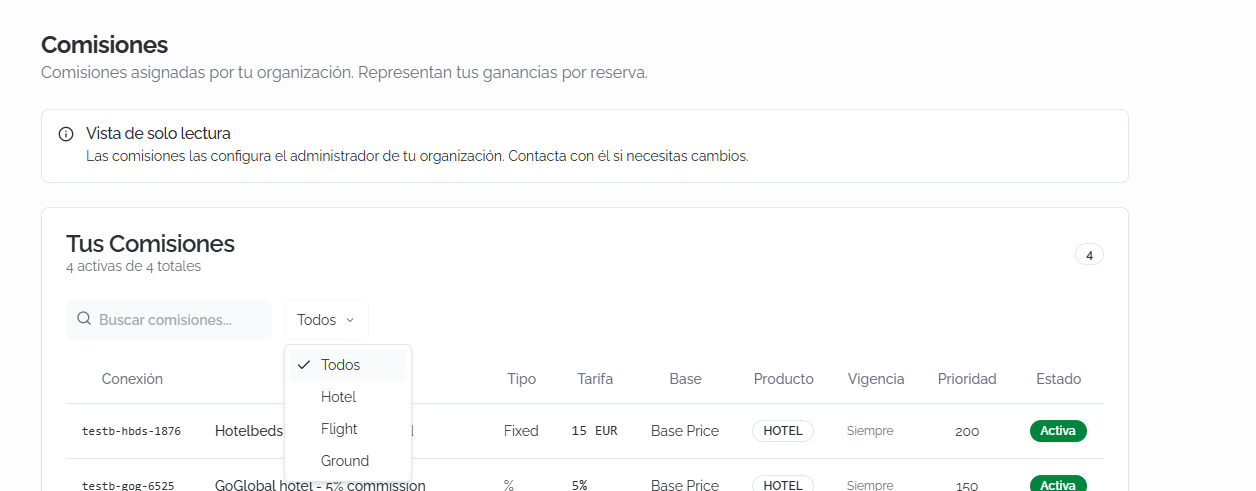
Search and filters
- Search commissions: free-text search field to locate commissions by name.
- Filter by product type: dropdown selector with the options: All, Hotel, Flight, and Ground.
Commissions table
Each commission is shown as a row with the following columns:
- Connection: the supplier connection the commission applies to (for example, testb-hbds-1876). If the commission is global, All is shown.
- Name: identifying name of the commission (for example, Hotelbeds hotel - 15 EUR fixed).
- Type: Fixed (fixed amount) or % (percentage).
- Rate: numeric value of the commission (for example, 15 EUR or 5%).
- Base: calculation base: Base Price (supplier's net price) or PVP (public sale price).
- Product: the type of product it applies to: HOTEL, FLIGHT, GROUND, or All.
- Validity: the commission's validity period (for example, Always).
- Priority: a numeric value that determines which commission takes precedence when several apply. The higher the number, the higher the priority.
- Status: Active (green label) or Inactive.
If no commissions are assigned, the following message is shown: "No commissions assigned to this agency yet."
💡 Tip
Use the product type filter to quickly review the commissions for a specific vertical (Hotel, Flight, or Ground) and check which rules apply to your bookings.
Managing commissions from Connect
Commissions are created and managed from the Connect panel by organization administrators. This section describes the management flow for users with access to Connect.
Accessing commission management
- Log in to Connect.
- In the left-hand side menu, under Settings, select Commissions.
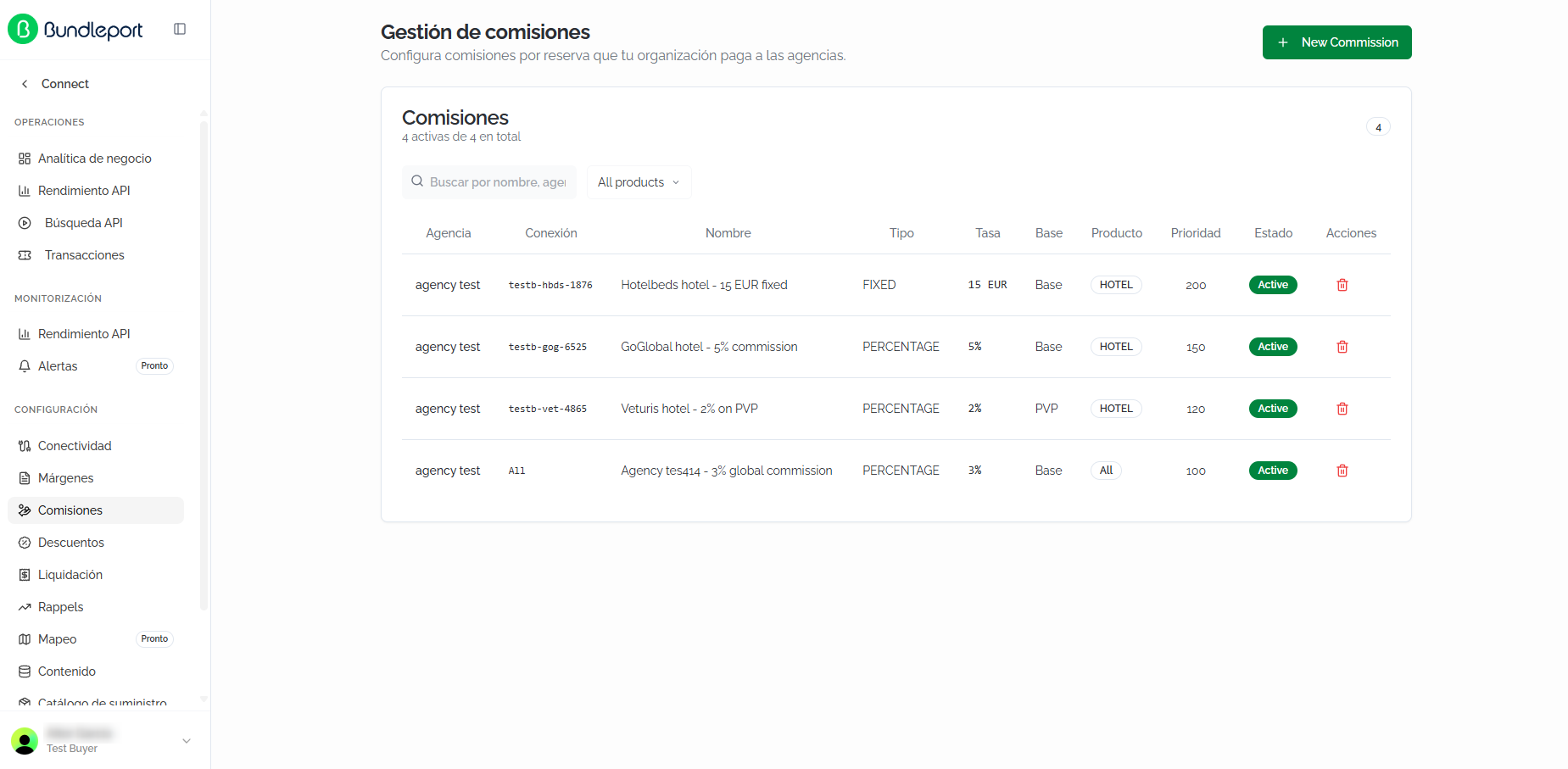
The Commission management page will display the list of all commissions configured for the organization's agencies.
Commissions list
The table shows the following columns:
- Agency: the agency the commission is assigned to.
- Connection: the supplier connection. If global, All is shown.
- Name: identifying name of the commission.
- Type: FIXED or PERCENTAGE.
- Rate: the commission value (fixed amount or percentage).
- Base: calculation base (Base or PVP).
- Product: product type (HOTEL, FLIGHT, GROUND, or All).
- Priority: numeric priority value.
- Status: Active or Inactive.
- Actions: delete the commission.
Creating a commission
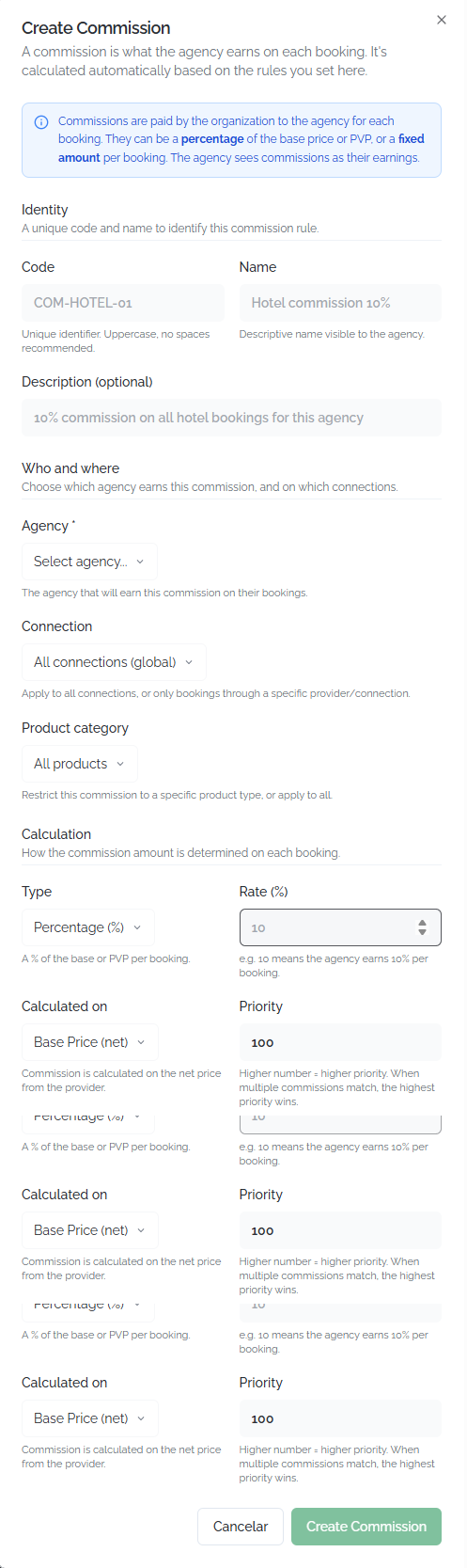
Click + New Commission to open the creation form. The available fields are:
Identity:
- Code: a unique code to identify the commission (for example, COM-HOTEL-01). Uppercase with no spaces is recommended.
- Name: a descriptive name visible to the agency (for example, Hotel commission 10%).
- Description (optional): free text to describe the purpose of the commission (for example, 10% commission on all hotel bookings for this agency).
Who and where:
- Agency: the agency that will earn this commission on its bookings.
- Connection: a specific supplier connection or All connections (global) to apply it to all.
- Product category: the product type (Hotel, Flight, Ground) or All products to apply it to all.
Calculation:
- Type: the commission type: Percentage (%) or Fixed amount.
- Rate: the numeric value of the commission (for example, 10 for 10%).
- Calculated on: the calculation base: Base Price (net) (supplier's net price) or PVP (sale price).
- Priority: a numeric value between 1 and 1000. When several commissions apply, the one with the highest priority takes precedence.
Click Create Commission to save, or Cancel to discard.
⚠️ Important
When several commissions apply to the same booking (by agency, connection, and product), only the one with the highest priority is applied. Make sure to assign consistent priorities: for example, a connection-specific commission should have higher priority than a global commission.
FAQs
What's the difference between commissions and margins?
Commissions are the earnings the supplier pays the agency for each booking (supplier → agency flow). Margins (markup) are the markups the agency applies on top of the supplier's price to set the final price for the client (agency → client flow)
Can I create or edit commissions from the Agency Panel?
No. The commissions view in Agency settings is read-only. Commissions are created and managed from Connect by the organization's administrator. Contact them if you need changes.
What's the difference between "Base Price" and "PVP" as a calculation base?
Base Price (net) calculates the commission on the supplier's net price. PVP calculates it on the public sale price (which includes the agency's markup). The same percentage applied to PVP generates a higher commission than to Base Price.
What happens if several commissions apply to the same booking?
Only the commission with the highest priority is applied. The others are ignored.
Can I have different commissions per supplier?
Yes. From Connect, the administrator can create commissions tied to specific connections. For example, 5% for GoGlobal and a fixed 15 EUR for Hotelbeds.
Do commissions apply to all product types?
It depends on how each commission is configured. It can apply to a specific product type (Hotel, Flight, Ground) or to all (All products).
Where can I see the commission applied to a specific booking?
Your agency's average commission is shown as a KPI on the Dashboard (the Average commission indicator)
What does the "Validity" column mean?
It indicates the period during which the commission is active. If it shows Always, the commission has no expiration date.