
Booking Tool: Hotels
Search, compare and book hotels
The Search Engine is the search and booking engine integrated into the Agency Panel. It connects to all your suppliers at once, allowing you to compare prices and conditions on a single screen and complete bookings without leaving the platform.
This article covers the complete hotel booking workflow, from searching to booking confirmation.
Access the Search Engine
- Log in to the.Bundleport platform
- From the left-hand menu, select Agency Panel.
- Select Search Engine.
The main screen displays tabs for each product type: Hotels, Flights, Ground Services, Dynamic Package, and Multi-destination.
Search for hotels
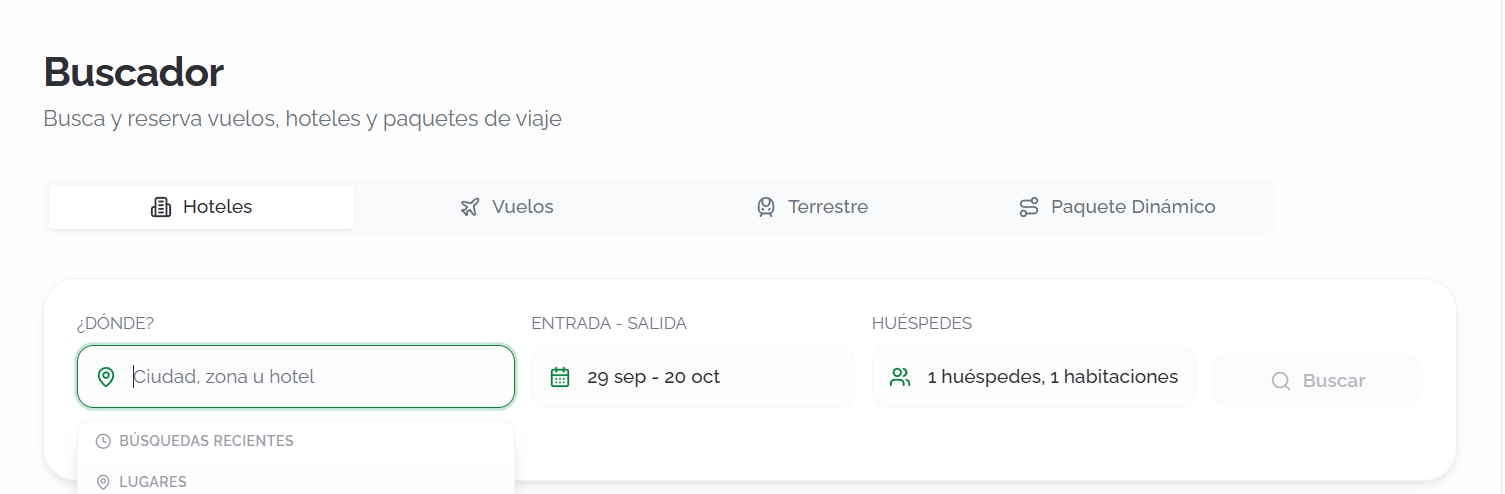
Select the Hotels tab and complete the following fields:
- Destination: Enter your search criteria and select an option from the autocomplete list. The search engine supports three destination types:
- Hotel: Search directly for a specific property by name.
- City: Search all available accommodations in a city or destination.
- Point of Interest (POI): Search for hotels near a point of interest, such as landmarks, train stations, airports, exhibition centers, beaches, or tourist attractions.
As you type, the autocomplete groups results by type (Hotel, City, or POI) to make selection easier.
- Check-in – Check-out: Select your check-in and check-out dates.
- Guests: Specify the number of guests and rooms.
- Suppliers: Click Suppliers to display the list of available suppliers, then select or clear the ones you want to include. You can use Deselect all to start from scratch, or Only this next to a supplier to limit the search exclusively to that supplier.
Click Search to run the search.
💡 Tip
If you already know which hotel you want to book, search for it directly by name to access its rates more quickly. If you haven't decided on a hotel yet, you can search by city or by a point of interest to find hotels in the area that best suits your needs.
ℹ️ Information
Below the search form, the Recent Searches section lets you repeat a previous search with a single click. Each card displays the destination, dates, number of guests, and rooms. Click Clear Recent Searches to remove your search history.
Search results
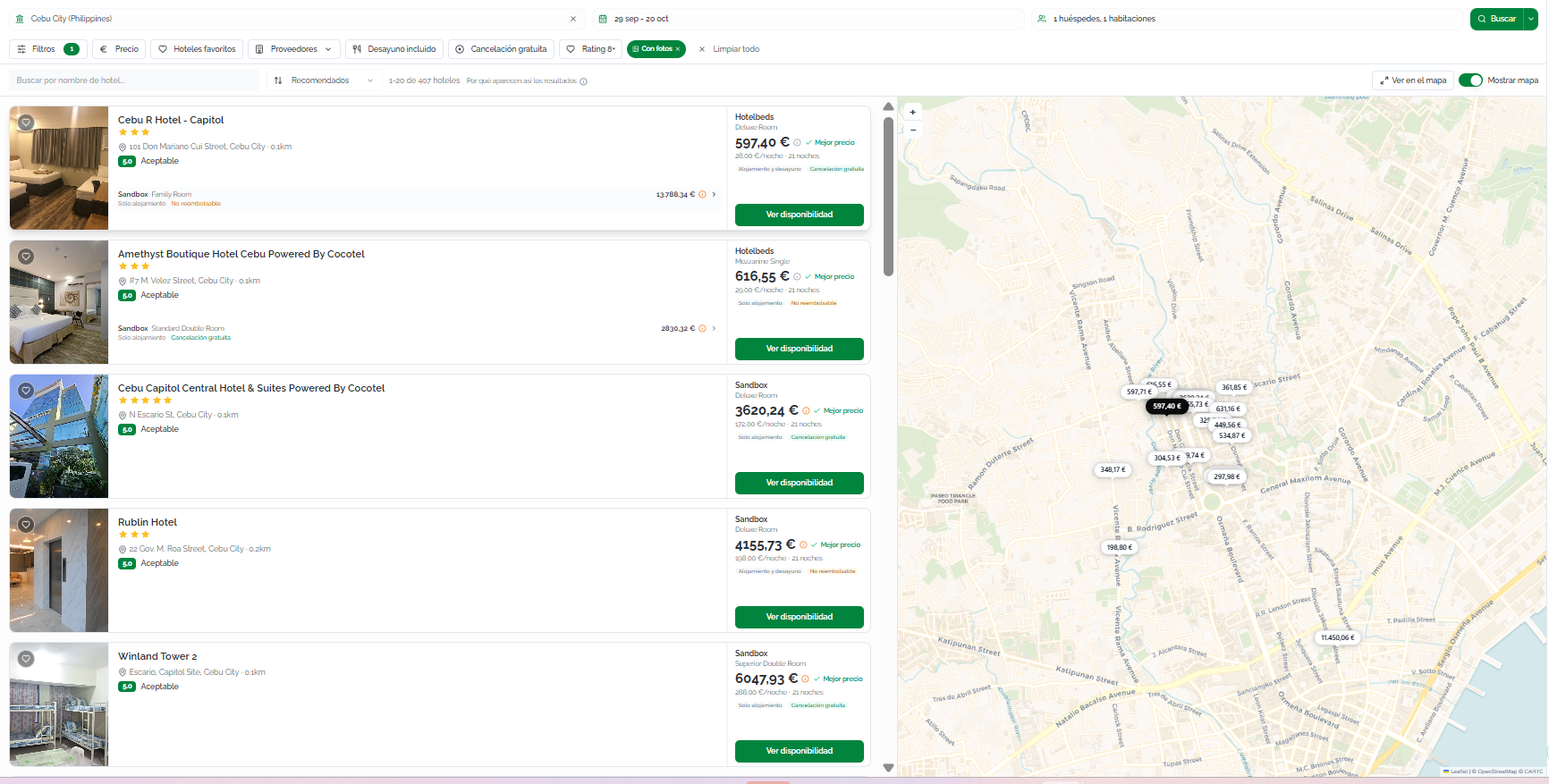
Bundleport checks availability across all selected providers and displays the results progressively, adding them as each provider responds.
The way results are displayed depends on the type of destination selected:
- Hotel: the available rates and room types for the selected hotel are displayed directly, eliminating the need to locate it within a list of results.
- City: a list of the hotels available in the selected city is displayed.
- Point of Interest (POI): the hotels available in the vicinity of the selected point of interest are displayed, sorted according to the selected sorting criteria.
Below the search bar, progress indicators display the status of each provider, along with the number of hotels found and the number of providers that have responded (for example, 81+ hotels · 4/6 providers).
The search bar remains visible at the top of the screen at all times, allowing you to modify any of the search criteria and perform a new search whenever needed.
⚠️Important
Search results are cached for 60 minutes. If you need the latest availability, click Search and refresh cache.
Hotel cards
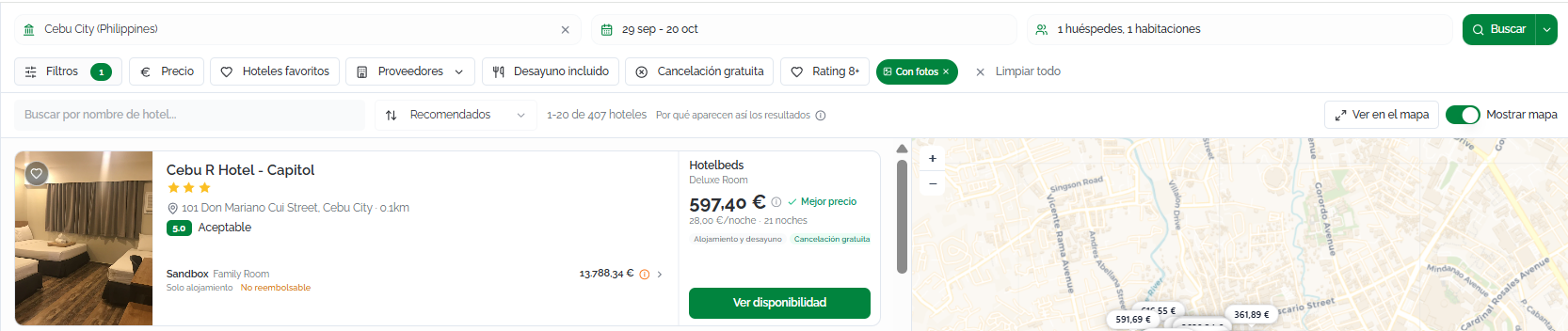
Each hotel is displayed as a card containing the following information:
- Hotel photo (if available).
- Hotel name, star rating, address, and distance from the city centre.
- Guest rating (for example, 8.6 Excellent) and number of reviews.
- Featured offer from the best provider: provider name, room type, board basis, total price and price per night, cancellation policy, and any additional charges.
- If other providers have offers for the same hotel, they are displayed as additional rows within the same card.
You can mark hotels as favourites by clicking the heart icon, and view all available rooms and rates by clicking View availability.
When searching by City or POI, the results are displayed as a list of hotels. When searching by Hotel, the results focus on the selected property, displaying its available rates directly.
Sort results
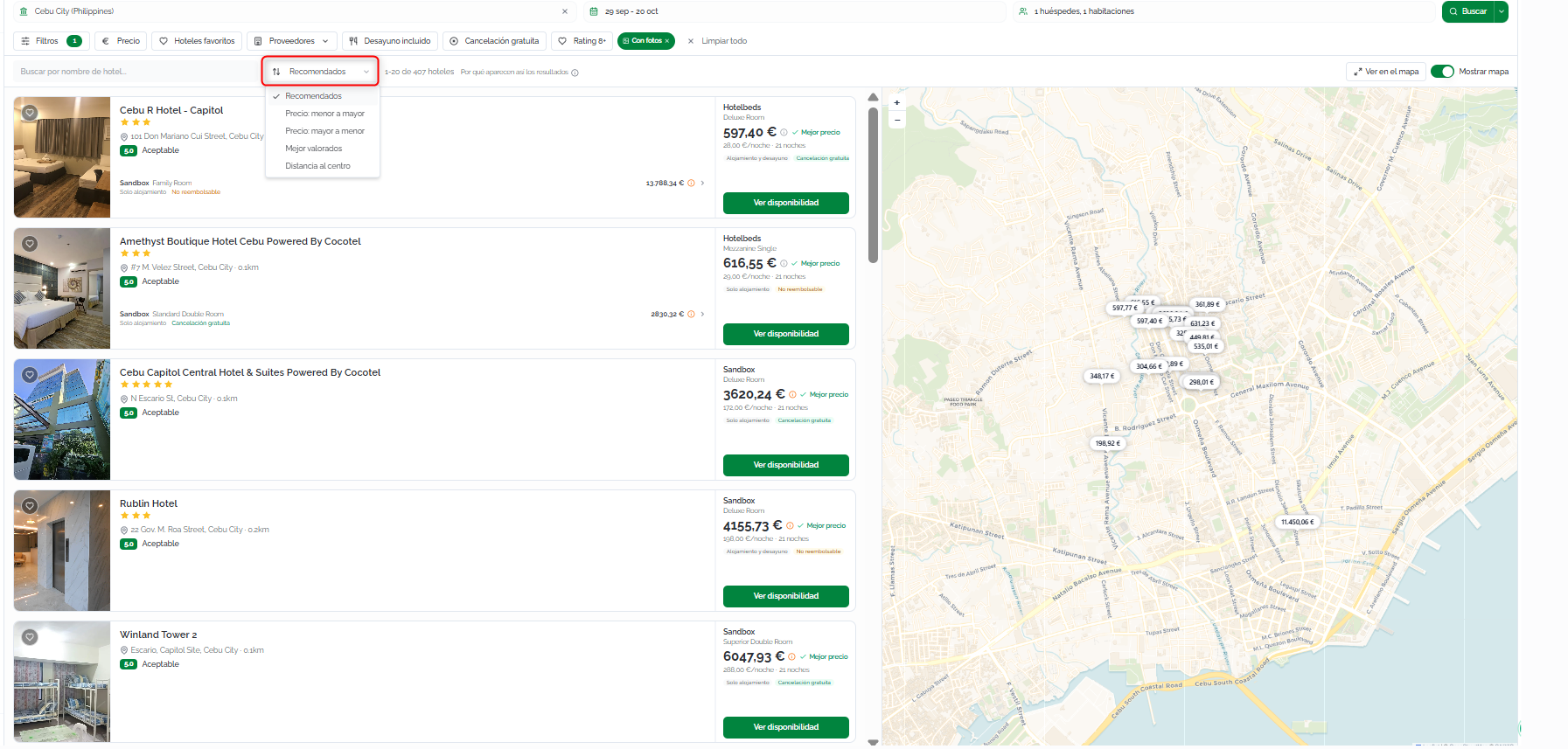
By default, results are sorted using the Recommended criterion. You can change the sorting order by clicking the sort selector. The following options are available:
- Recommended (default): calculated based on location, guest reviews, price, popularity, and favourites. The weighting of each factor can be adjusted in the Agency Settings.
- Price: Low to High: sorts results from the lowest-priced option.
- Price: High to Low: sorts results from the highest-priced option.
- Best Rated: sorts results by guest rating.
- Distance from City Centre: sorts results by proximity to the destination's city centre.
ℹ️Information Sorting options are available when the search returns a list of hotels (by City or POI). For direct Hotel searches, the results focus on the selected property.
Filters
When the search returns a list of hotels (by City or Point of Interest (POI)), you can use the filters to quickly find the accommodation that best matches your customer's needs.
If the search is performed directly by Hotel, the filters remain available to help you review the options for the selected property. However, some filters intended for locating hotels (such as Distance from City Centre or Hotel Name) may not be available or may have no effect.
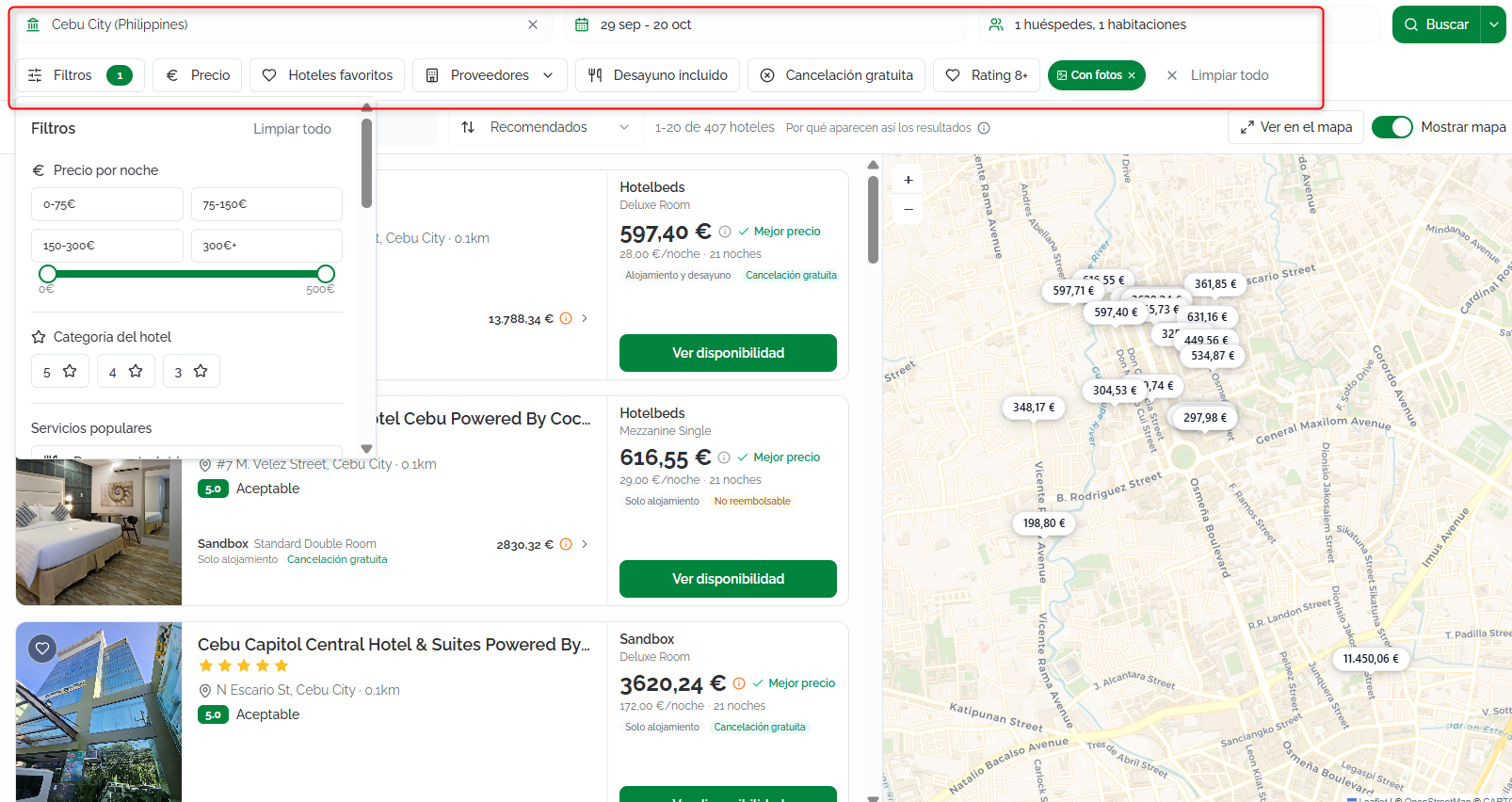
The horizontal filter bar provides the following options:
Filter panel
Click Filters to open the side panel containing all available filtering options:
- Price per Night: set a price range to narrow down the results.
- Hotel Category: filter by star rating.
- Popular Amenities: display only hotels offering features such as breakfast included, free cancellation, or proximity to the city centre.
- Facilities: filter by amenities such as Wi-Fi, swimming pool, gym, spa, parking, and more.
- Property Types: limit the results to hotels, resorts, apartments, aparthotels, villas, and other accommodation types.
- Guest Rating: display only hotels with a minimum guest rating.
- Distance from City Centre: filter results by their distance from the destination's city centre or the selected point of interest, where applicable.
- Content Quality: display only hotels with photos, descriptions, multiple providers, best sellers, or those marked as favourites.
Quick filters
The most commonly used filters are available directly above the search results:
- Price: limit the results to a specific price range.
- Favourite Hotels: display only hotels marked as favourites.
- Providers: display offers from a specific provider only.
- Breakfast Included: display only rates that include breakfast.
- Free Cancellation: display only rates with free cancellation.
- Rating 8+: limit the results to hotels with a guest rating of 8 or higher.
- With Photos: display only hotels with available images (enabled by default).
- Hotels: search for a specific hotel within the results list. This filter is especially useful when the initial search was performed by City or Point of Interest (POI).
ℹ️Information When searching by City or Point of Interest (POI), you can combine multiple filters (for example, Price, Hotel Category, and Guest Rating) to quickly narrow down the results and find the most suitable accommodation. Click Clear All to remove all applied filters.
Map view
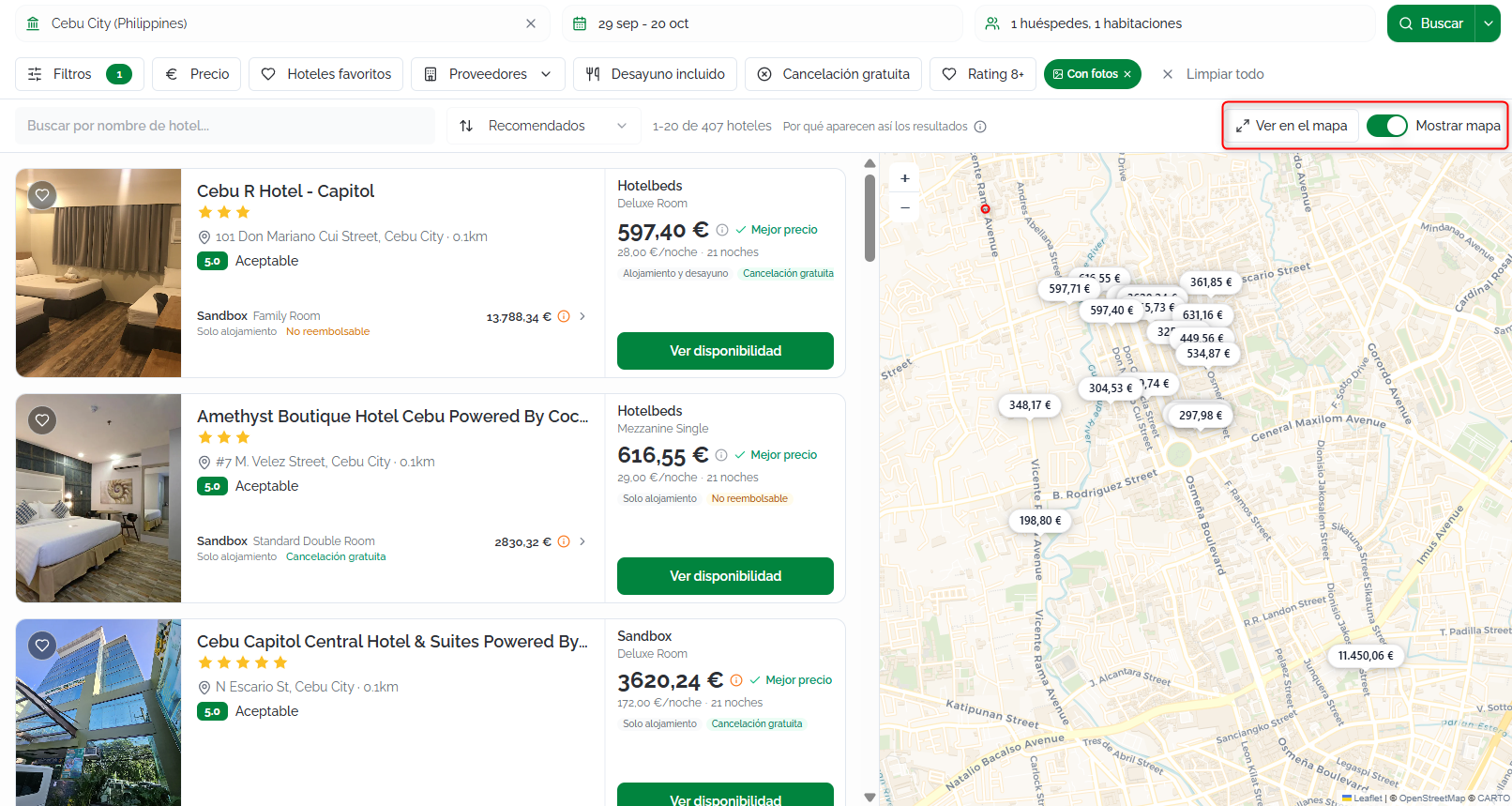
Click Show Map to display hotel locations on an interactive map.
The map content adapts to the type of search performed:
- Hotel: the map centres on the selected property, allowing you to view its exact location and surrounding area.
- City: all available hotels within the selected city are displayed, making it easy to compare their locations.
- Point of Interest (POI): in addition to the available hotels in the area, the map highlights the selected point of interest, allowing you to quickly identify the nearest accommodation.
Enter the name of a hotel, city, or point of interest in the search box. As you type, suggestions will be displayed to help you quickly find the destination or property you are looking for.
Once you select an option, the search is completed automatically and you can view hotel availability and rates.
You can switch between the list view and the map view at any time without losing your search criteria or applied filters.
The selected filters and sorting option remain active when switching views, so the map displays only the hotels that match the selected criteria.
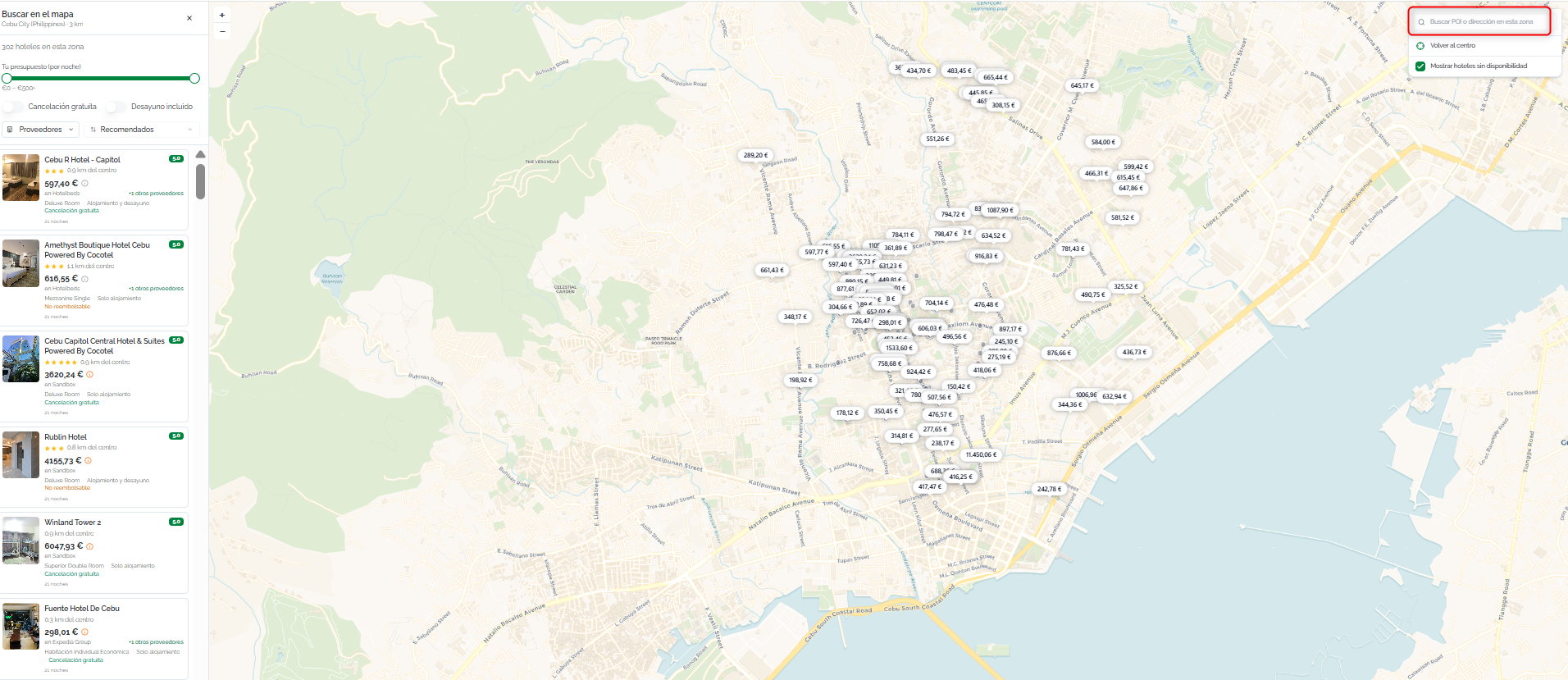
ℹ️Information The Map View is especially useful when searching for accommodation near a Point of Interest (POI), such as an airport, train station, exhibition centre, beach, or tourist attraction, as it allows you to visually compare the location of each hotel relative to the selected landmark.
Detalle del hotel
Para consultar toda la información de un establecimiento y sus tarifas disponibles, haz clic en Ver disponibilidad desde la tarjeta del hotel.
Puedes acceder al detalle del hotel independientemente de si la búsqueda se ha realizado por Hotel, Ciudad o Punto de interés (POI).
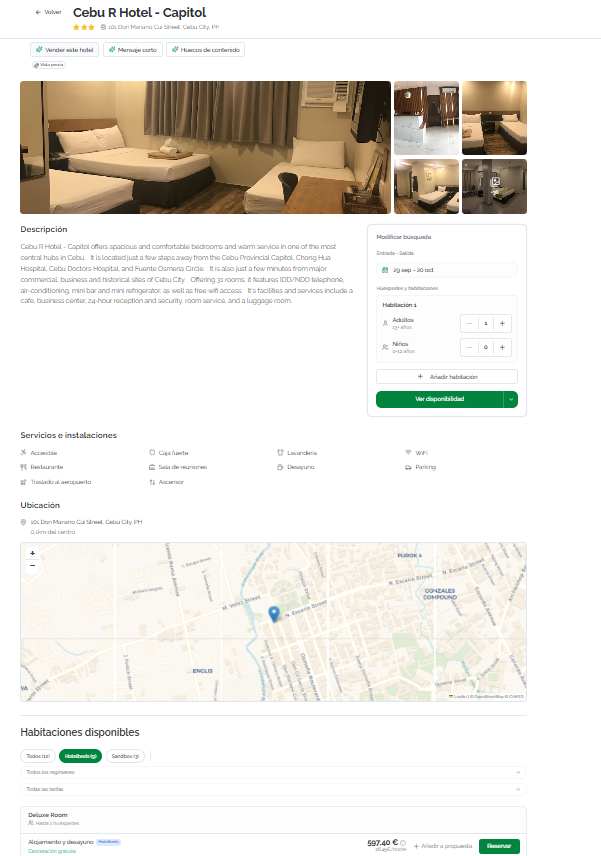
La página de detalle reúne toda la información necesaria para evaluar el alojamiento antes de realizar una reserva, incluyendo:
- Cabecera: nombre del hotel, categoría en estrellas y dirección completa.
- Galería de fotos: imágenes del establecimiento con navegación entre fotografías.
- Descripción: información general sobre el hotel, sus servicios y características.
- Servicios e instalaciones: listado de amenidades disponibles, como wifi, piscina, gimnasio, restaurante, spa, aparcamiento, accesibilidad, entre otros.
- Ubicación: dirección completa, distancia al centro del destino o al punto de interés utilizado en la búsqueda (cuando corresponda) y mapa interactivo.
- Habitaciones disponibles: todas las habitaciones y tarifas devueltas por los proveedores seleccionados.
Desde el panel Modificar búsqueda puedes cambiar cualquiera de los criterios de búsqueda, como el destino, las fechas, la ocupación o los proveedores, sin necesidad de volver al inicio del buscador.
ℹ️Información Si has llegado al hotel desde una búsqueda por Ciudad o Punto de interés (POI), el detalle conserva el contexto de la búsqueda para que puedas revisar fácilmente la ubicación del establecimiento antes de continuar con la reserva.
ℹ️Información Al acceder al detalle de un hotel, la plataforma realiza una segunda consulta específica sobre ese establecimiento a todos los proveedores seleccionados. Esto permite recuperar habitaciones y tarifas adicionales que algunos proveedores no incluyen en la búsqueda inicial para optimizar el tiempo de respuesta.
Seleccionar una habitación
En la sección Habitaciones disponibles encontrarás todas las opciones devueltas por cada proveedor. Puedes filtrar los resultados con los siguientes controles:
- Proveedor: pestañas en la parte superior con el nombre de cada proveedor y el número de opciones (por ejemplo, Todos (16), Veturis (15), Go Global (1)). Haz clic en una pestaña para ver solo las tarifas de ese proveedor.
- Todos los regímenes: filtra por tipo de régimen (solo alojamiento, alojamiento y desayuno, etc.).
- Todas las tarifas: filtra por tipo de tarifa.
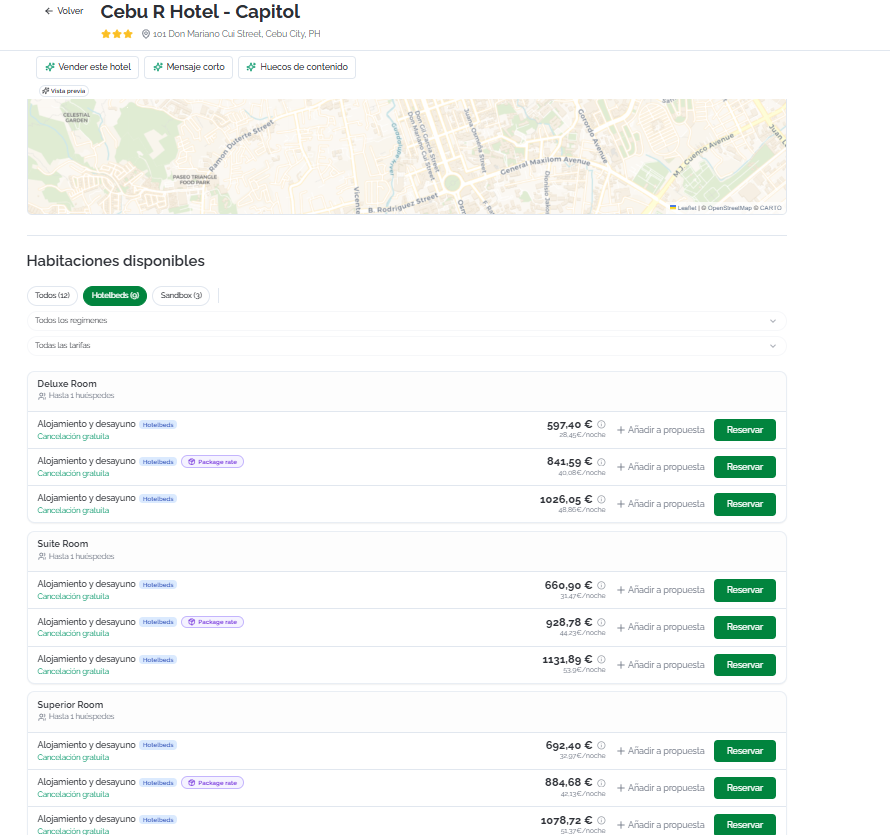
Cada opción de habitación muestra:
- Nombre del tipo de habitación (por ejemplo, Deluxe Double) y ocupación máxima.
- Régimen incluido.
- Proveedor.
- Política de cancelación: Cancelación gratuita o No reembolsable. Haz clic en el icono de información ℹ️ para ver el detalle de penalizaciones, desglose de precios y observaciones.
- Precio total y precio por noche.
- Añadir a propuesta: añade la opción a una propuesta existente o nueva sin reservar.
- Reservar: inicia el proceso de checkout.
Una vez seleccionada la opción que deseas confirmar, haz clic en Reservar.
Completar la reserva
En la página Completar reserva, rellena la siguiente información:
- Cliente asociado (opcional): vincula la reserva a un cliente existente para que quede registrada en su historial. Haz clic en Buscar cliente... para buscar por nombre o email. Si el cliente no existe, haz clic en Nuevo cliente para crearlo directamente.
- Información de huéspedes: introduce los datos de cada persona que se alojará, organizados por habitación:
- Tratamiento: selecciona el tratamiento (Sr., Sra., etc.).
- Nombre: nombre del huésped.
- Apellidos: apellidos del huésped.
- Persona de contacto: los datos de contacto se usarán para enviar confirmaciones y actualizaciones de la reserva.
- Usar mis datos de cuenta: activa esta opción para rellenar automáticamente los campos con los datos de tu cuenta. Si has seleccionado un cliente, los campos se completan con sus datos por defecto.
- Correo electrónico: dirección de email para las comunicaciones.
- Nombre completo: nombre y apellidos.
- Teléfono: número de contacto.
- Dirección: dirección postal.
- Peticiones especiales: campo de texto libre para incluir solicitudes al hotel (hora de llegada tardía, habitación en planta alta, cuna, etc.). Las peticiones especiales se trasladan al hotel pero no se pueden garantizar.
- Aceptación de términos: antes de confirmar, marca las dos casillas obligatorias:
- Aceptación de los términos y condiciones, la política de cancelación y las condiciones de pago.
- Aceptación de las condiciones específicas del proveedor aplicables a la reserva.
ℹ️Información
Si el cliente ya está registrado y tiene viajeros configurados, puedes autocompletar los campos de huéspedes seleccionando el viajero correspondiente.
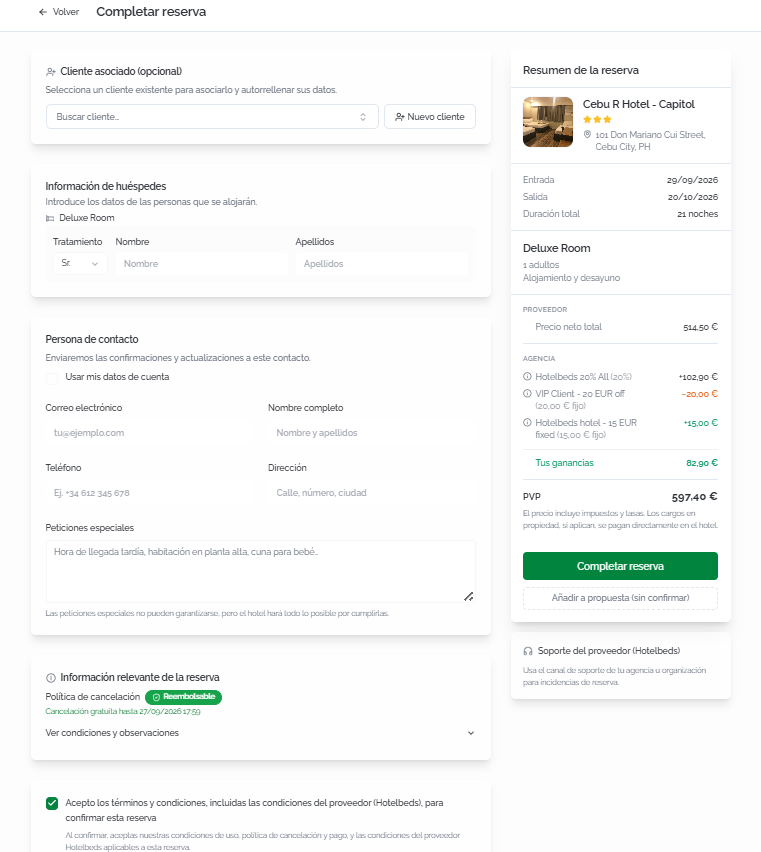
Antes de confirmar, verifica en el panel lateral Resumen de la reserva que toda la información es correcta:
- Hotel, dirección, fechas, duración, tipo de habitación, régimen y número de adultos.
- Desglose de precio: Base (neto), Markup (porcentaje e importe), Subtotal, Descuento (si aplica), Cargos en propiedad (a pagar en el hotel) y Pago ahora (importe final).
⚠️Importante
Información relevante de la reserva: revisa la política de cancelación y, si es necesario, despliega Ver condiciones, cargos y observaciones para consultar penalizaciones, cargos adicionales y observaciones del proveedor.
Haz clic en Completar reserva para confirmar.
Confirmación de la reserva
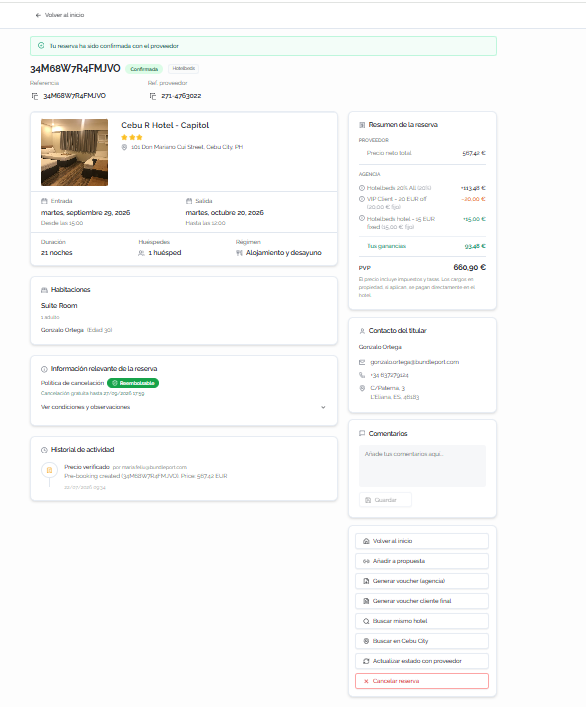
Al confirmar, se muestra una página con toda la información de la reserva organizada en las siguientes secciones:
Acciones disponibles desde el panel lateral:
- Volver al inicio: regresa a la página de inicio del buscador.
- Añadir a propuesta: añade la reserva a una propuesta nueva o existente.
- Generar voucher (agencia): genera el voucher para la agencia (descarga del archivo en formato PDF).
- Generar voucher cliente final: genera el voucher para el cliente final. Antes de descargar el voucher en formato PDF, se solicitará la validación de los datos de la agencia que se mostrarán en el documento. En caso de no ser correctos, es posible acceder directamente a los ajustes correspondientes desde el mismo modal.
- Buscar mismo hotel: lanza una nueva búsqueda para el mismo hotel.
- Buscar en [destino]: lanza una nueva búsqueda en el destino de la reserva.
- Cancelar reserva: inicia el proceso de cancelación.
FAQs
Why do I see more options when I open a hotel's details than on the results page?
Because when you open the details, the platform runs a second, hotel-specific search querying all suppliers. In the general destination search, some suppliers prioritize speed and don't return all available rates. Always check the details before deciding.
How long are results kept in cache?
Results are stored for 60 minutes. If you need updated data, click Search with fresh cache.
Can I book without linking a client?
Yes. Linking a client is optional, but recommended to keep an organized booking history.
Are special requests guaranteed?
No. They're passed on to the hotel, but fulfillment depends on the property's availability.
What are "Charges at the property"?
These are fees or charges (such as the tourist tax) that the guest pays directly at the hotel. They're not included in the amount charged online.
What is the markup in the price breakdown?
It's the commercial margin your agency applies on top of the supplier's net price. You can configure markup percentages in Agency settings
How do I customize the order of recommended results?
The "Recommended" criteria weighs location, reviews, price, popularity, and favorites. You can adjust the weight of each variable in Agency settings
What happens if the price changes between search and confirmation?
The platform verifies the price with the supplier before confirming the booking. If there's been a change, you'll be notified before completing the process so you can decide whether to continue.
Can I add an option to a proposal instead of booking directly?
Yes. Both when selecting a room and at checkout, you can click Add to proposal to include the option in an existing proposal or create a new one