
Booking Tool: Hotels
Search, compare, and book hotels
The Search Engine is the search and booking engine built into the Agency Panel. It connects to all your suppliers at once, lets you compare prices and conditions on a single screen, and complete bookings without leaving the platform.
This article covers the full flow for hotels: from search to booking confirmation.
Accessing the Search Engine
- Log in to the Bundleport platform.
- In the left-hand side menu, select Agency Panel.
- Select Search.
The main screen shows tabs for each product type: Hotels, Flights, Ground Transportation, Dynamic Package, and Multi-destination.
Searching for hotels
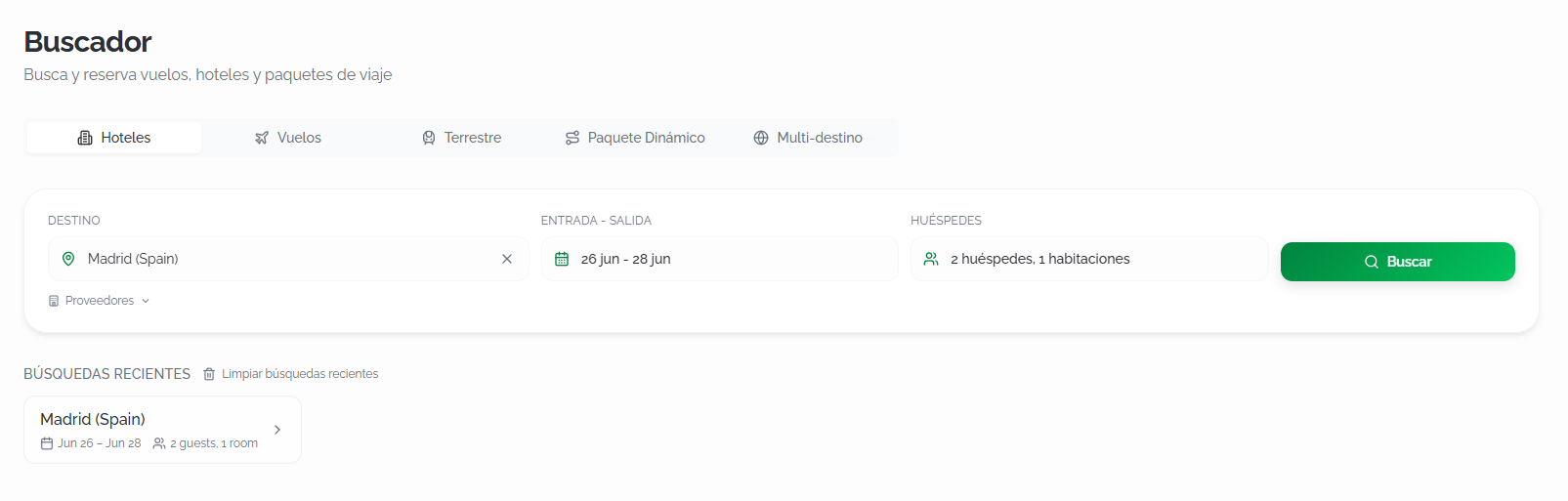
Select the Hotels tab and fill in the following fields:
- Destination: type the name of the city or destination and select an option from the autocomplete suggestions.
- Check-in - Check-out: select the check-in and check-out dates.
- Guests: set the number of guests and rooms.
- Suppliers: click Suppliers to expand the list of available suppliers and check or uncheck the ones you want to include. You can use Deselect all to start from scratch, or Only this one next to a supplier to restrict the search exclusively to them.
Click Search to run the query.
ℹ️Información
Below the form, you'll find Recent searches, which let you repeat a previous search with a single click. Each card shows the destination, dates, and number of guests and rooms. Click Clear recent searches to remove the history.
Search results
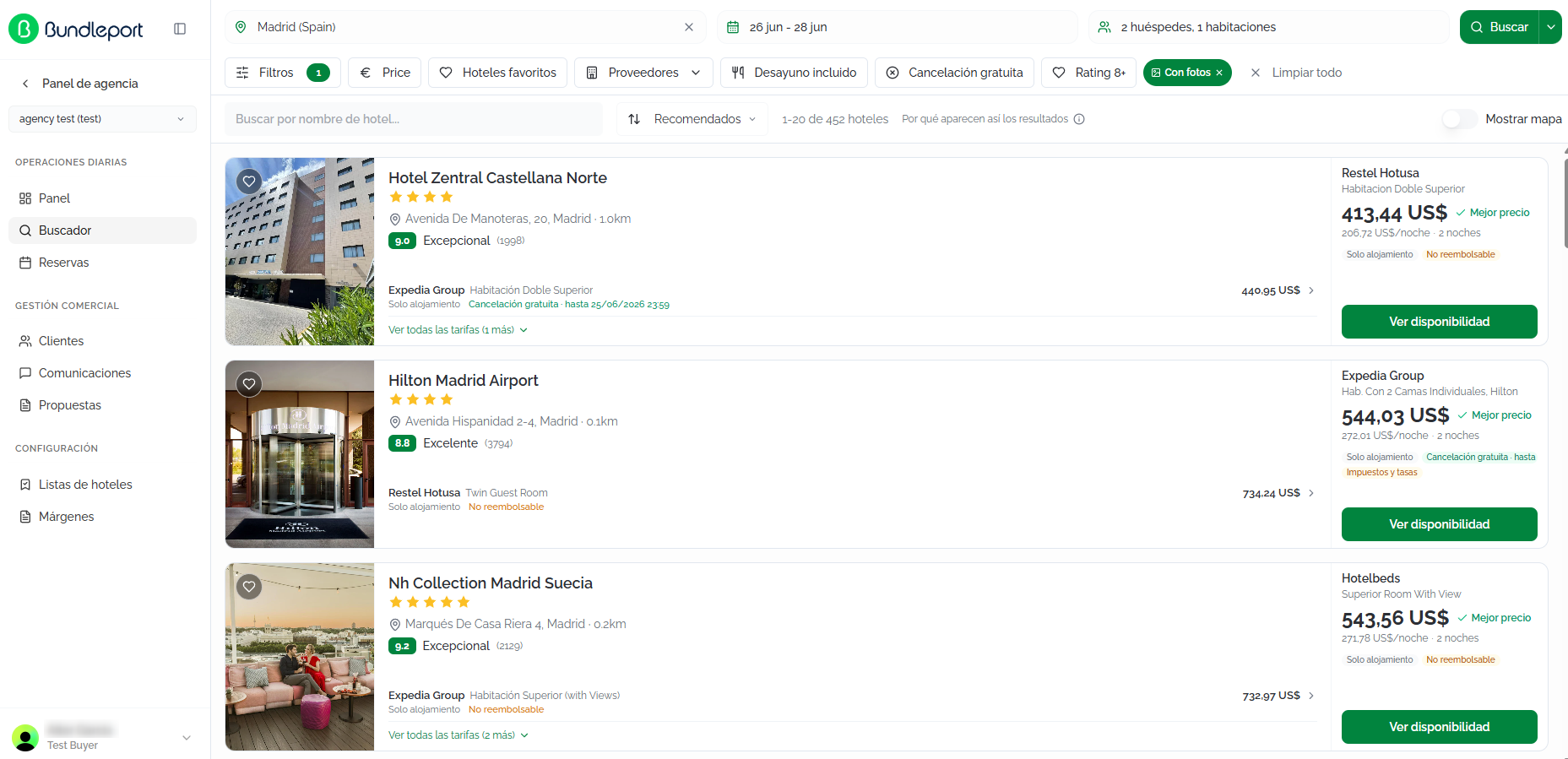
Bundleport queries availability across all selected suppliers and displays results progressively, adding them as each supplier responds.
Below the search bar, progress indicators show the status of each supplier, along with the number of hotels found and suppliers that have responded (for example, 81+ hotels · 4/6 suppliers).
The search bar remains visible at the top. You can modify any criteria and click Search to run a new query.
⚠️Important
Results are cached for 60 minutes; if you need updated data, click click Searching refreshing cache.
Hotel cards
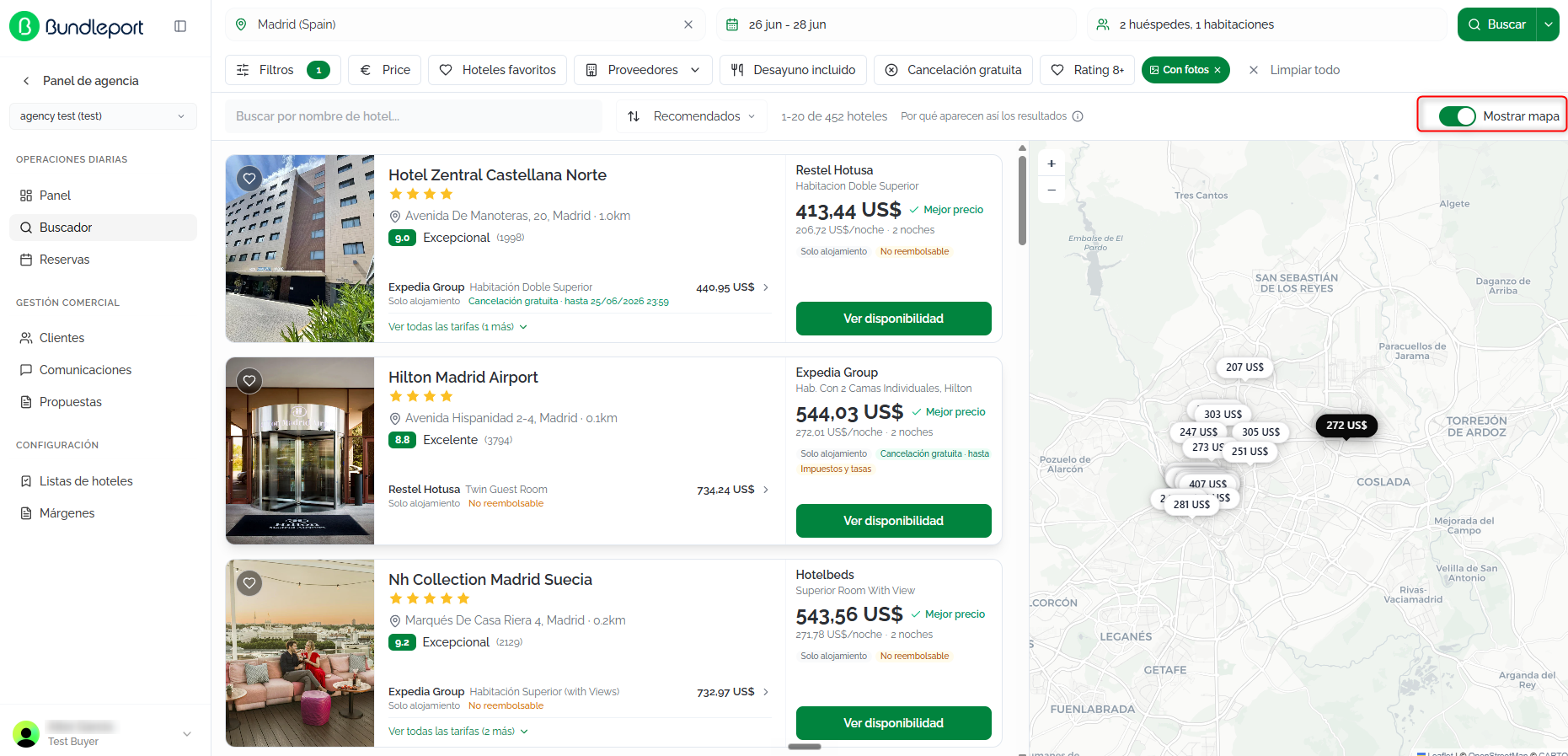
Each hotel is displayed as a card with the following information:
- Hotel photo (if available).
- Name, star category, address, and distance to the center.
- Guest rating (for example, 8.6 Excellent) and number of reviews.
- Featured offer from the best supplier: supplier name, room type, meal plan, total and per-night price, cancellation policy, and indication of additional costs.
- If other suppliers have offers for the same hotel, they appear as additional lines on the same card.
You can mark hotels as favorites by clicking the heart icon, and access all available rooms and rates by clicking View availability.

Sorting results
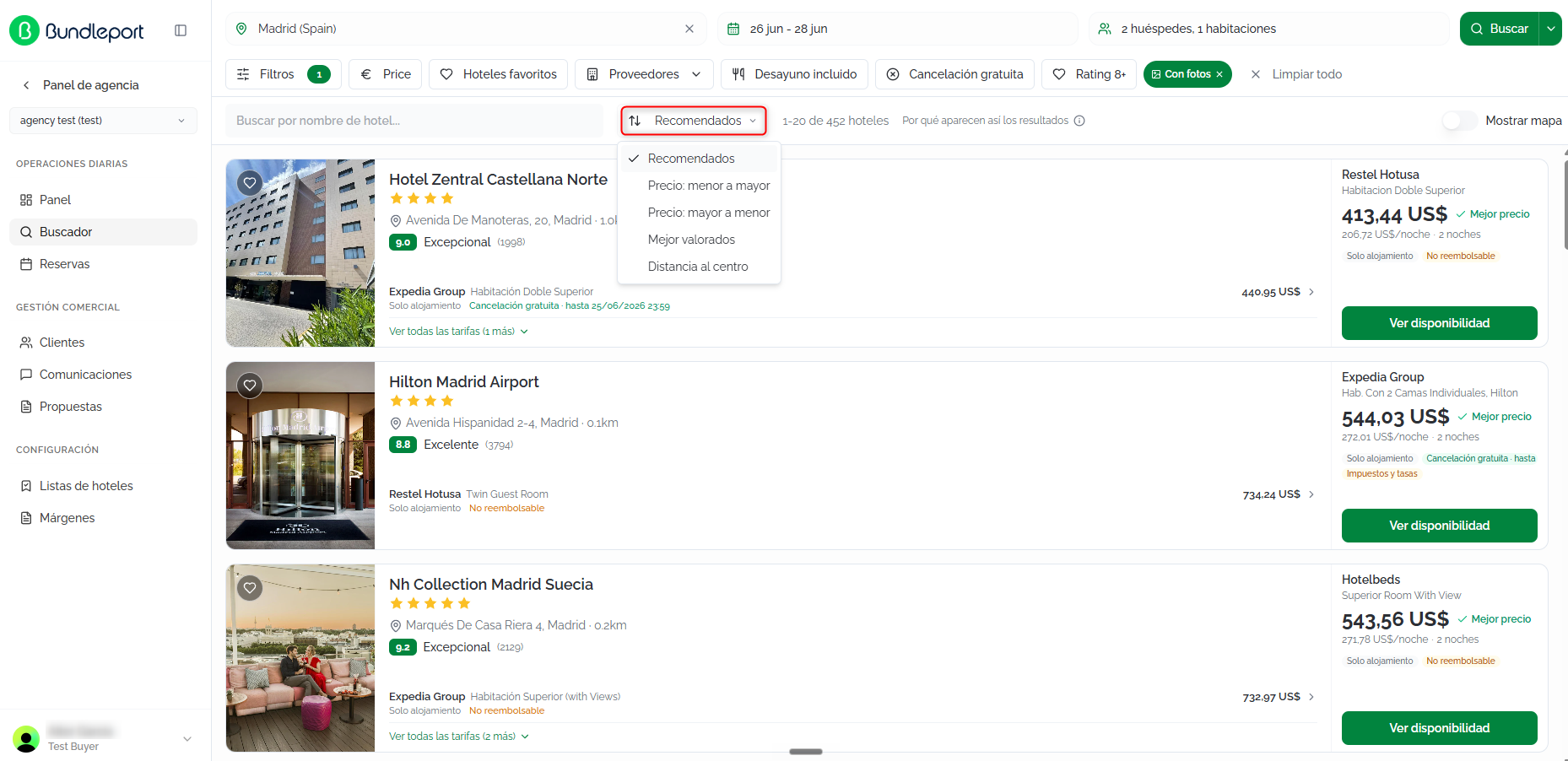
By default, results are sorted using the Recommended criteria. You can change this by clicking the sort selector. The available criteria are:
- Recommended (default): calculated based on location, reviews, price, popularity, and favorites. The weight of each variable can be adjusted in Agency settings.
- Price: low to high: sorts from the cheapest option.
- Price: high to low: sorts from the most expensive option.
- Top rated: sorts by guest rating.
- Distance to center: sorts by proximity to the destination's center.
Filters
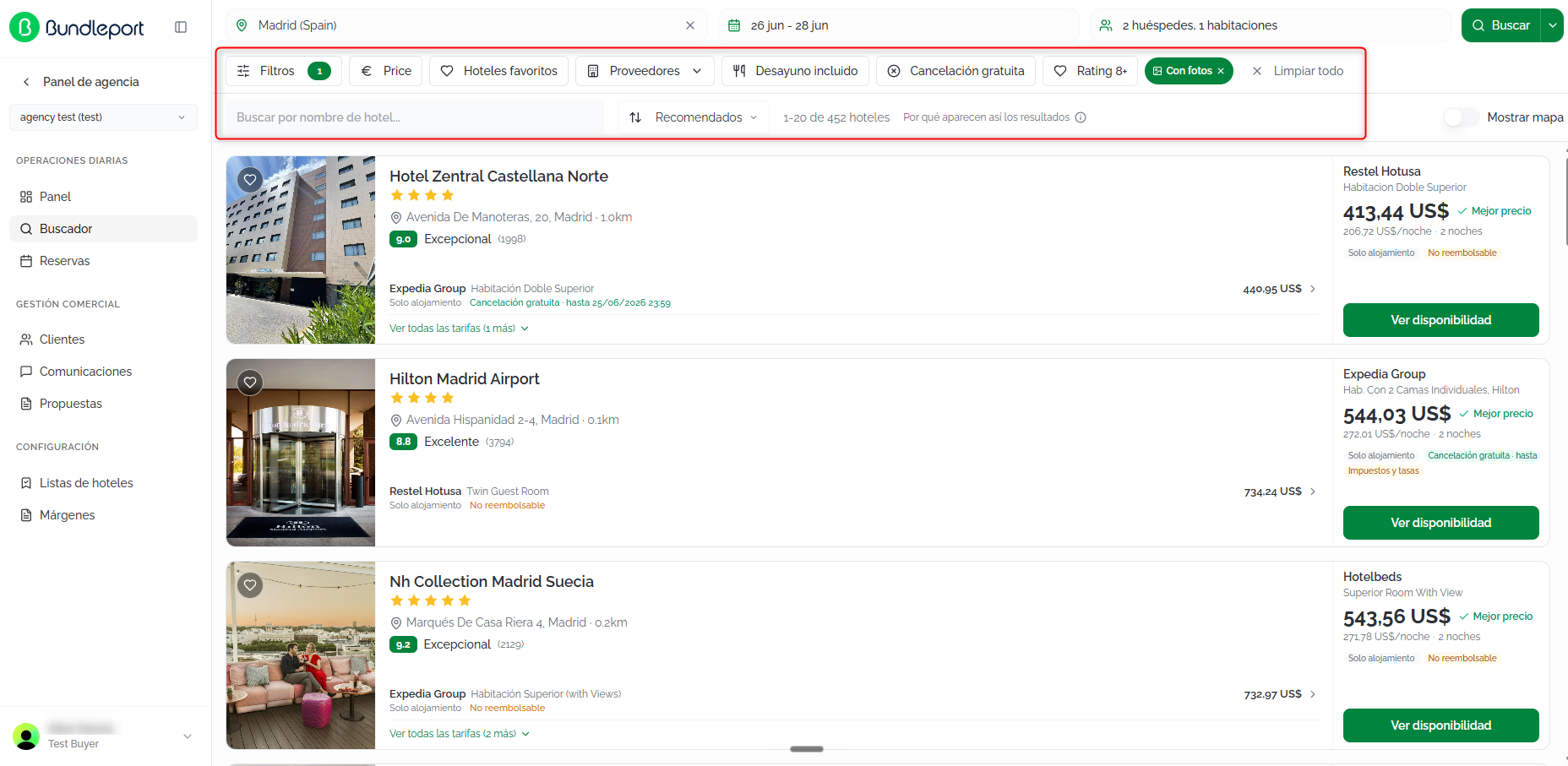
The horizontal filter bar offers the following options:
Filter panel (click Filters to open the side panel):
- Price per night: price range.
- Hotel category: number of stars.
- Popular amenities: breakfast, free cancellation, proximity to the center.
- Facilities: wifi, pool, gym, among others.
- Accommodation types: hotels, resorts, apartments, etc.
- Guest rating: minimum average score.
- Distance to center: distance radius.
- Content quality: with photos, with description, multiple suppliers, top sellers only, favorites only.
Quick filters (accessible directly from the bar):
- Price: price range.
- Favorite hotels: favorites only.
- Suppliers: specific supplier.
- Breakfast included: offers with breakfast only.
- Free cancellation: options with free cancellation only.
- Rating 8+: hotels with a rating of 8 or higher only.
- With photos: hotels with photos only (enabled by default).
- Hotels: filter by a specific hotel name.
ℹ️Information Click Clear all to remove all applied filters.
View on map
Click Show map to view the location of the hotels on an interactive map.
Hotel details
To view all available rooms and rates for a hotel, click View availability on its results card.
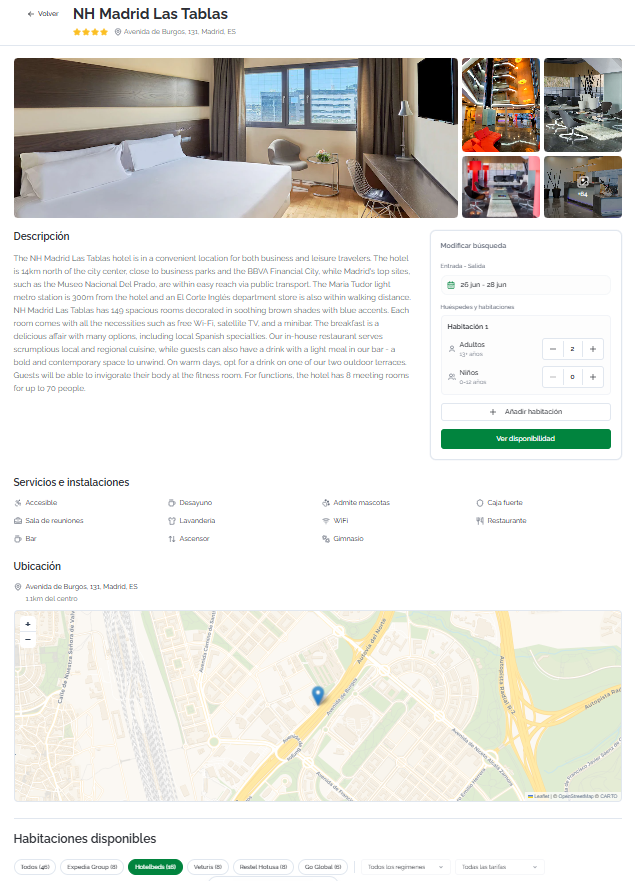
The details page includes:
- Header: hotel name, star category, and address.
- Photo gallery: hotel images with navigation.
- Description: descriptive text about the hotel and its services.
- Services and facilities: list of amenities (accessibility, parking, wifi, pool, gym, restaurant, spa, etc.).
- Location: full address, distance to the center, and interactive map.
- Available rooms: all rooms and rates returned by each supplier.
You can modify the search criteria for that hotel from the Modify search panel.
💡Tip
When you open a hotel's details, more options may appear than were shown on the results page. This is because the platform runs a second, hotel-specific search, querying all connected suppliers. In the initial destination search, some suppliers prioritize speed and don't return all available rates. Because of this, we recommend always checking the hotel details to make sure you see every option.
Selecting a room
In the Available rooms section, you'll find all the options returned by each supplier. You can filter the results using the following controls:
- Supplier: tabs at the top with the name of each supplier and the number of options (for example, All (16), Veturis (15), Go Global (1)). Click a tab to view only that supplier's rates.
- All meal plans: filter by meal plan type (room only, bed and breakfast, etc.).
- All rates: filter by rate type.
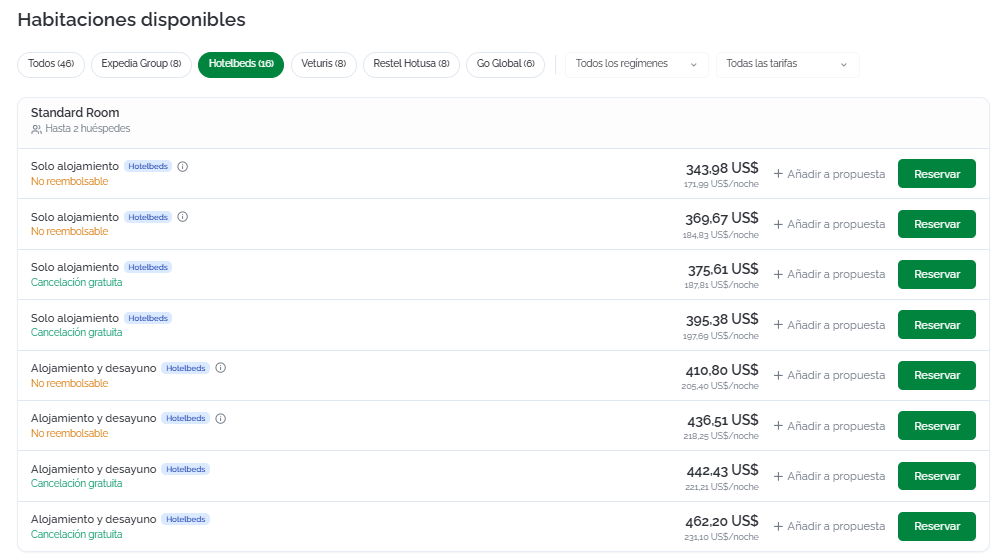
Each room option shows:
- Room type name (for example, Deluxe Double) and maximum occupancy.
- Meal plan included.
- Supplier.
- Cancellation policy: Free cancellation or Non-refundable. Click the information icon ℹ️ to view penalty details, price breakdown, and remarks.
- Total price and price per night.
- Add to proposal: adds the option to an existing or new proposal without booking.
- Book: starts the checkout process.
Once you've selected the option you want to confirm, click Book.
Completing the booking
On the Complete booking page, fill in the following information:
- Associated client (optional): link the booking to an existing client so it's recorded in their history. Click Search client... to search by name or email. If the client doesn't exist, click New client to create one directly.
- Guest information: enter the details of each person staying, organized by room:
- Title: select the title (Mr., Mrs., etc.).
- First name: guest's first name.
- Last name: guest's last name.
- Contact person: contact details will be used to send booking confirmations and updates.
- Use my account details: enable this option to automatically fill in the fields with your account details. If you've selected a client, the fields are filled in with their details by default.
- Email: email address for communications.
- Full name: first and last name.
- Phone: contact number.
- Address: postal address.
- Special requests: free-text field for requests to the hotel (late check-in, high floor room, crib, etc.). Special requests are passed on to the hotel but cannot be guaranteed.
- Acceptance of terms: before confirming, check the two required boxes:
- Acceptance of the terms and conditions, cancellation policy, and payment conditions.
- Acceptance of the supplier-specific conditions applicable to the booking.
ℹ️Information
If the client is already registered and has travelers set up, you can auto-fill the guest fields by selecting the corresponding traveler.
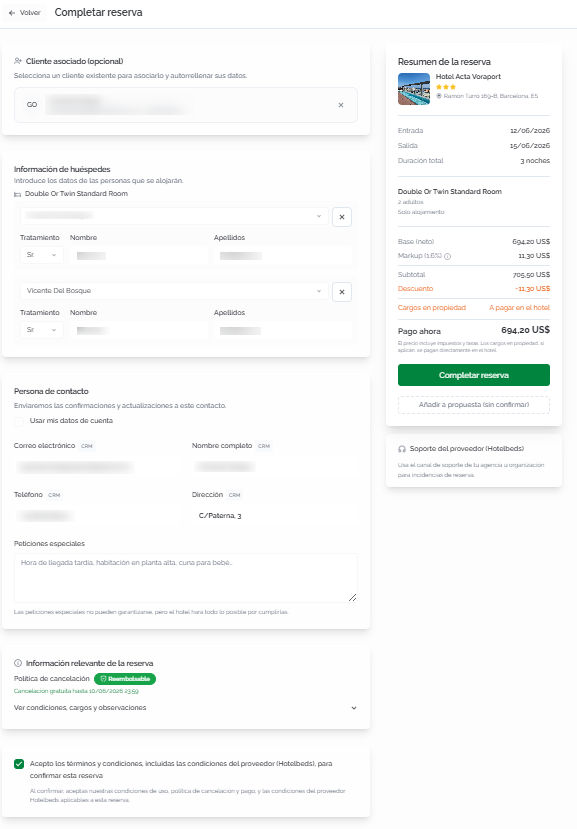
Before confirming, check the Booking summary side panel to make sure all the information is correct:
- Hotel, address, dates, length of stay, room type, meal plan, and number of adults.
- Price breakdown: Base (net), Markup (percentage and amount), Subtotal, Discount (if applicable), Charges at the property (payable at the hotel), and Pay now (final amount).
⚠️Important
Relevant booking information: review the cancellation policy and, if needed, expand View conditions, charges, and remarks to check penalties, additional charges, and supplier remarks.
Click Complete booking to confirm.
Booking confirmation
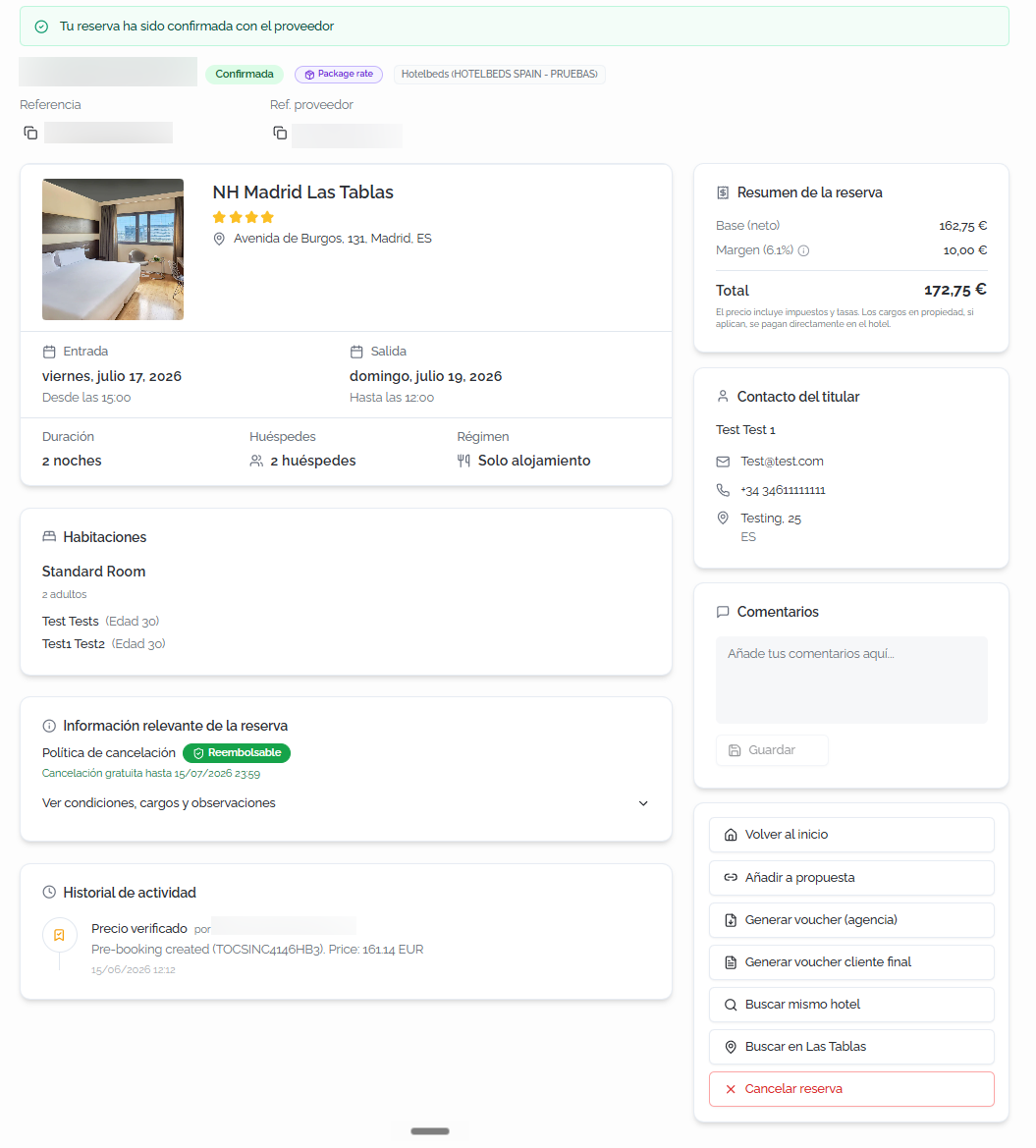
Once confirmed, a page is displayed with all the booking information organized into the following sections:
- Header: confirmation banner, Bundleport reference, status, supplier, and supplier reference.
- Hotel details: name, category, address, check-in and check-out dates, length of stay, number of guests, and meal plan.
- Rooms: room type, occupants, and each guest's name and age.
- Booking summary: financial breakdown (net base, markup, subtotal, discount, total) and indication of included taxes and charges at the property.
- Holder contact details: name, email, phone, and nationality.
- Comments: field to add internal comments about the booking.
- Relevant information: cancellation policy and an expandable section with conditions, charges, and remarks.
- Activity history: chronological log of events (price verification, supplier confirmation) with user, description, and date.
Available actions from the side panel:
- Back to home: returns to the search engine's home page.
- Add to proposal: adds the booking to a new or existing proposal.
- Generate voucher (agency): generates the voucher for the agency (downloads the file as a PDF).
- Generate voucher for end client: generates the voucher for the end client. Before downloading the voucher as a PDF, you'll be asked to validate the agency details that will appear on the document. If they're incorrect, you can access the relevant settings directly from the same modal.
- Search same hotel: runs a new search for the same hotel.
- Search in [destination]: runs a new search in the booking's destination.
- Cancel booking: starts the cancellation process.
FAQs
Why do I see more options when I open a hotel's details than on the results page?
Because when you open the details, the platform runs a second, hotel-specific search querying all suppliers. In the general destination search, some suppliers prioritize speed and don't return all available rates. Always check the details before deciding.
How long are results kept in cache?
Results are stored for 60 minutes. If you need updated data, click Search with fresh cache.
Can I book without linking a client?
Yes. Linking a client is optional, but recommended to keep an organized booking history.
Are special requests guaranteed?
No. They're passed on to the hotel, but fulfillment depends on the property's availability.
What are "Charges at the property"?
These are fees or charges (such as the tourist tax) that the guest pays directly at the hotel. They're not included in the amount charged online.
What is the markup in the price breakdown?
It's the commercial margin your agency applies on top of the supplier's net price. You can configure markup percentages in Agency settings
How do I customize the order of recommended results?
The "Recommended" criteria weighs location, reviews, price, popularity, and favorites. You can adjust the weight of each variable in Agency settings
What happens if the price changes between search and confirmation?
The platform verifies the price with the supplier before confirming the booking. If there's been a change, you'll be notified before completing the process so you can decide whether to continue.
Can I add an option to a proposal instead of booking directly?
Yes. Both when selecting a room and at checkout, you can click Add to proposal to include the option in an existing proposal or create a new one